

Prerequisites
- Your school account teaches at least one Microsoft Education class.
- Your students are members of that class.
- A tenant administrator is available if Microsoft requests organizational consent.
Sign in as a teacher
Go to the Type the Word login page. Under “Get started as…”, choose “Teacher”.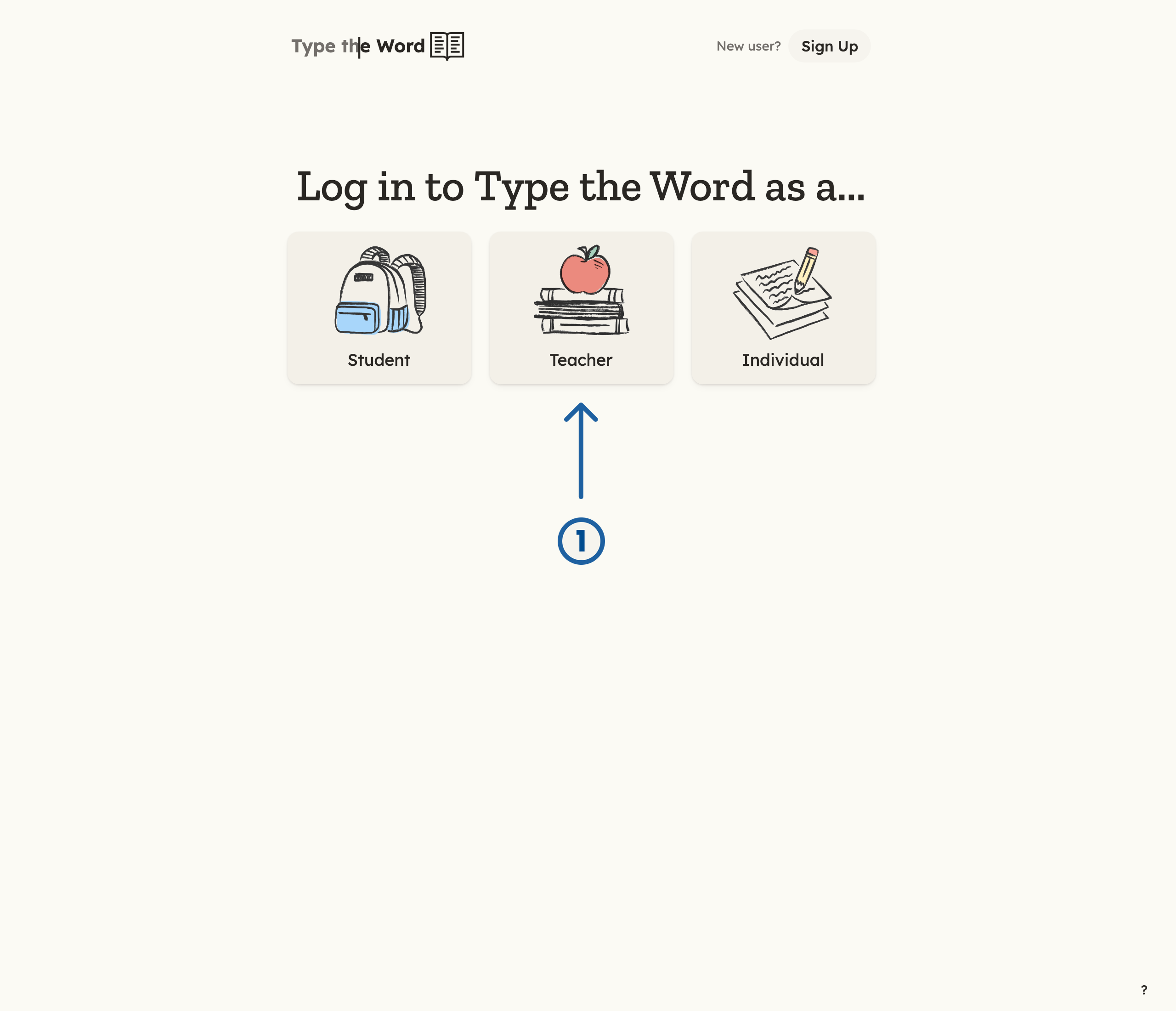
1 is "Teacher" on the login page.
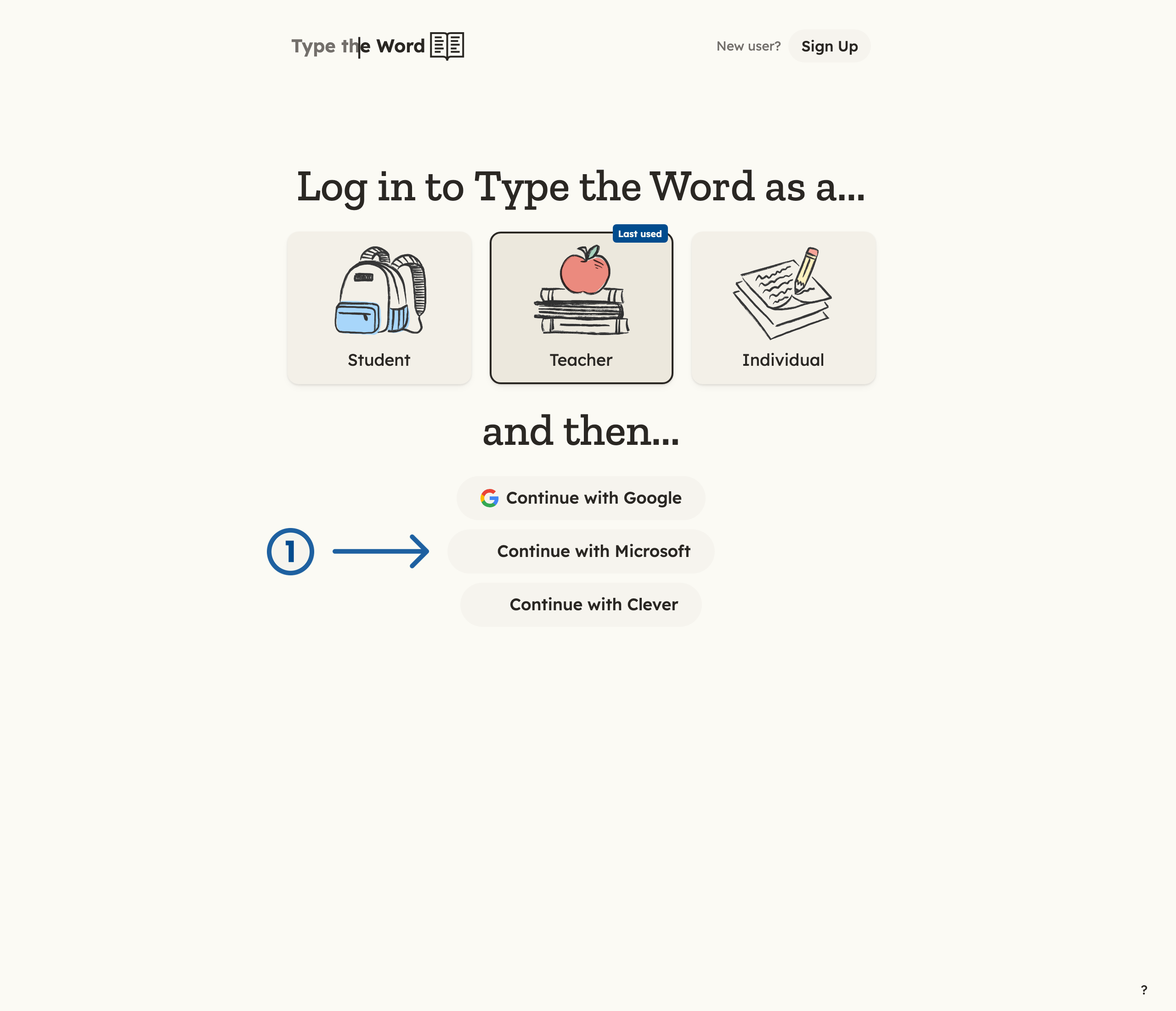
1 is "Continue with Microsoft" on Teacher login.
Verify your classes
After you sign in, Type the Word opens a class. In the sidebar, open the “Classroom” dropdown and confirm the Microsoft Education classes you teach are listed. Select the class you want to check.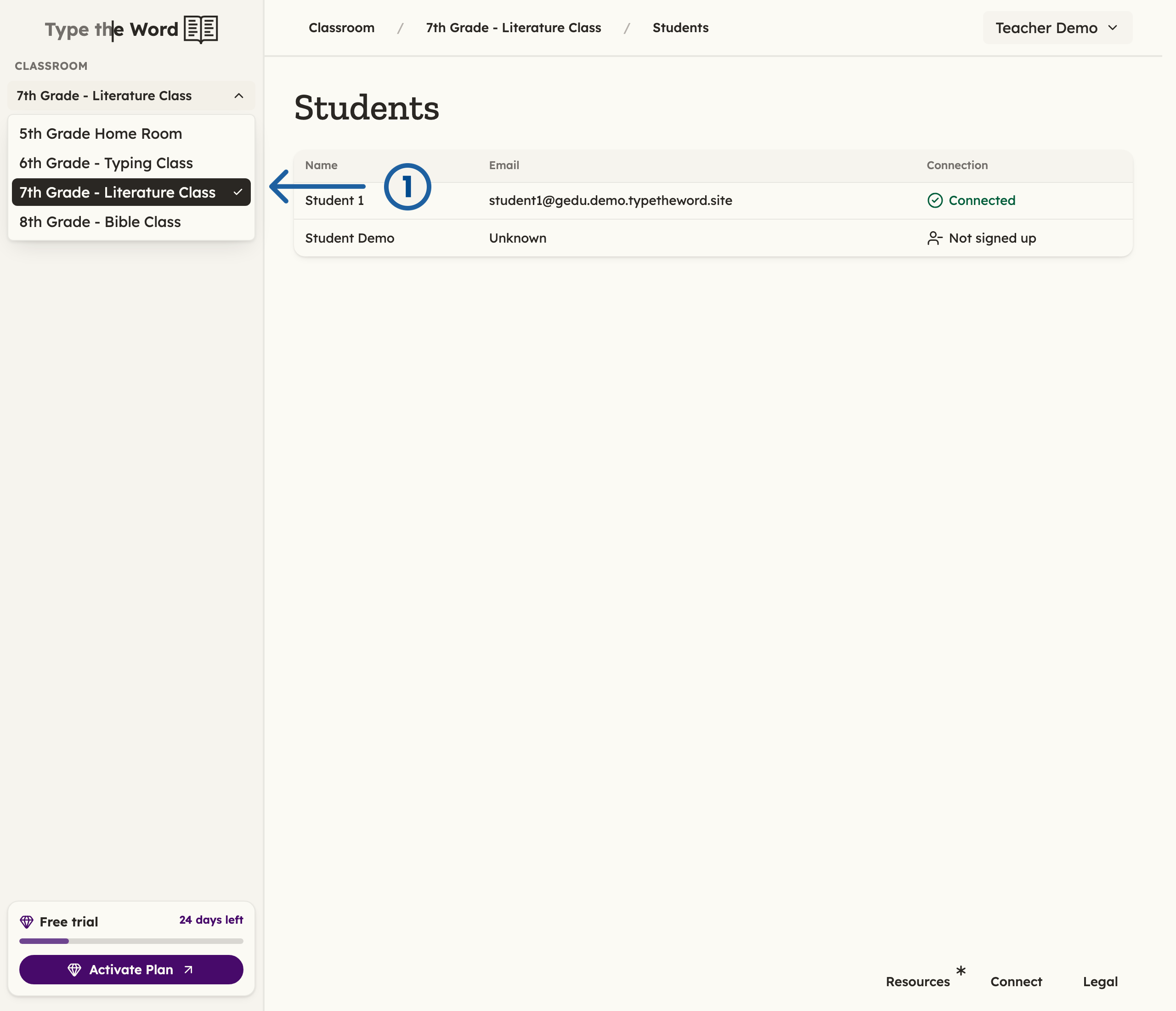
1 is "7th Grade - Literature Class" in the Classroom dropdown. Your class names will match Microsoft Teams.
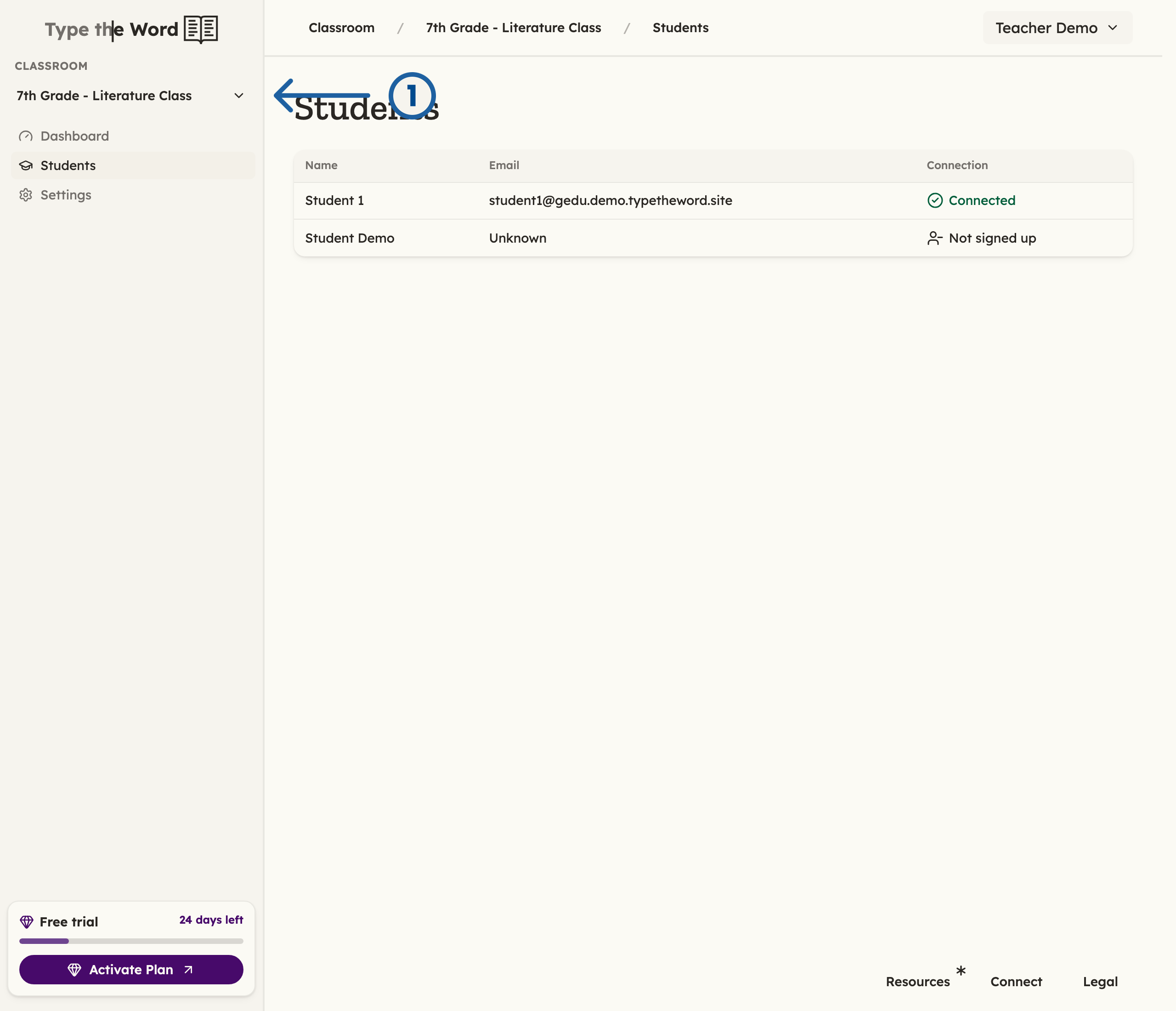
1 is the "Students" heading. 2 is "Connected" for a student on the roster.
Setup complete
Teacher onboarding is complete when you can open a class and see its expected student roster. Continue by sharing the student setup guide.Troubleshooting
- No classes appear: Confirm you are a teacher in the Microsoft Education class, not only a Teams channel member.
- Administrator approval required: Complete Microsoft administrator setup, then retry.
- Roster is out of date: Refresh the roster after correcting membership in Microsoft.
- Wrong account: Start over and choose the school account for the same tenant as the class.