

Use the PassageSelector
The PassageSelector appears at the top of “Home” and at the top of every passage page. Use it to choose a translation, then type or select a book and chapter.- Choose a translation.
- Type or select a book and chapter in the passage field.
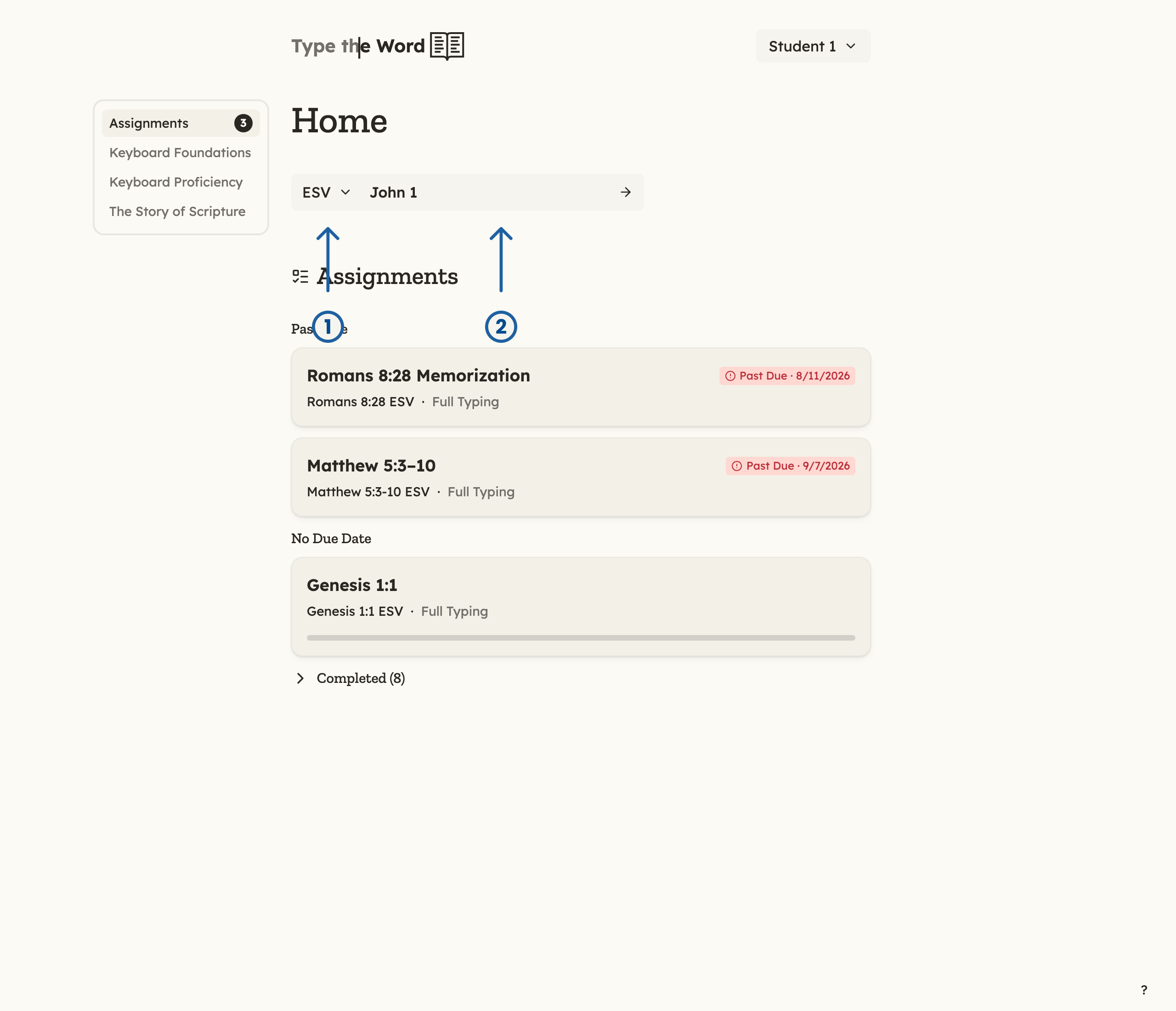
1 is "ESV" (translation). 2 is the passage field, currently set to "John 1".
Open a chapter from History
On the “Overview” tab in “History”, expand a book to see its chapter grid. Select a chapter box to open that chapter and keep typing. Go to See your progress for details on how the “History” page works.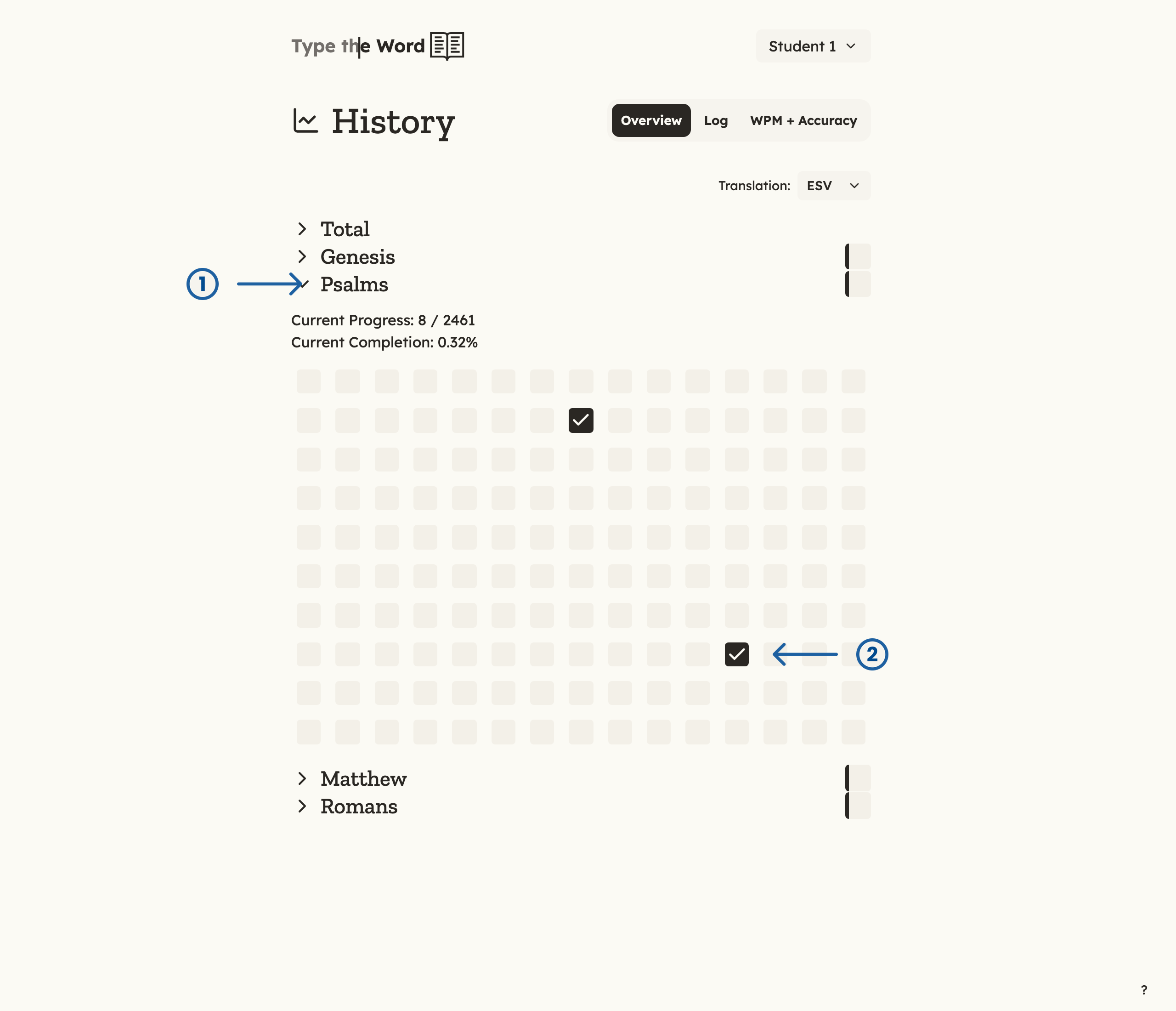
1 is the "Psalms" section. 2 is a completed chapter in the grid.