

Open Home
After you sign in, Type the Word takes you to “Home”. If you are somewhere else in the app, you can get back to “Home” by:- Click the “Type the Word” logo in the header, or
- Click “Assignments” in the homepage sidebar.
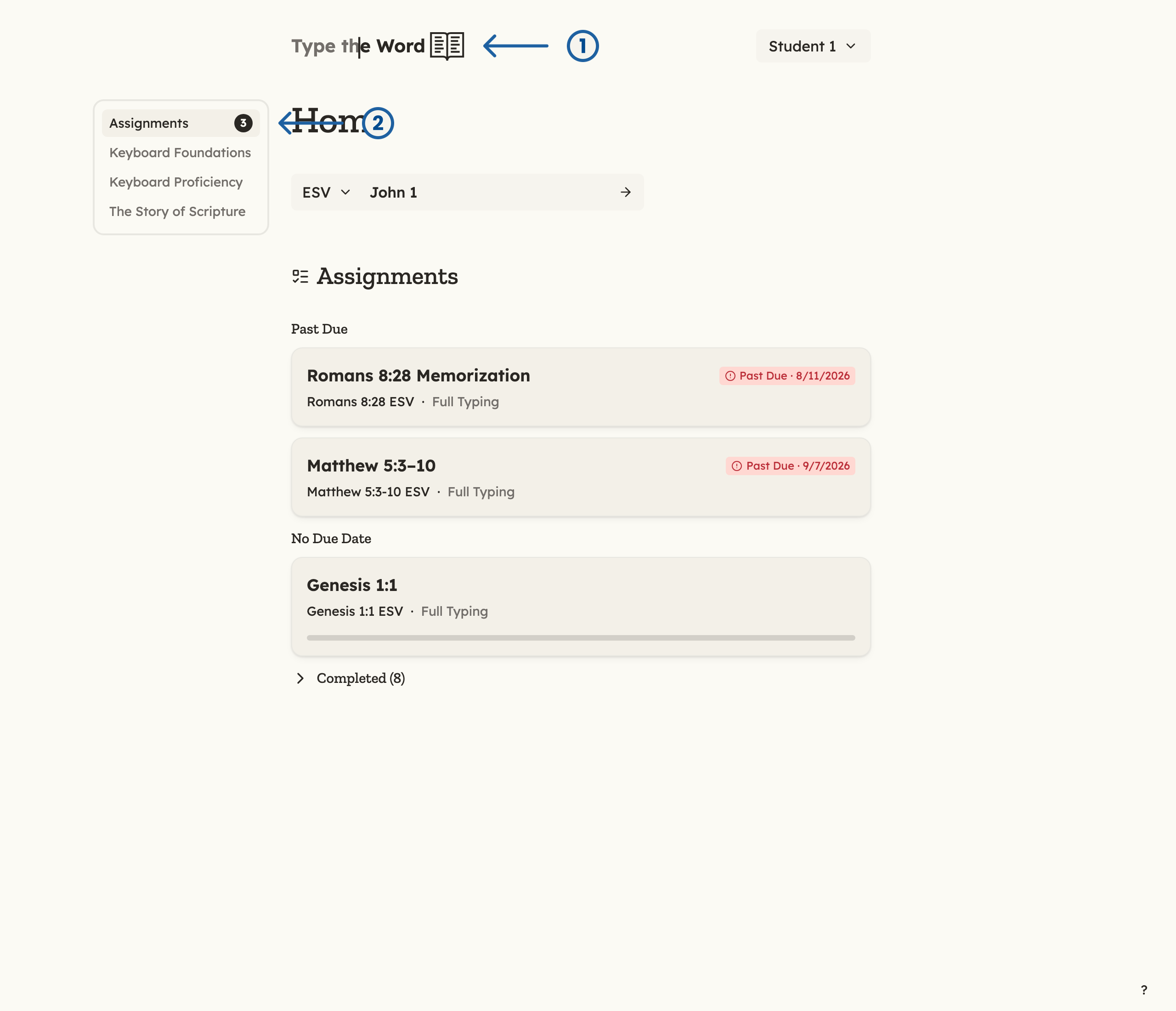
1 is the "Type the Word" logo. 2 is "Assignments" in the homepage sidebar.
Find Upcoming Assignments
From “Home”, you can see all of your upcoming assignments. Cards are grouped so the work that needs attention first is at the top:- “Past Due” — assignments whose due date has already passed
- “Current” — assignments with an upcoming due date
- “No Due Date” — assignments you can complete whenever you are ready
- “Completed” — assignments you have already finished
Open an assignment
The work that needs attention first is at the top. Click a card to open that assignment and complete it.If you see “You don’t have any upcoming assignments”, your teacher has
not created one yet. In When you have no
assignments, we’ll talk more about
what you can do when you don’t have any more assignments to complete.