

Prerequisites
- Your teacher has verified the class in Type the Word.
- Your school Google account is enrolled in the correct Google Classroom course.
- You know which school Google account your teacher expects you to use.
Sign in as a student
Go to the Type the Word login page. Under “Get started as…”, choose “Student”.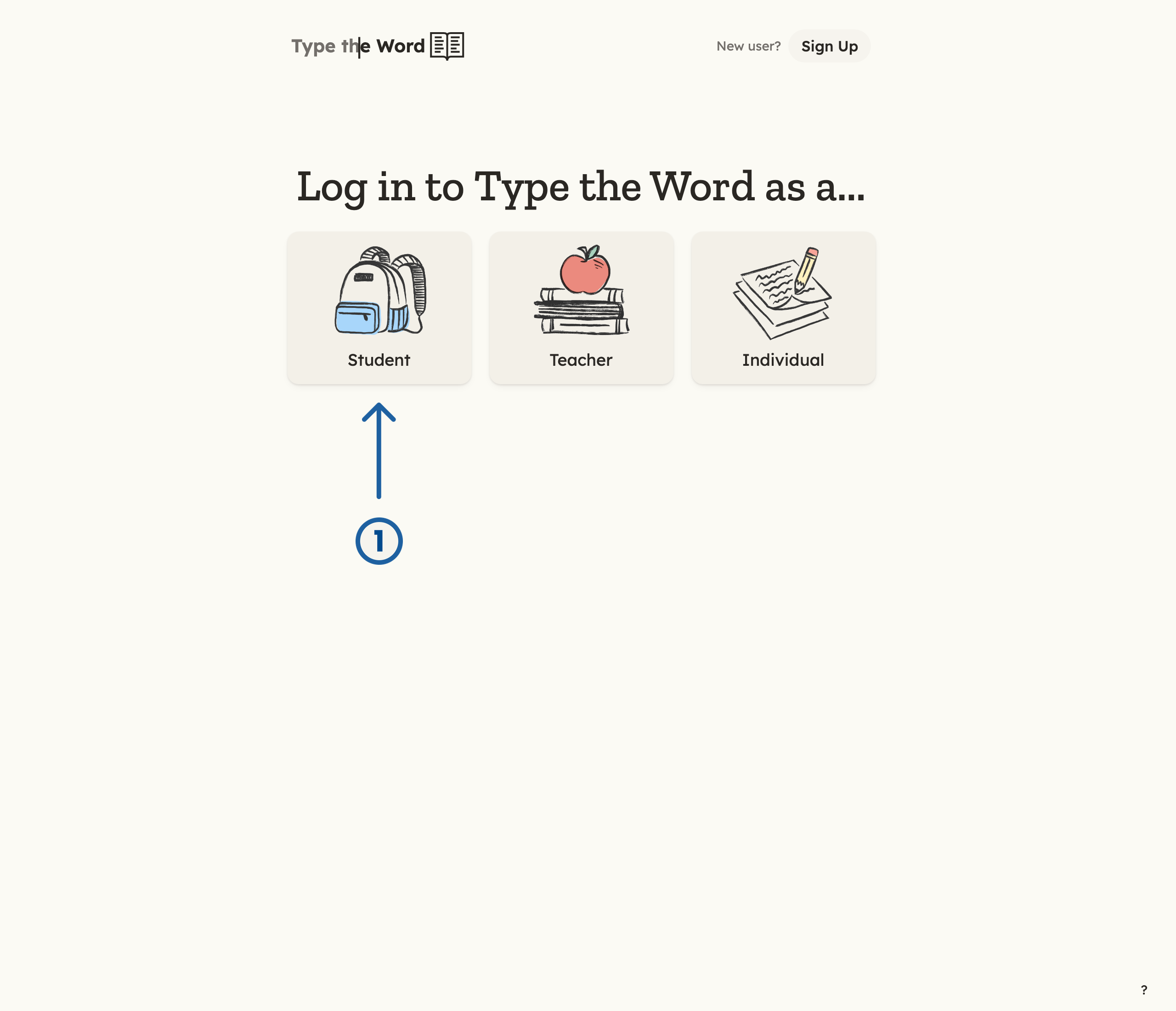
1 is "Student" on the login page.
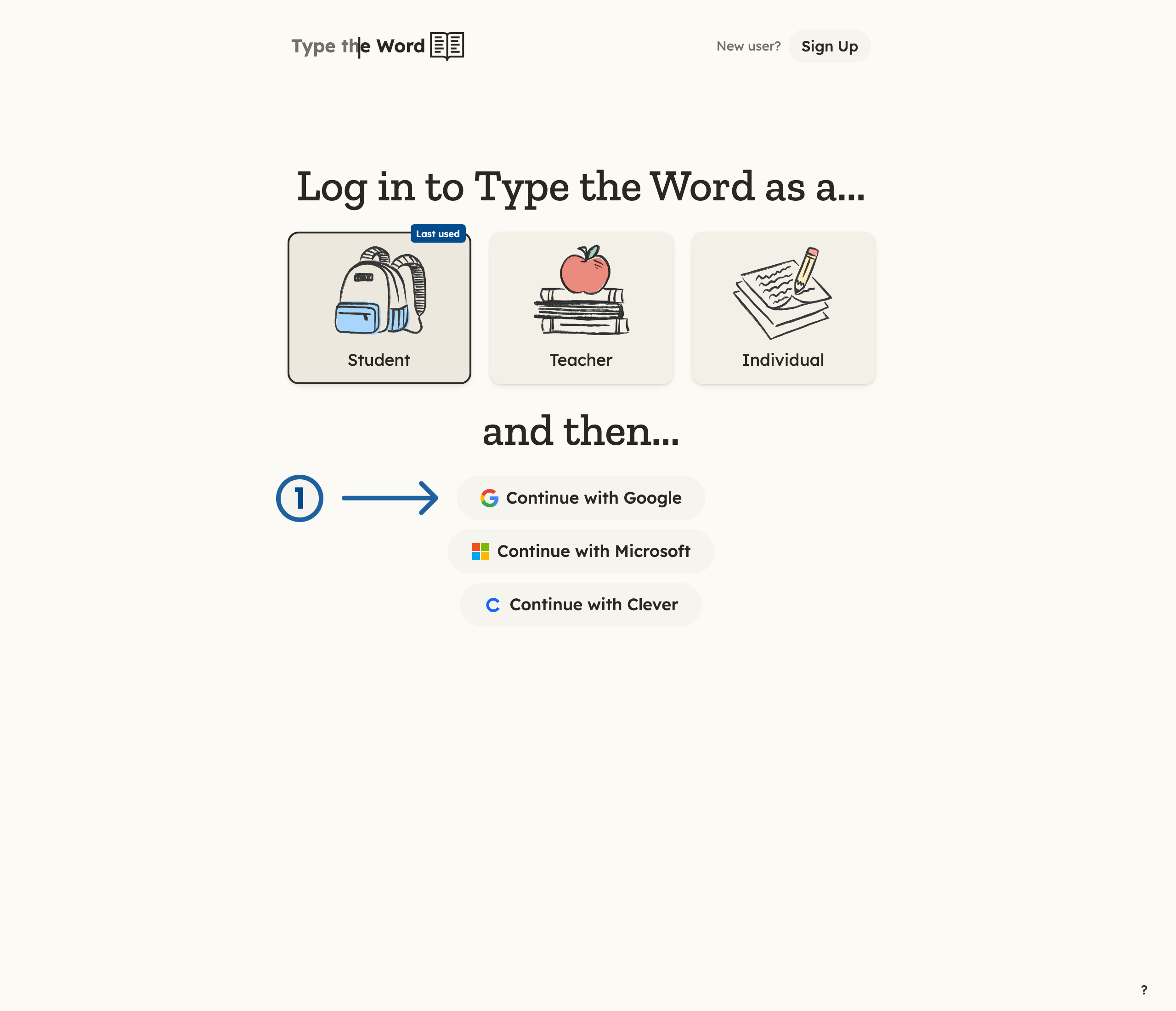
1 is "Continue with Google" on Student login.
Always use the rostered school account. Type the Word does not match
students to classes by a similar name or email address.
Verify access
Confirm you reach “Home” without an access or role error. Check that the account name in the upper-right is yours.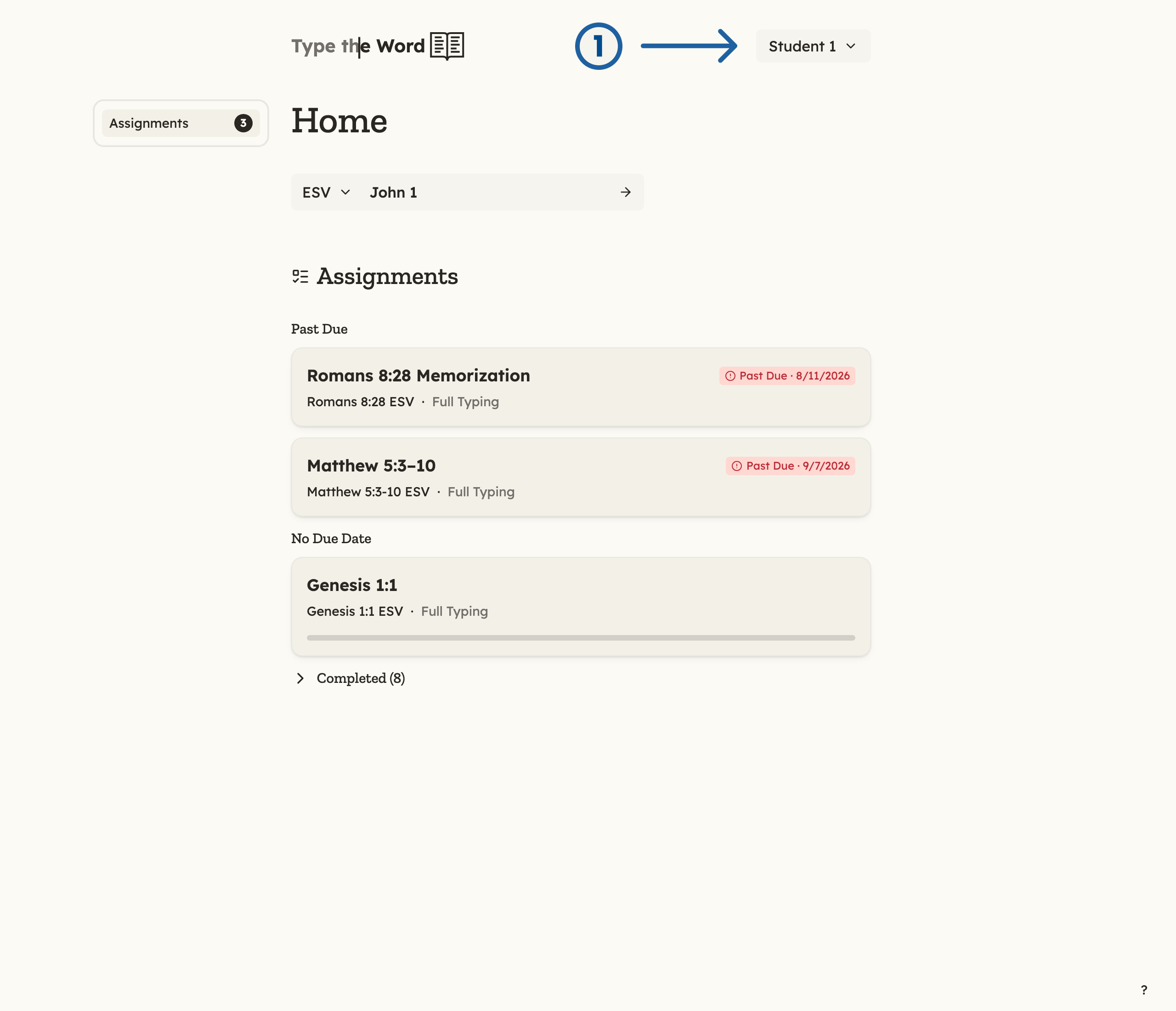
1 is your name in the upper-right corner.
Setup complete
Student onboarding is complete when the student can sign in with the correct school account and reach “Home” without an access or role error.Troubleshooting
- No assignments appear: This is normal until a teacher creates an assignment. See When you have no assignments. If an expected assignment is missing, confirm the same Google account is enrolled in the teacher’s Classroom course.
- Wrong role message: Start over and choose “Student” before continuing with Google.
- Google blocks access: Ask your teacher or Workspace administrator to verify Type the Word is approved for students.
- Shared device shows another student: Sign out of Type the Word before starting the next student’s login.