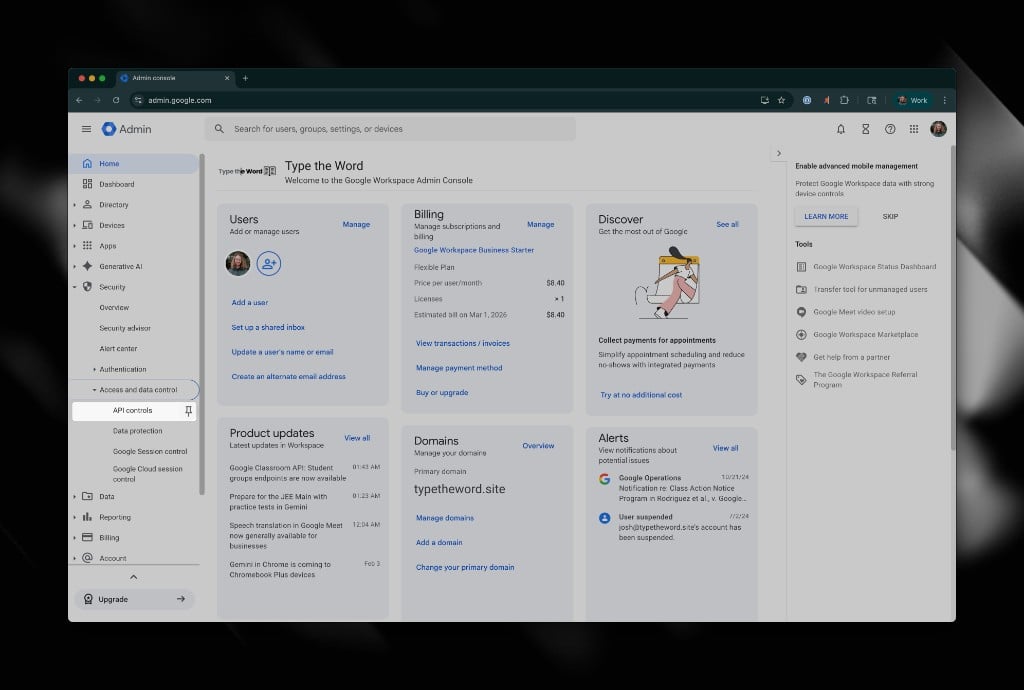
Go to admin.google.com, confirm you are
signed in with an administrator account, and open Security in the
left navigation.
Open Security from the Google Admin console.
2
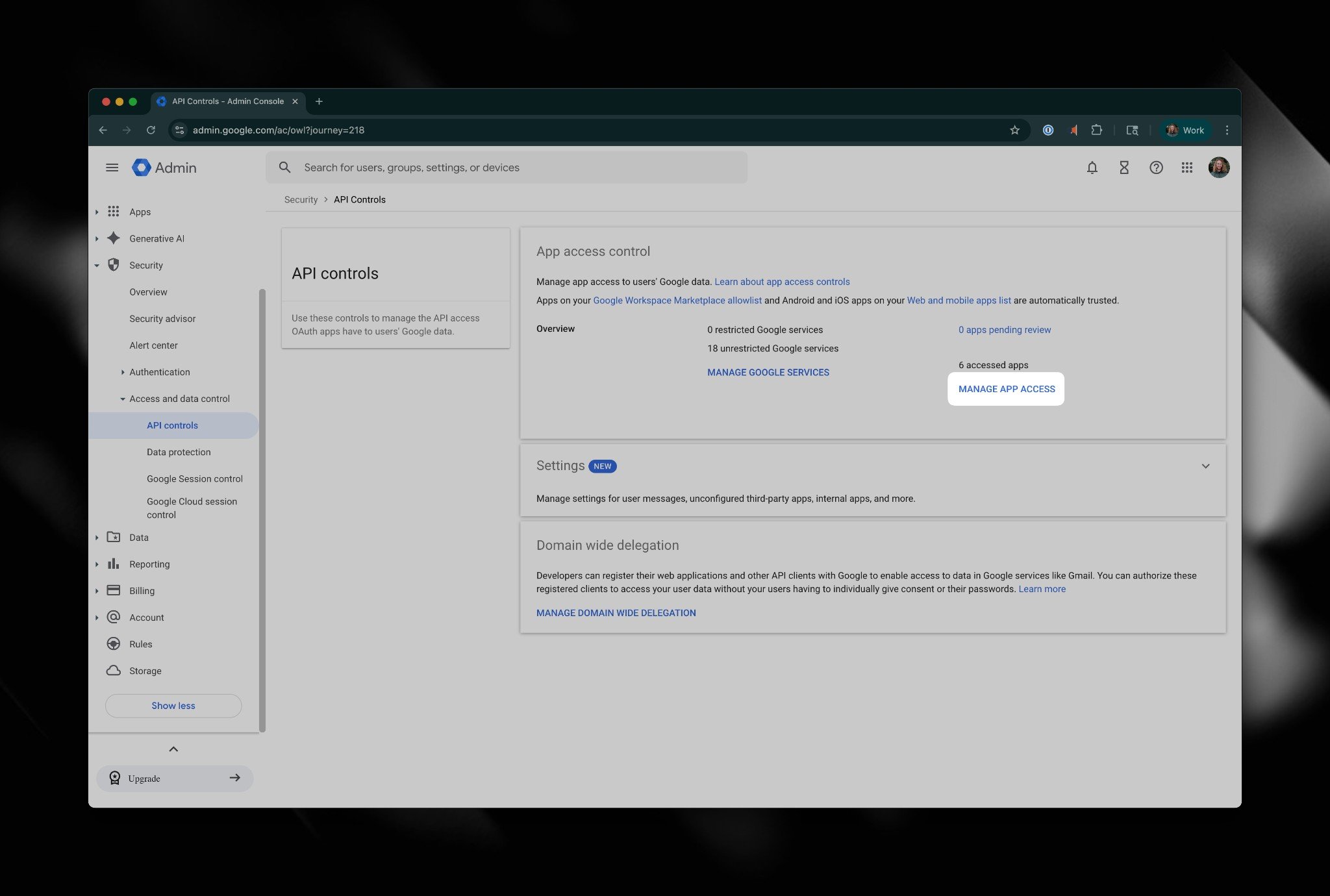
Open API controls
Open Access and data control, select API controls, and then
select Manage app access.
Open Manage app access from API controls.
3
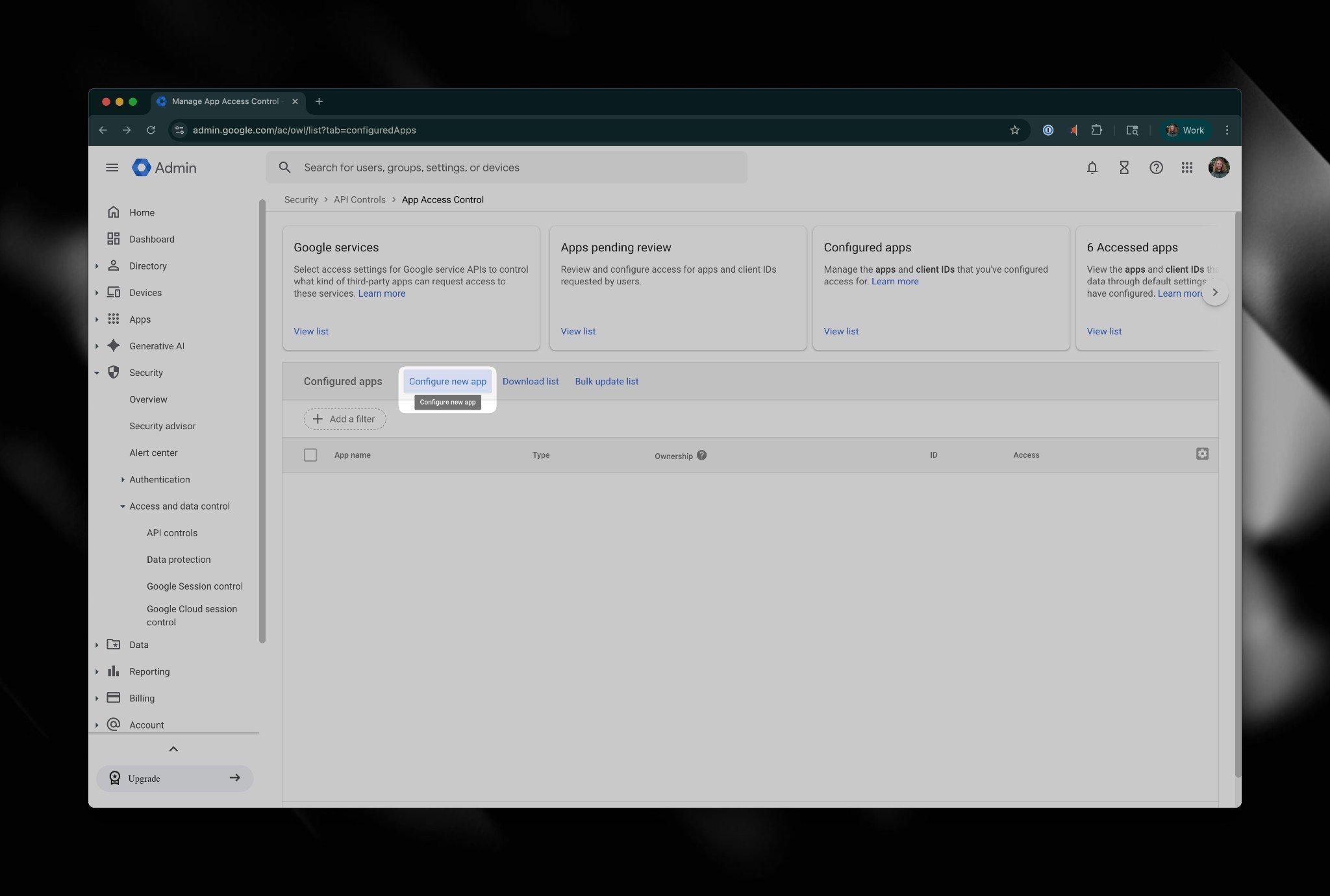
Start configuring an app
On App access control, select Configure new app. Stay on the
default App step in the wizard.
Start a new app configuration.
4
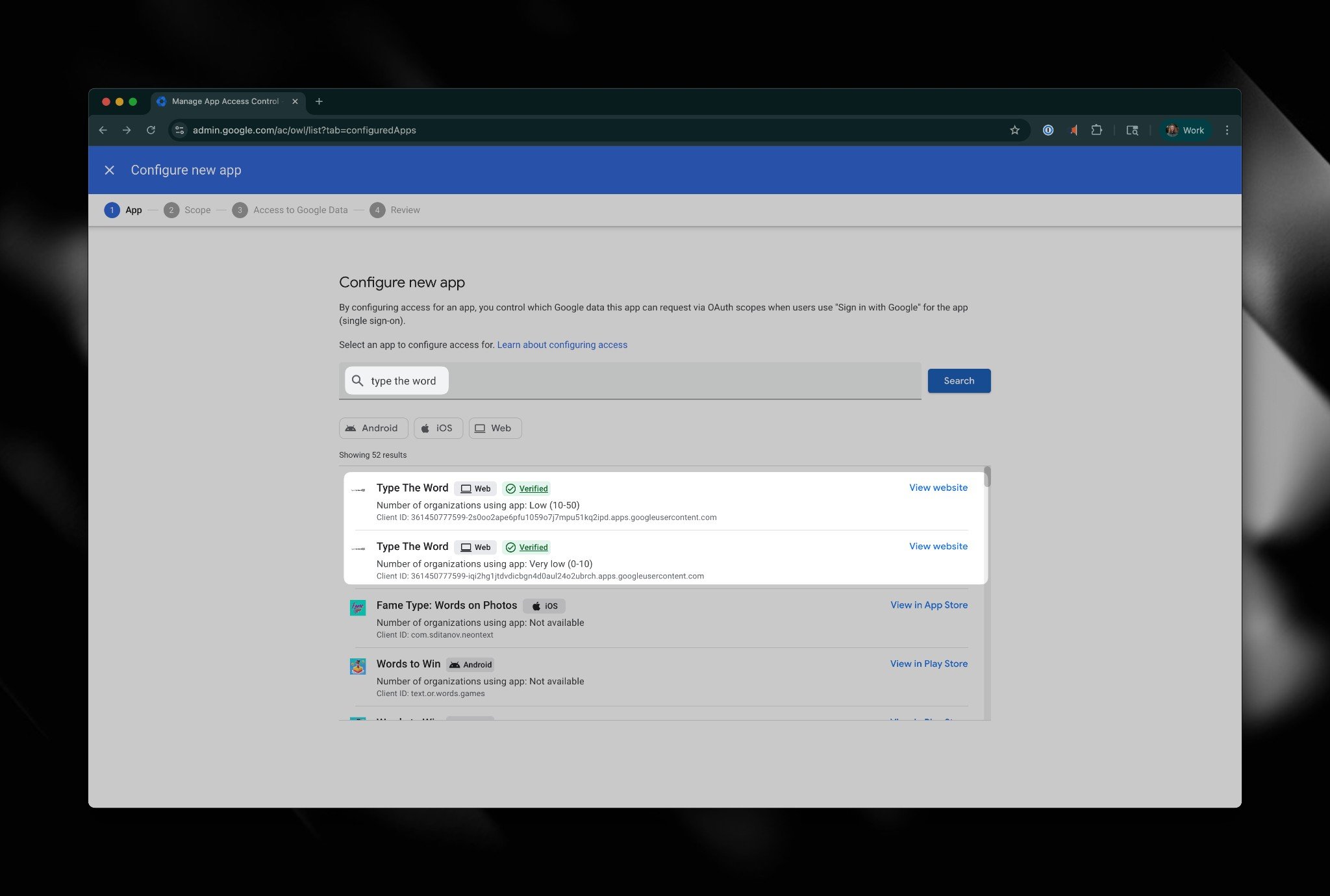
Find Type the Word
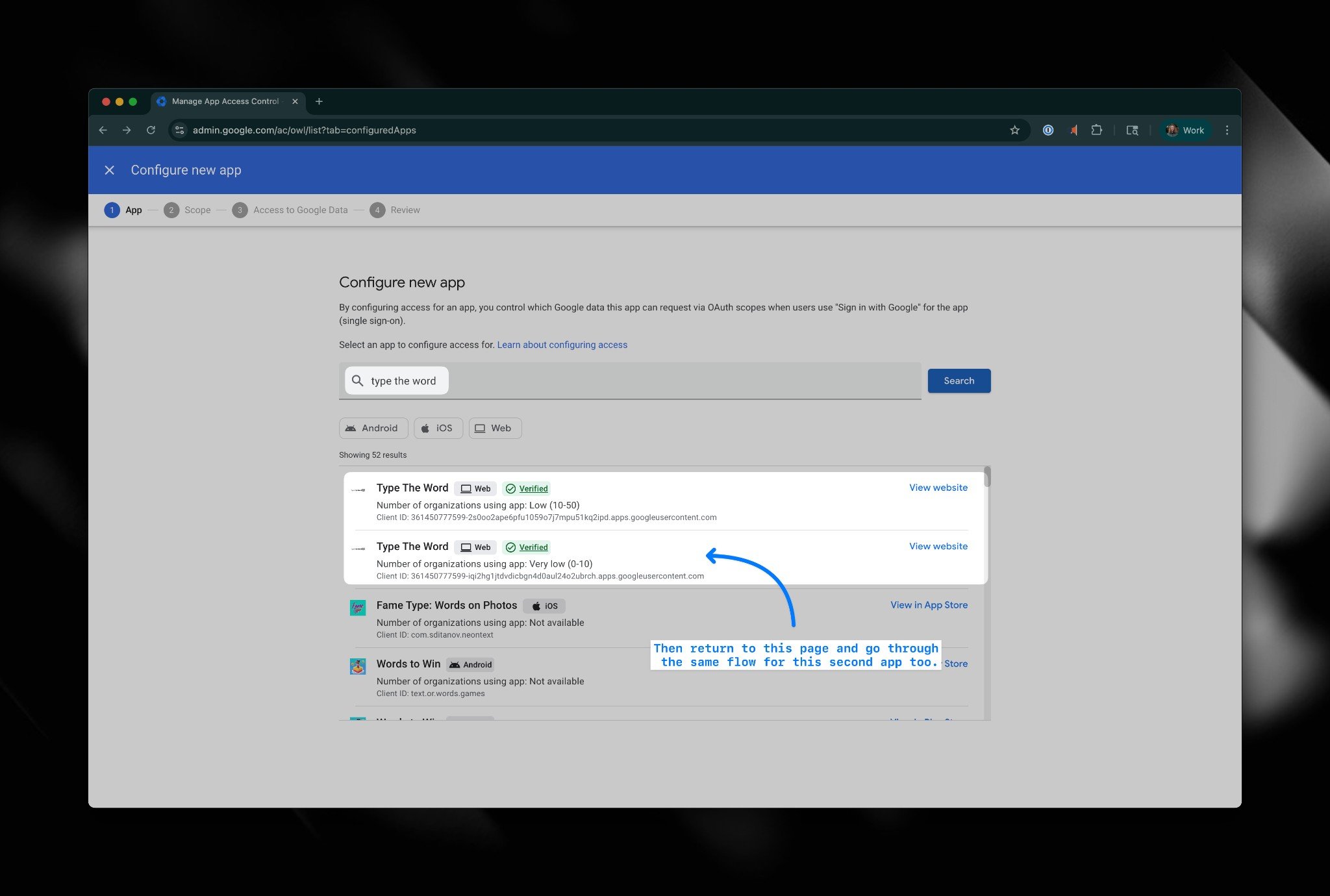
Search for type the word, select one Type The Word web app entry,
and select Continue.
Select one Type the Word app entry.
5
Choose the users
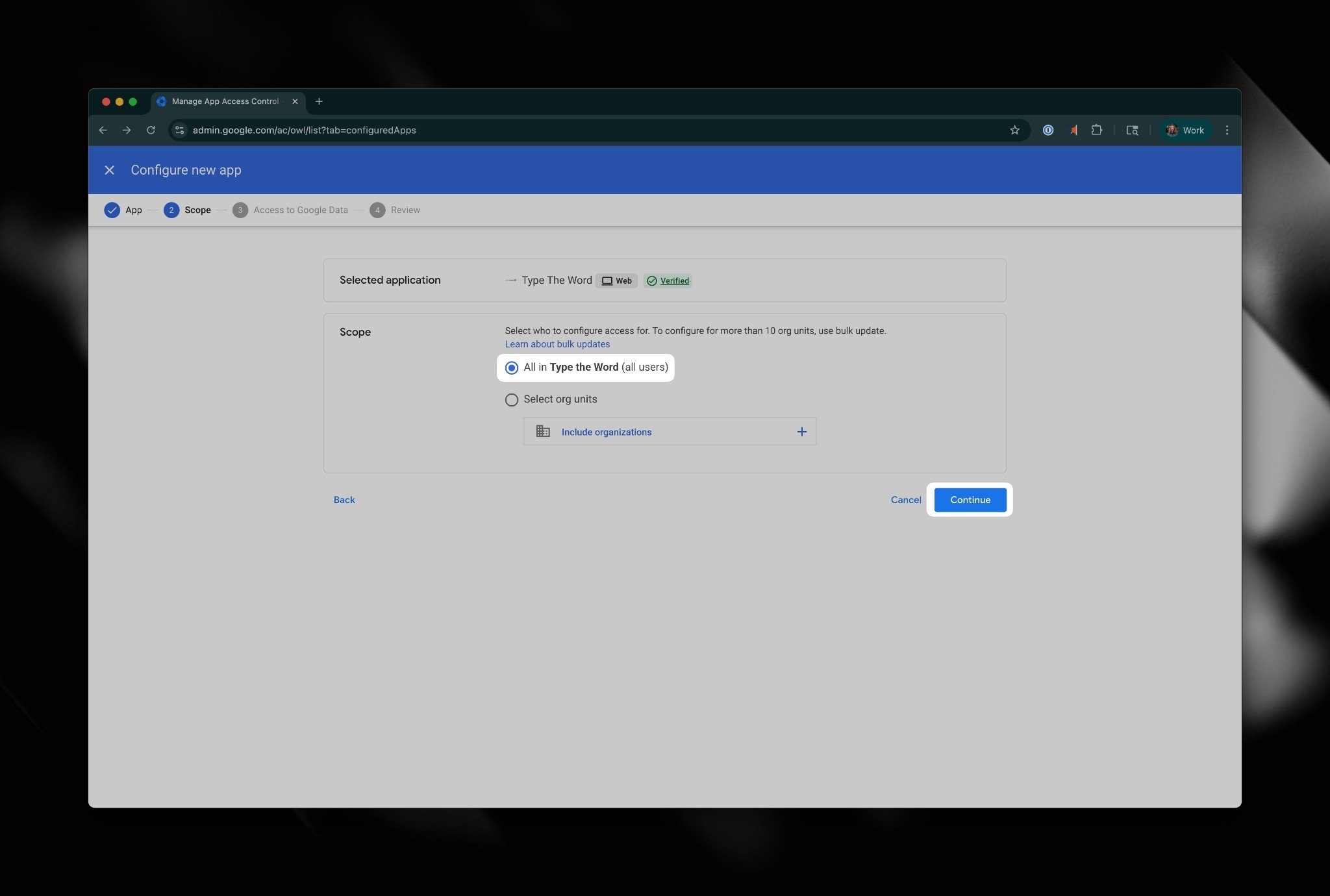
In the Scope step, choose All in Type the Word (all users), or
your organization’s equivalent all-users option, and select
Continue.
Apply the configuration to all users who need Type the Word.
6
Allow Google data access
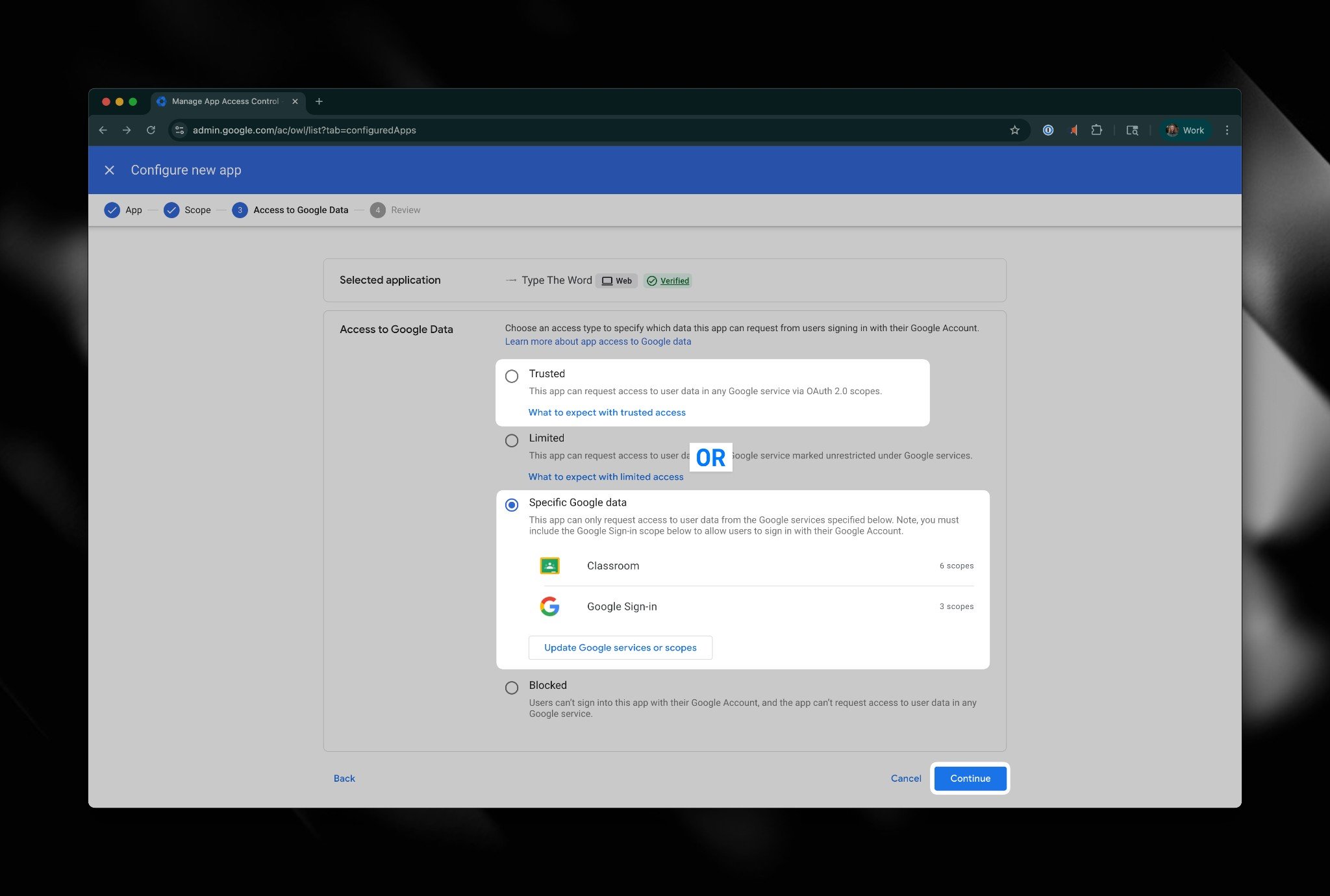
Choose either Specific Google data with the listed Classroom and
sign-in scopes or Trusted if your security policy allows broad
trust. Then select Continue.
Allow the required Google data access.
7
Review and finish
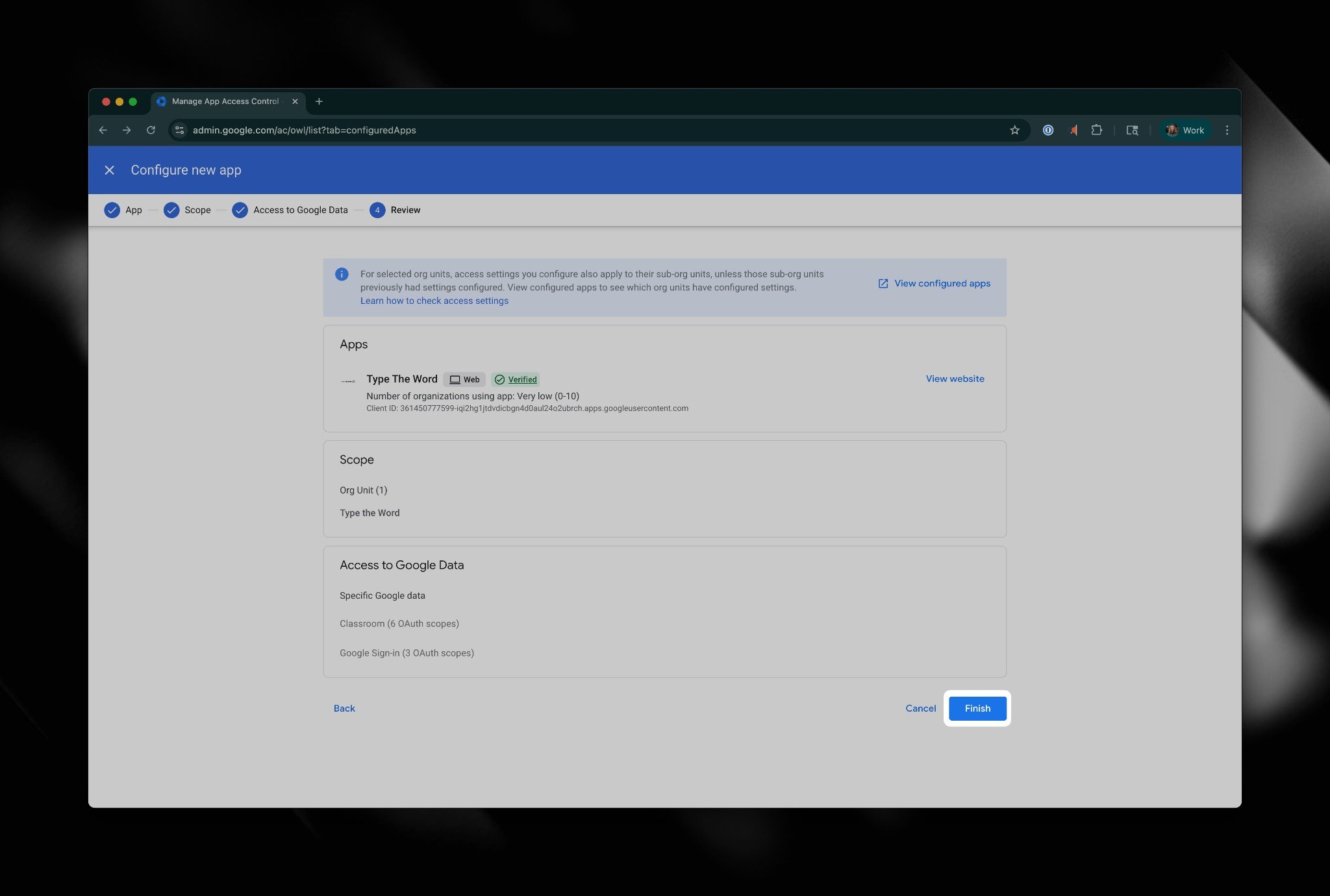
Review the app, scope, and data settings, then select Finish.
Review the configuration before finishing.
8
Repeat for the second entry
Return to Configure new app, search for type the word, select the
other Type the Word web app entry, and repeat the scope and access
steps.
Configure the second Type the Word app entry the same way.