

Create a memory assessment
From “Dashboard”, find “Assignments” and click “Create Assignment”. Open the menu beside “Create Assignment” and choose “Memory assessment”. Customize “Translation”, “Passage”, “Name”, and “Due Date”. Choose a passage your students have been practicing. The translation starts with your classroom default; Manage translations explains how to change that default.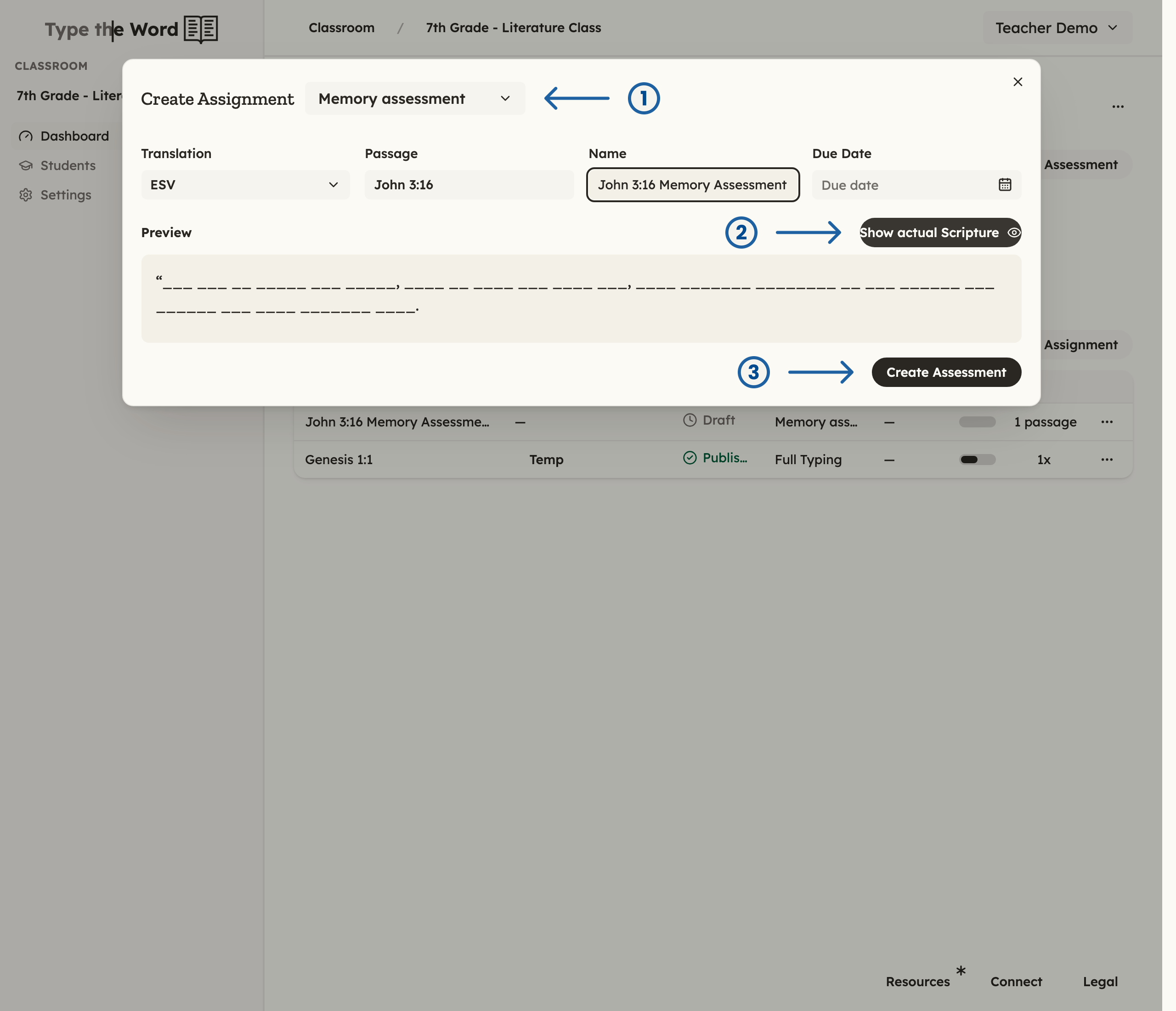
Choose "Memory assessment" in the menu (1), review your selected passage with "Show actual Scripture" (2), then select "Create Assessment" (3).
Check the passage preview
“Preview” starts with the words hidden, as students will see them. Click “Show actual Scripture” to check the passage, then “Show what students will see” to return to the hidden-word view.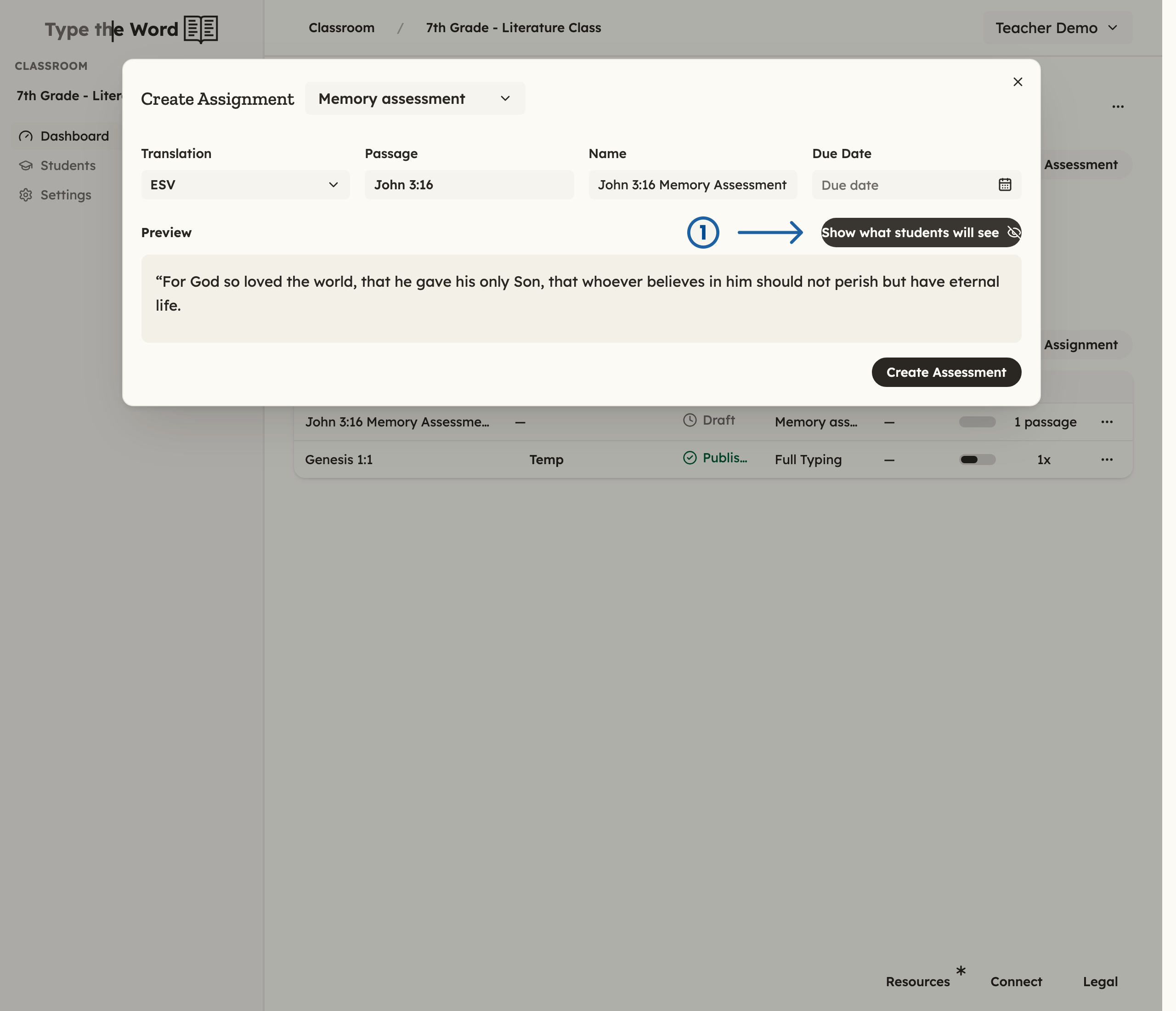
After checking the passage, use "Show what students will see" (1) to return to the assessment preview.
Publish for your class
On the assessment page, select “Publish” so students can access it. Have students open Type the Word and complete the assessment.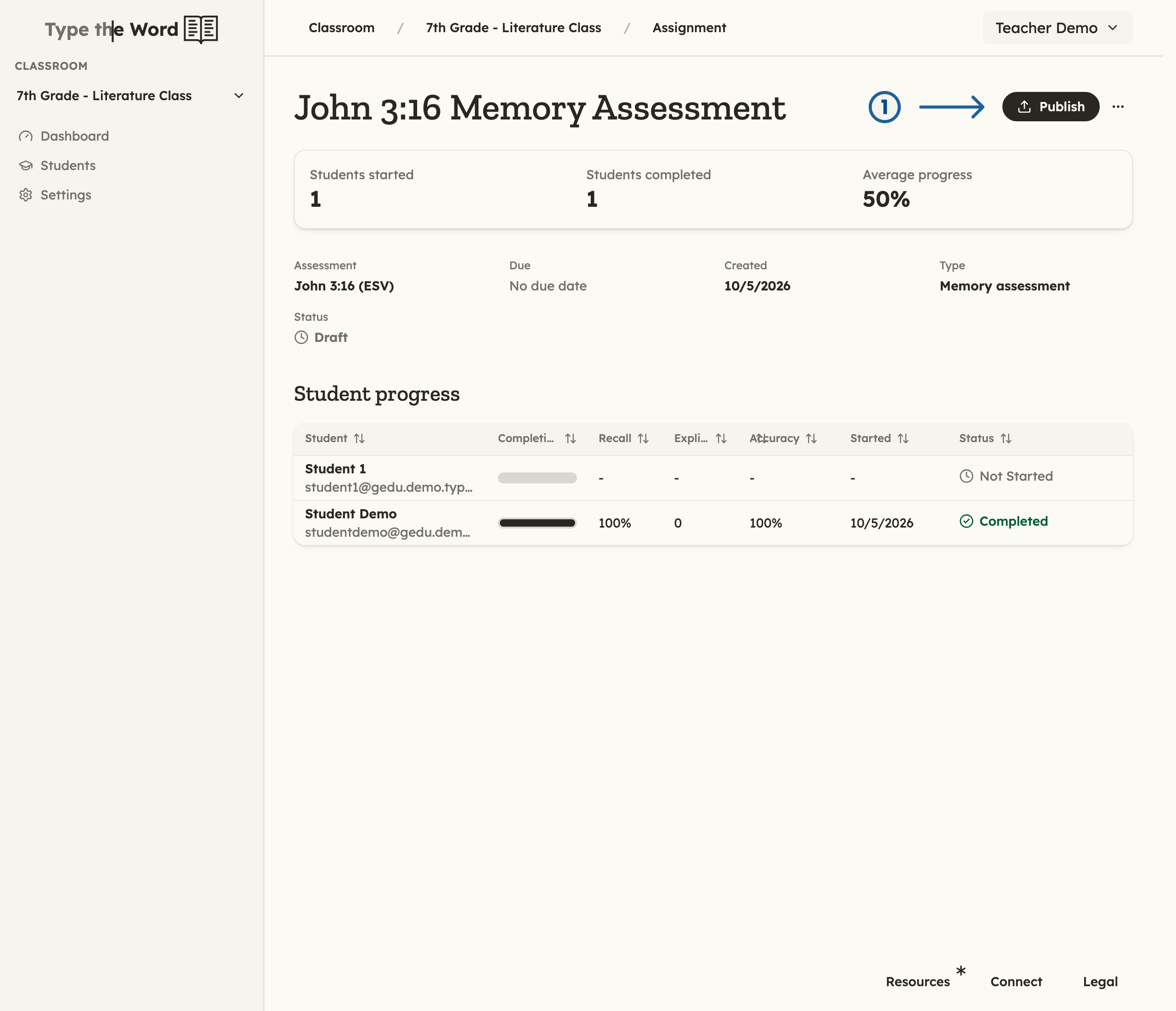
Select "Publish" (1) on the assessment page to make it available to students.
Review your students’ results
Open the assessment to see “Student progress”. “Completion” shows how much of the assessment each student has finished. “Recall” is the percentage of words completed without a hint or three or more first-letter guesses. “Accuracy” measures typing accuracy.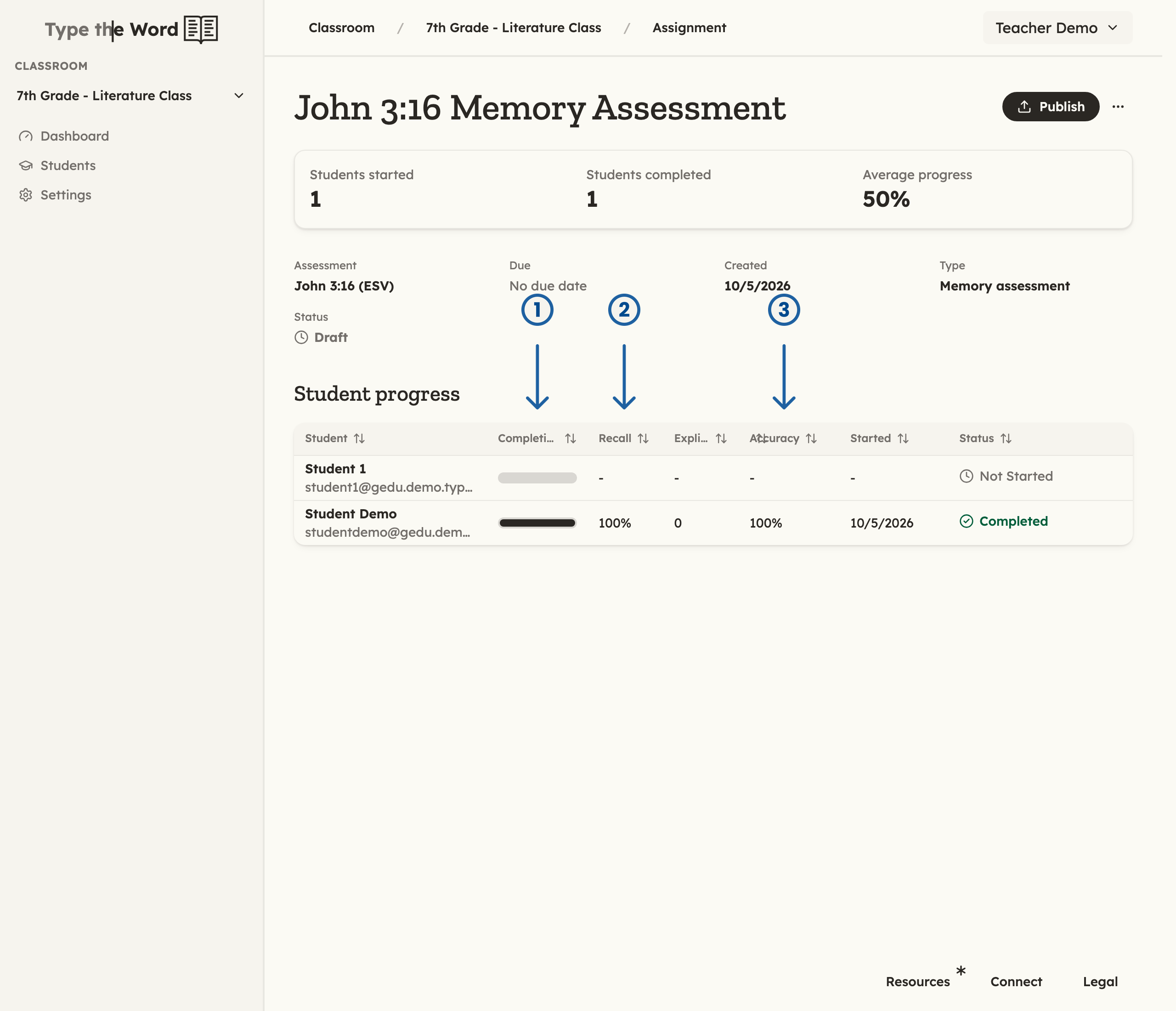
"Completion" (1) tracks progress, "Recall" (2) measures independent recall, and "Accuracy" (3) measures typing accuracy.
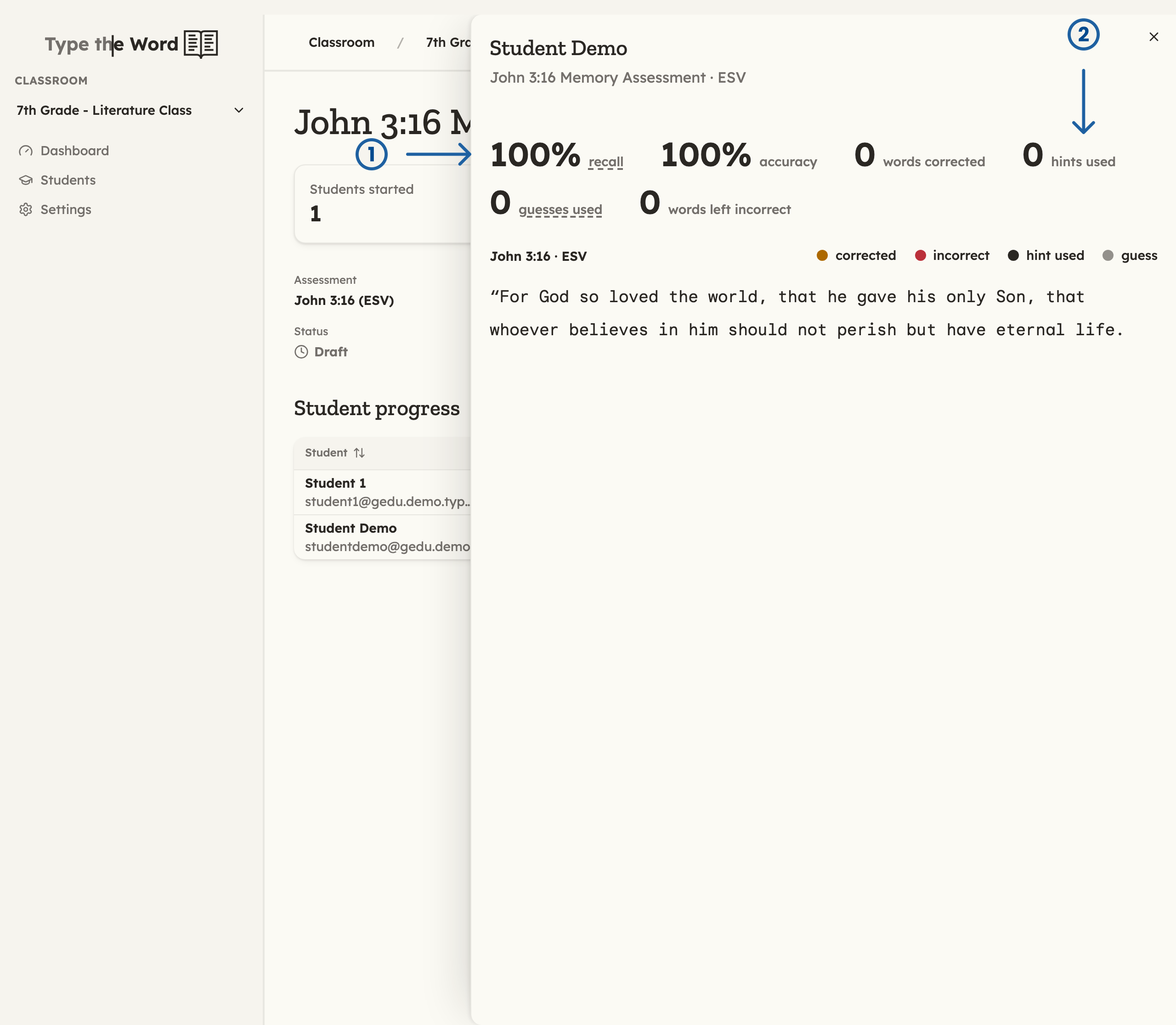
The student results show "recall" (1) and "hints used" (2), along with accuracy and the marked passage.