

Create an Assignment
From “Dashboard”, find “Assignments” and click “Create Assignment”. You can also use “Create Assignment” inside a goal to keep the new work organized under that goal.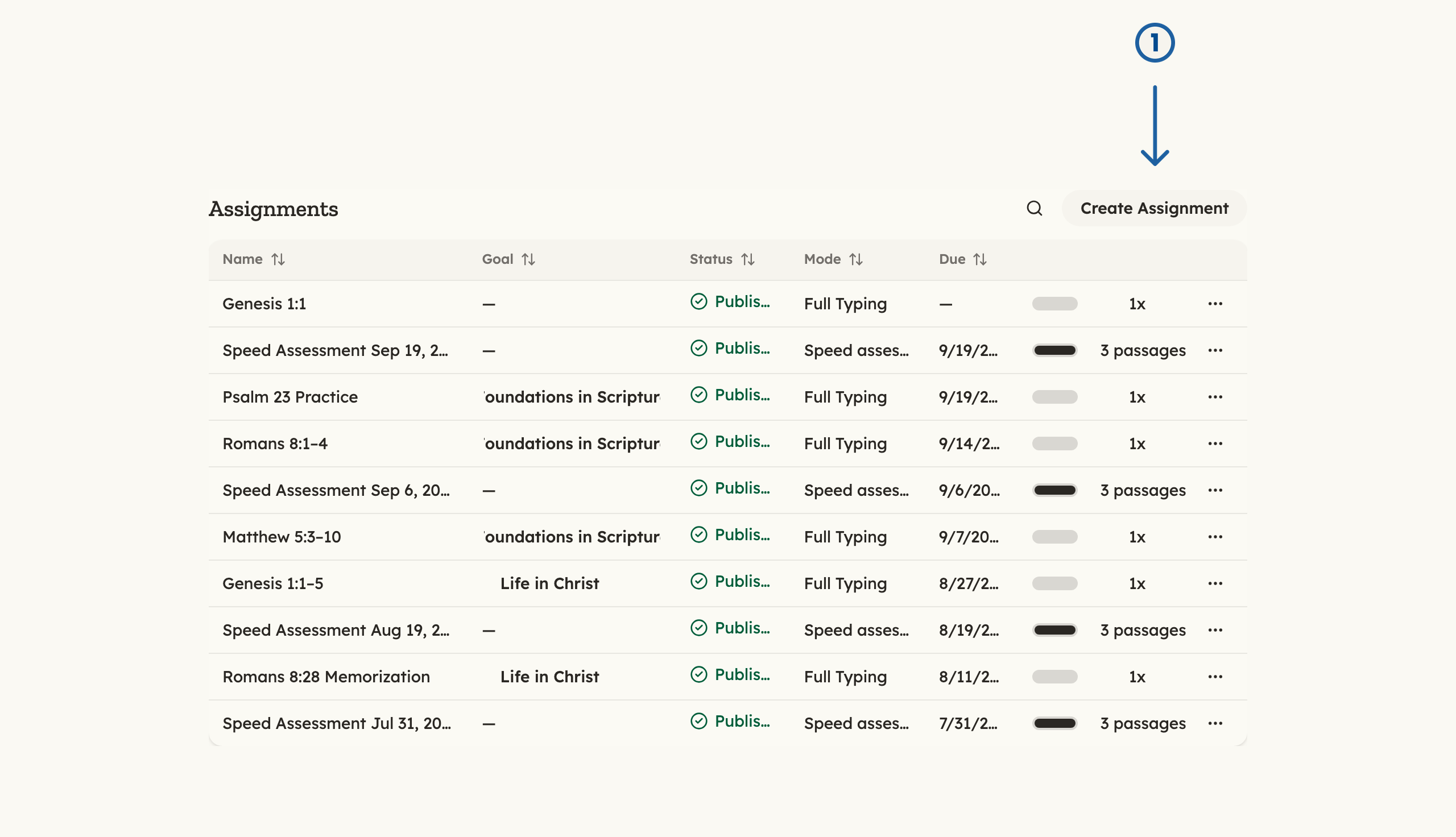
Click "Create Assignment" (1) to open the assignment form.
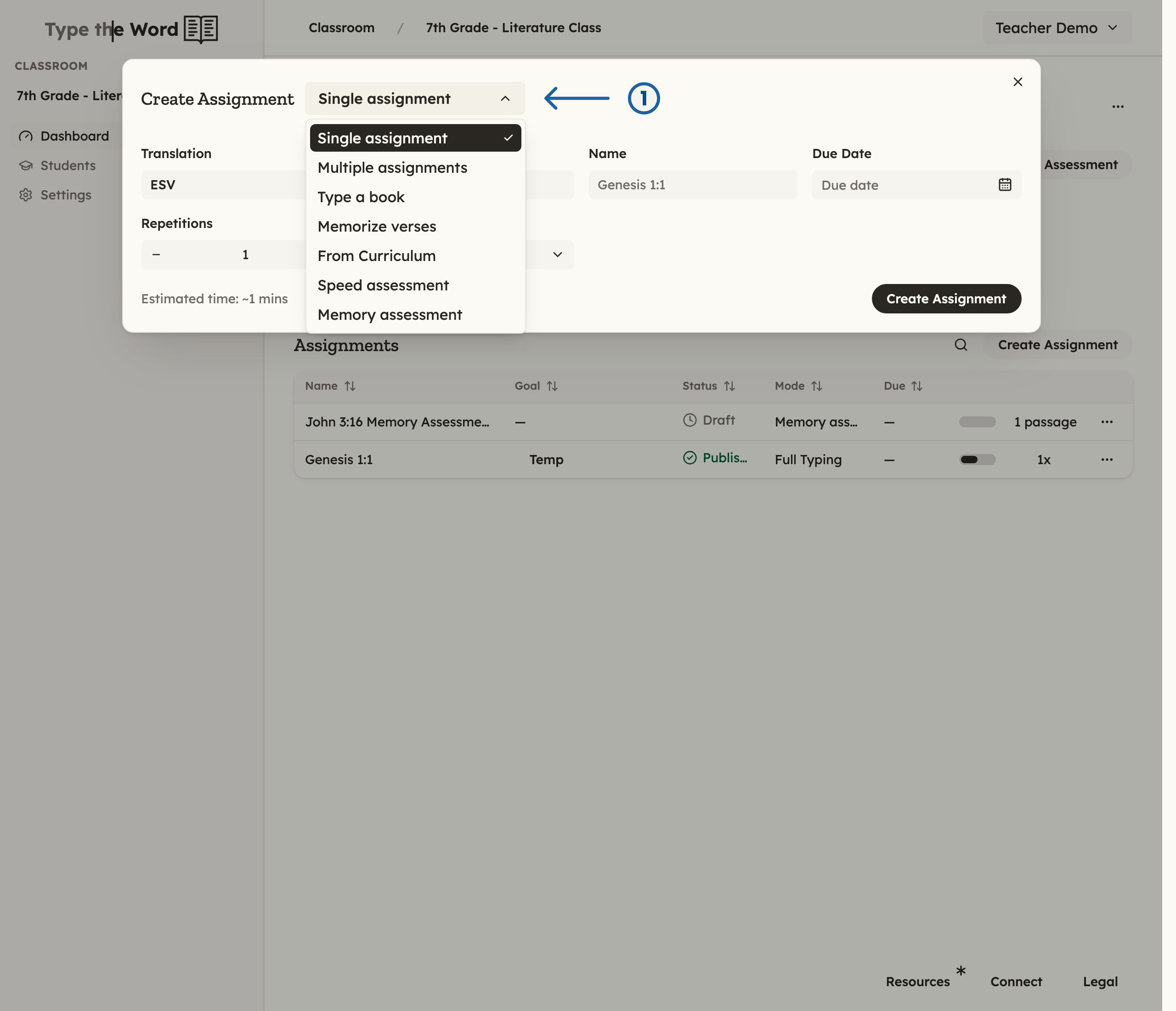
The menu beside "Create Assignment" (1) lists the ways to create assignments.
Single assignment
Choose “Single assignment” for one passage. Pick “Translation” and “Passage”, then customize “Name”, “Mode”, “Repetitions”, and “Due Date”. “Full Typing” has students type the passage. “First Letter Recall”, “First Letter Only”, and “Missing Word” offer different ways to practice remembering it. When the selected mode offers “Difficulty”, use it to adjust the amount of text hidden during practice. “Repetitions” sets how many times each student must finish the assigned passage in the selected mode. For example, setting “Repetitions” to 3 means each student must complete the passage three times to finish the assignment.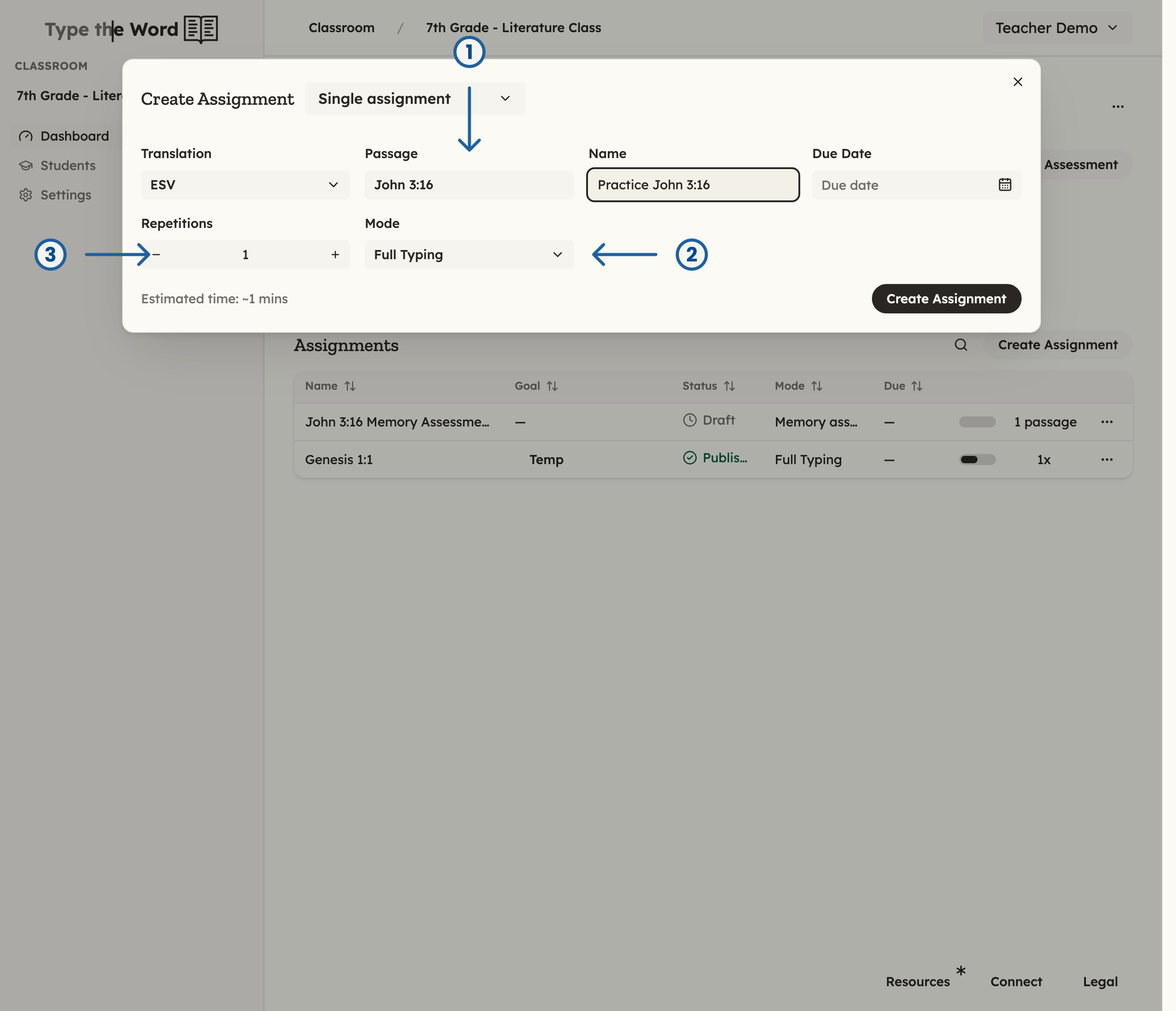
Pick a "Passage" (1), choose a "Mode" (2), and set "Repetitions" (3).
Multiple assignments
Choose “Multiple assignments” to build a set of assignments in one go. Use “Full Typing”, “First Letter”, “First Letter Only”, or “Missing Word” at the bottom to add another assignment in that mode. Expand a row in “Preview” to edit its passage, name, mode, repetitions, and due date. You can reorder the rows with their drag handles or remove work you do not need. The create button shows how many assignments you will create.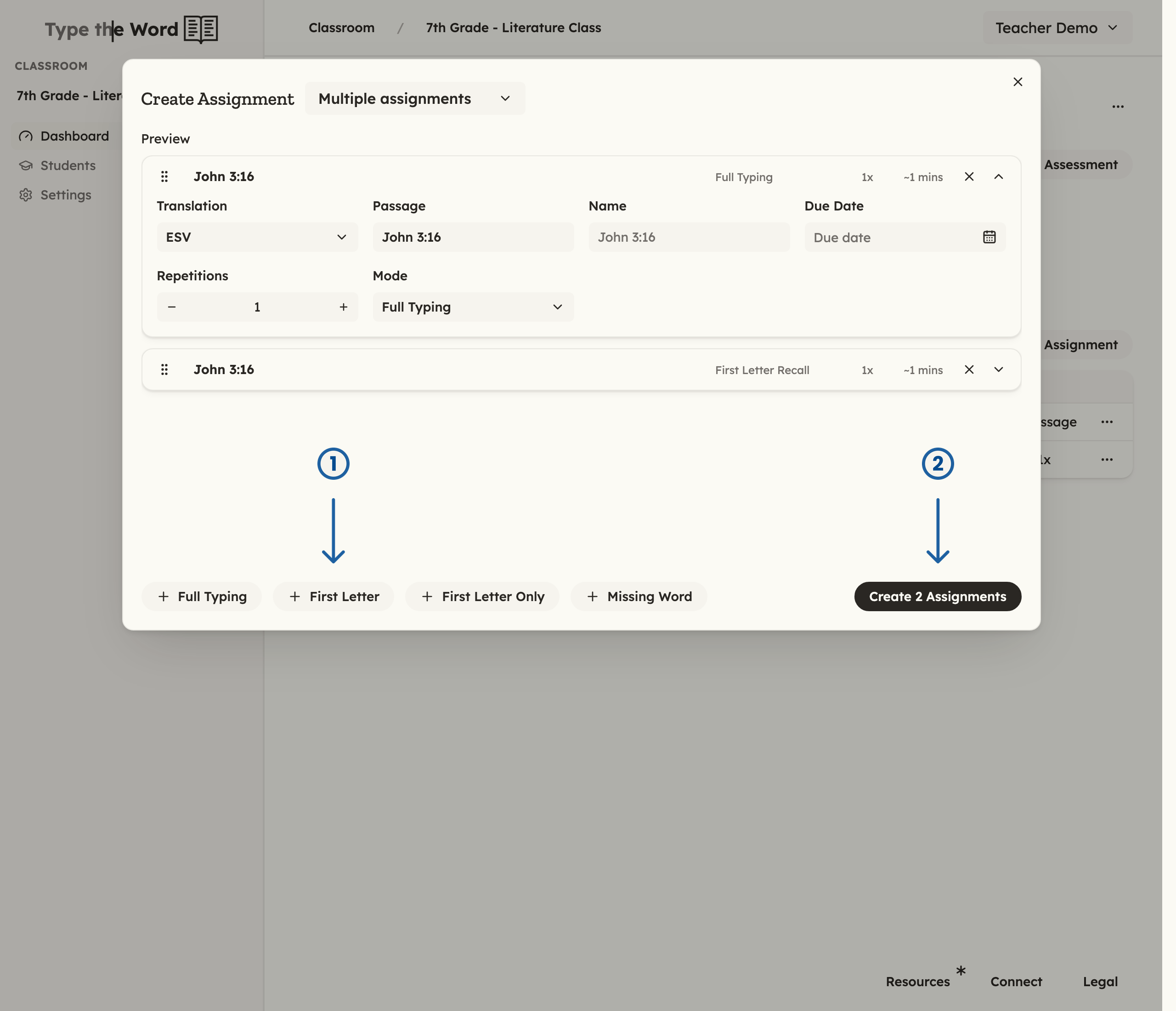
Use "First Letter" (1) to add an assignment in that mode. "Create 2 Assignments" (2) creates the two assignments in this preview.
Type a book
Choose “Type a book” to divide a Bible book into assignments. Select “Translation” and enter the book in “Passage”. Set “Chapters Per Assignment” to choose how much work each assignment contains, and set “Repetitions” to choose how many times each student must complete each generated assignment. For example, with “Chapters Per Assignment” set to 1 and “Repetitions” set to 3, students type each assigned chapter three times.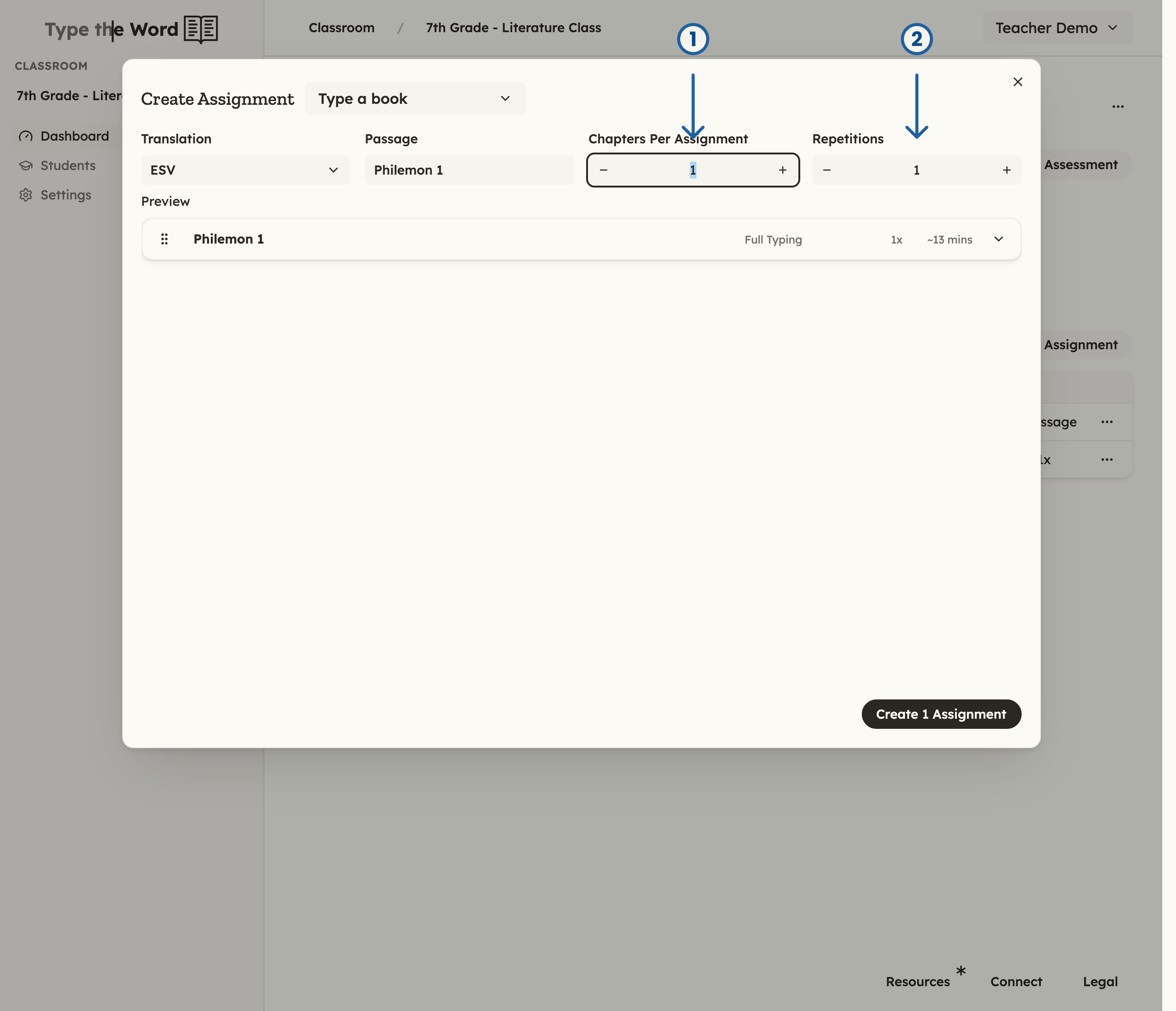
With "Philemon" selected, set "Chapters Per Assignment" (1) and "Repetitions" (2).
Memorize verses
Choose “Memorize verses” to generate a sequence of practice assignments for a passage. Pick “Translation” and “Passage”. “Preview” shows the generated assignments, including their modes and repetitions.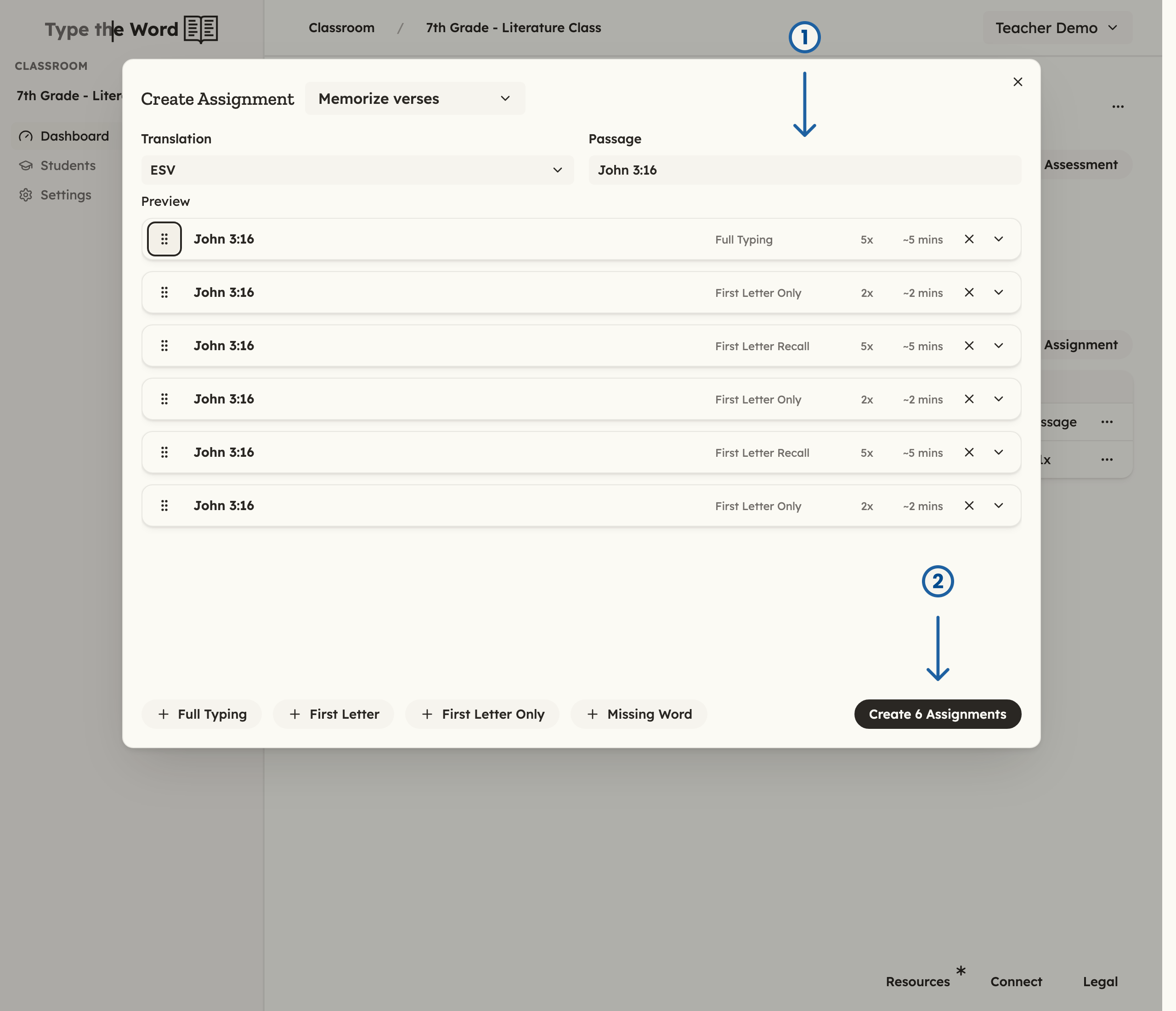
Choose a "Passage" (1), review the practice sequence, then select "Create 6 Assignments" (2) for this example.
From Curriculum
Choose “From Curriculum” to find an individual assignment in the Curriculum Library. Search for a passage or topic, or narrow the results with “Source”, “Age”, “Denomination”, “Topic”, and “Bible Section”.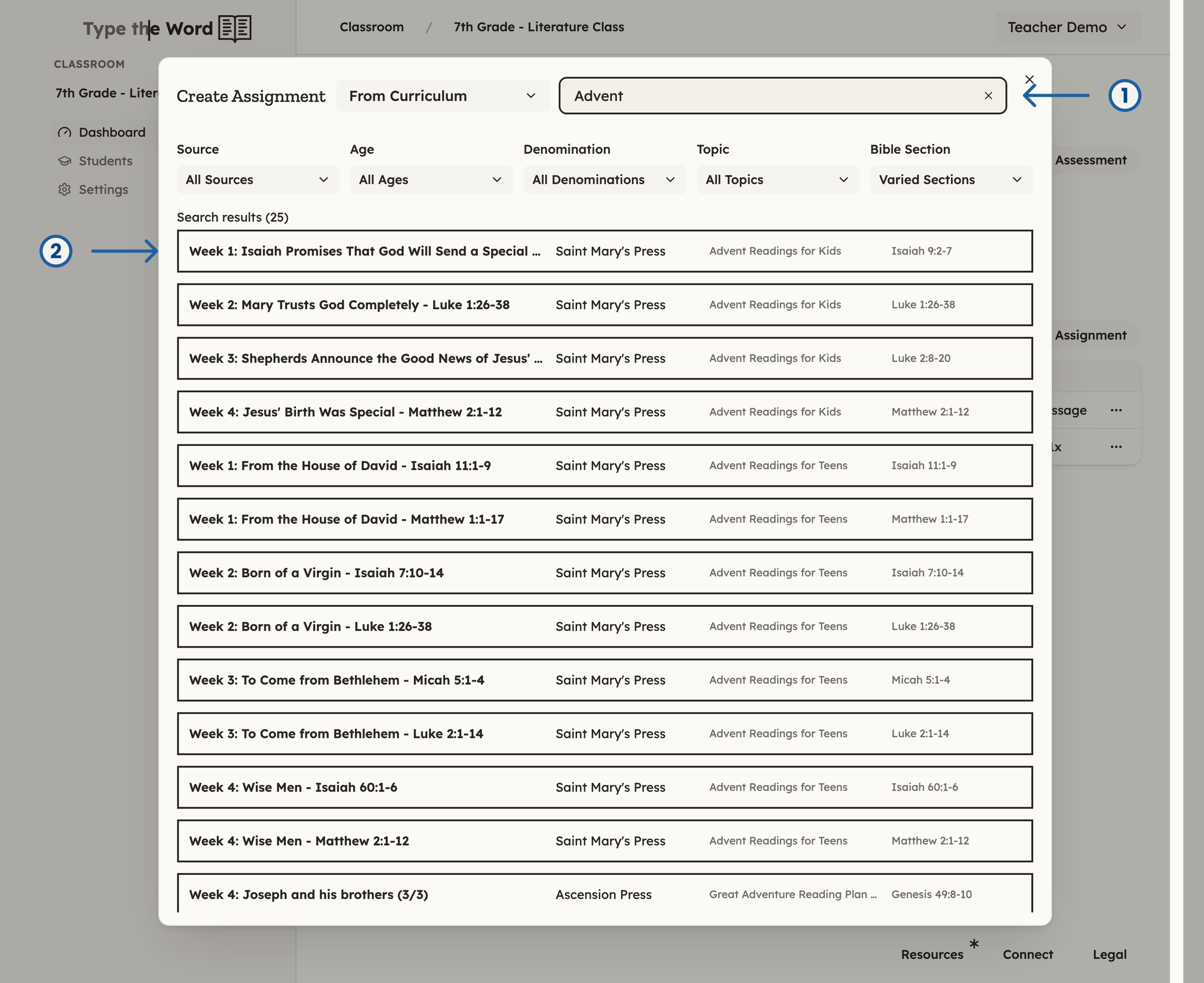
Search for "Advent" in the Curriculum Library (1), then select an assignment from the results (2).
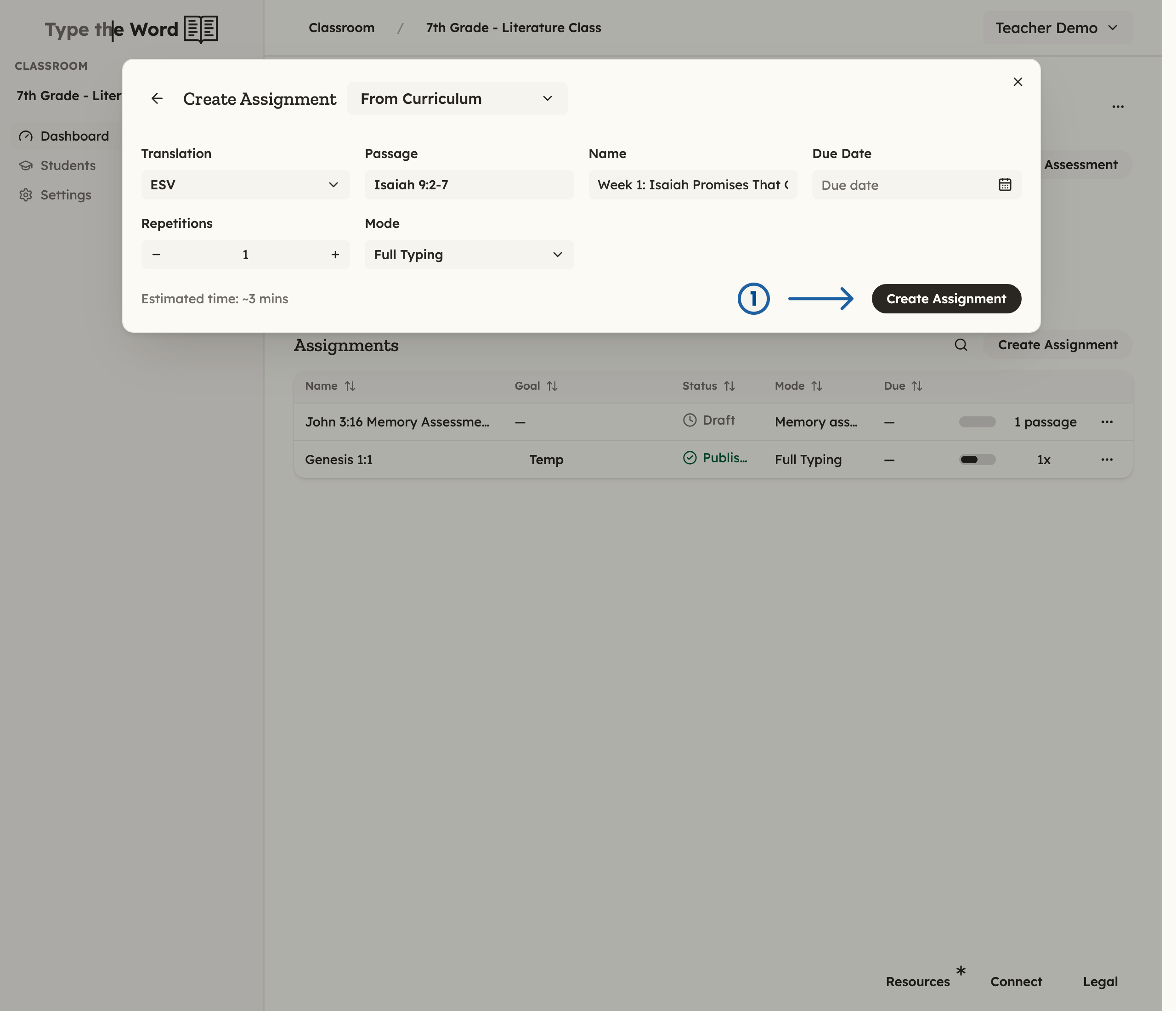
After reviewing the selected curriculum assignment, click "Create Assignment" (1).