

Prerequisites
- Your district administrator has completed Clever administrator setup.
- Your Clever account is a student in at least one shared section.
Launch Type the Word
Sign in to the Clever Portal with your student account. Open the Type the Word application. Complete the Clever authorization prompt if it appears, then wait for Type the Word to open “Home”.Verify access
Confirm you reach “Home” without an access or role error. Check that the account name in the upper-right is yours.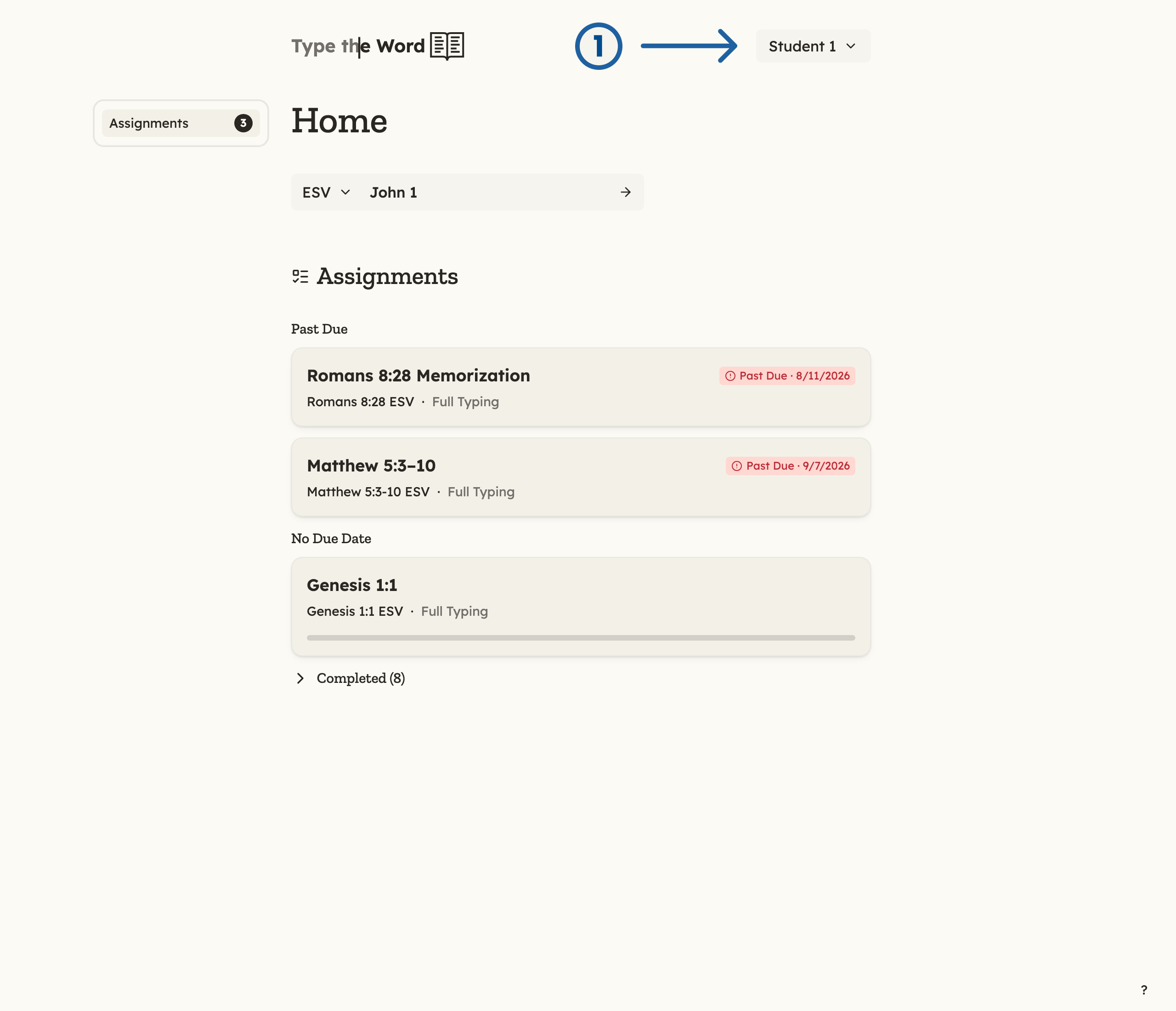
1 is your name in the upper-right corner.
Setup complete
Student onboarding is complete when the student can launch Type the Word with the correct school account and reach “Home” without an access or role error.Troubleshooting
- Another student’s name appears: Return to Clever, sign out, and begin again with your own account.