

Enable leaderboards for a classroom
- Open “Settings”, then “Classroom”.
- Under “Leaderboards”, turn on “Show leaderboard”.
- Choose a “Leaderboard style”, then select “Save”.
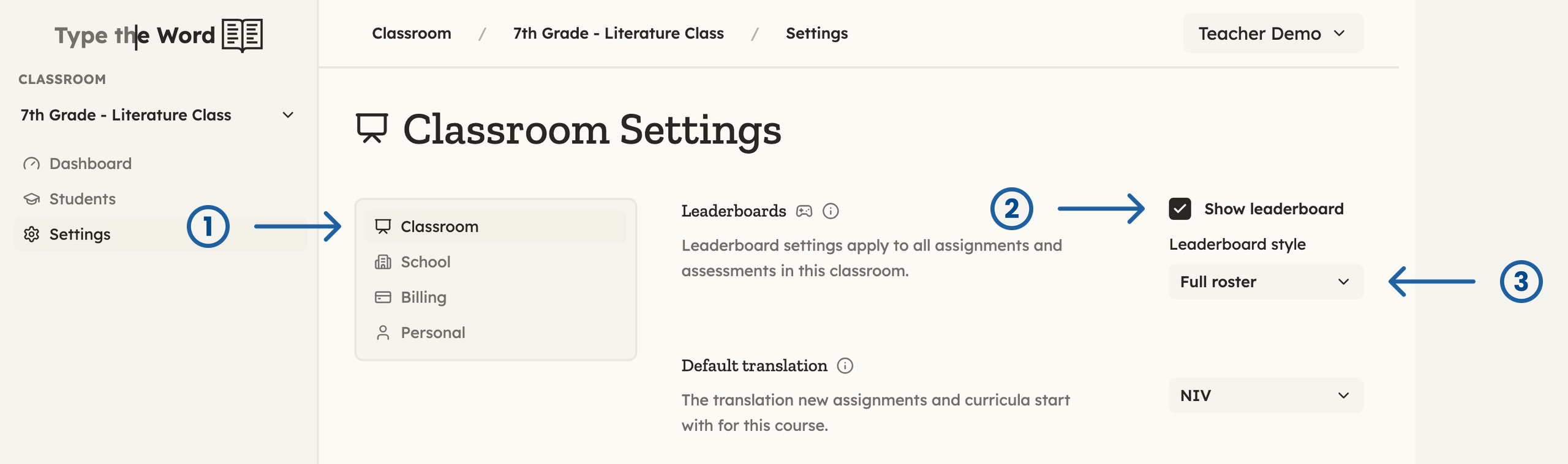
Under "Classroom" (1), turn on "Show leaderboard" (2) and choose a "Leaderboard style" (3).
Choose what students see
- “Podium” shows the top three qualifying finishers and the student’s own score. Students outside the podium do not see their rank.
- “Full roster” shows every qualifying finisher’s place and score, with the student’s own result highlighted.