

Prerequisites
- Your administrator has completed Connect your SIS and Connect to Canvas.
- Your Canvas account is a teacher in at least one connected course.
Launch Type the Word
Sign in to Canvas with your teacher account. Open your course and select Type the Word in the course navigation, or open a Type the Word assignment. Complete the Clever authorization prompt if it appears, then wait for Type the Word to open a class.Verify your classes
After you sign in, the “Classroom” dropdown in the sidebar lists the classes you teach that are shared with Type the Word. Select the class you want to manage.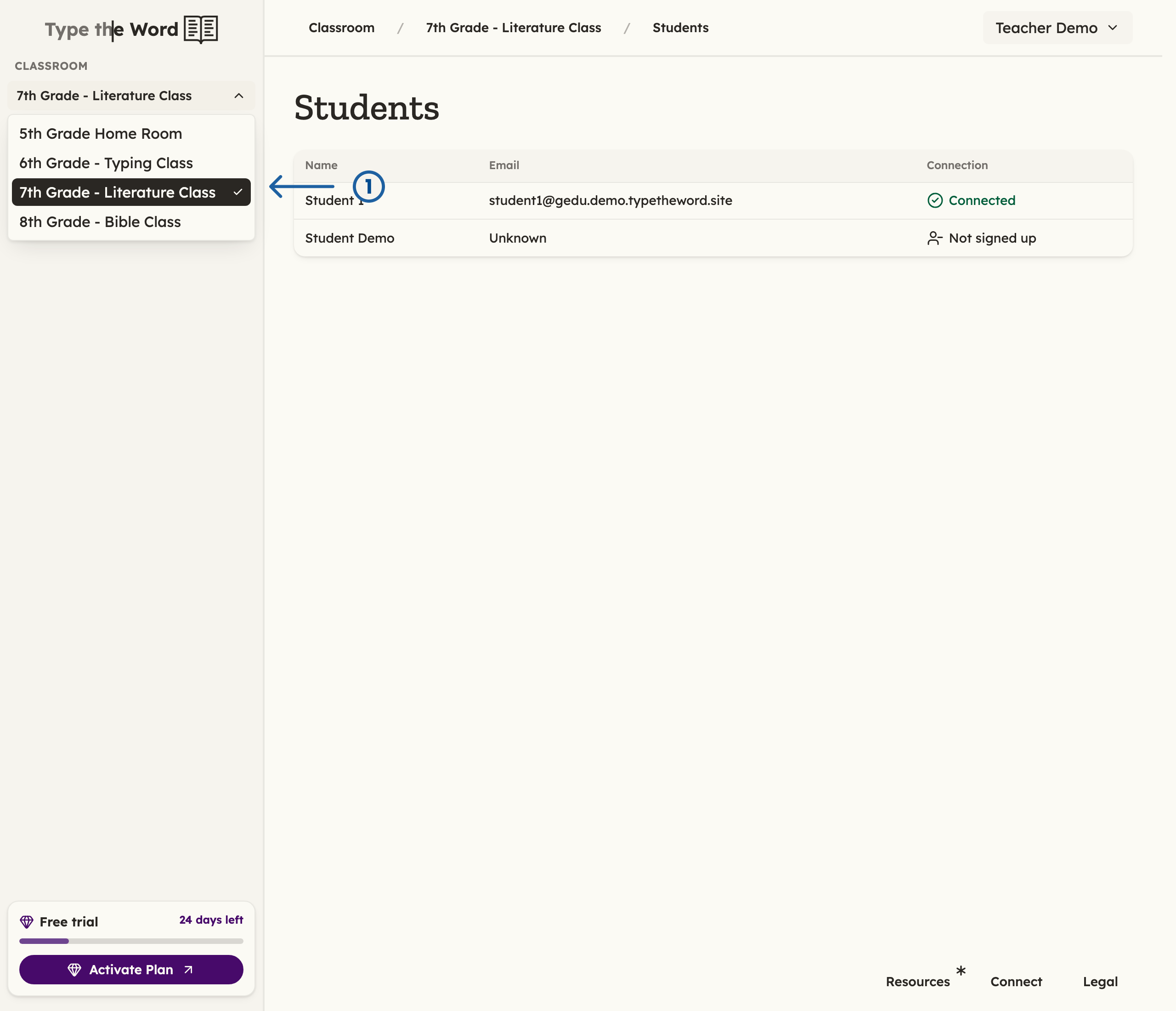
1 is "7th Grade - Literature Class" in the Classroom dropdown. Your class names will match your Canvas courses.
Setup complete
Teacher onboarding is complete when you can open a class and see its expected student roster. Continue by sharing the student setup guide.Troubleshooting
- No classes appear: Ask your administrator to confirm your sections are in the AnySchool roster and matched to Canvas.
- Roster is out of date: Confirm Canvas and your SIS contain the correction. Type the Word syncs your roster nightly.