> ## Documentation Index
> Fetch the complete documentation index at: https://docs.typetheword.com/llms.txt
> Use this file to discover all available pages before exploring further.
# See your progress
> Use the History page to review the books you have typed, your daily log, and your speed and accuracy.
## Open History
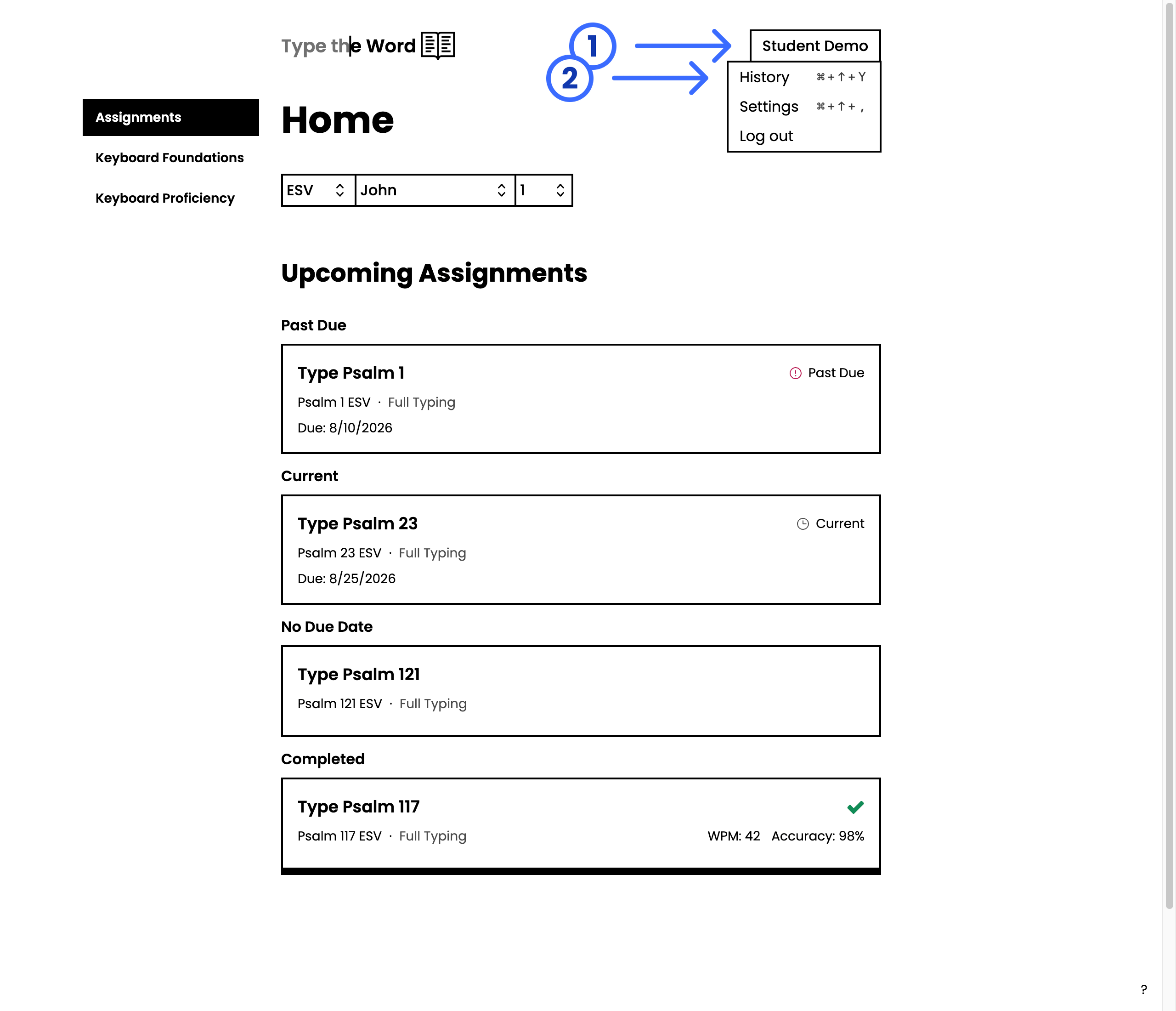
1. Select your name in the upper-right corner.
2. Select **"History"**.
 ## Overview
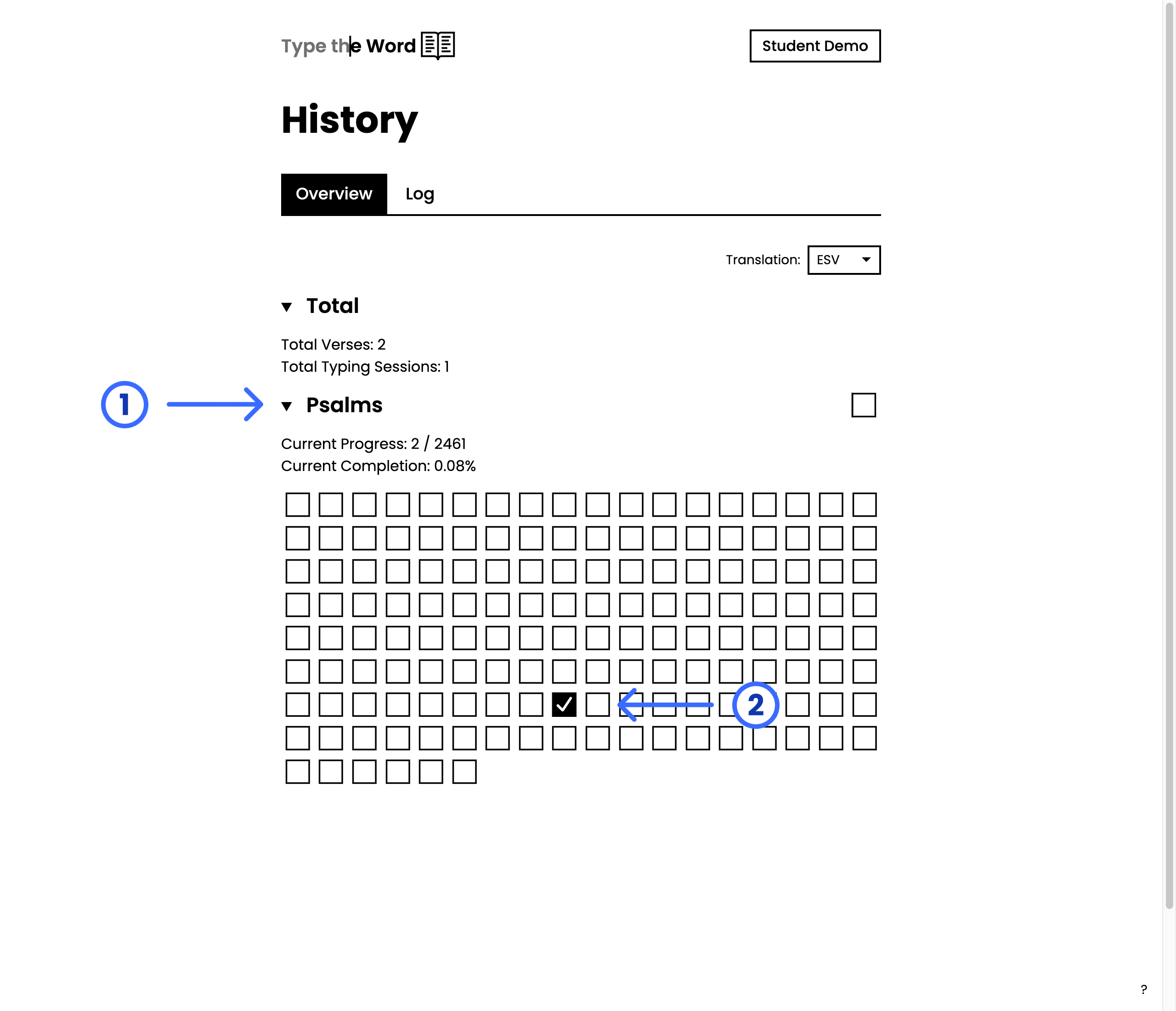
**"Overview"** is the first **"History"** tab. It lists the books you have
started typing.
* Expand **"Total"** to see how many verses and typing sessions you have
completed.
* Expand a book to see current progress, how many times you have finished that
book, and a grid of its chapters.
* Select a chapter box to open that chapter and keep typing.
If you type in more than one translation, use the translation selector at the
top of the page. **"Overview"** progress is shown for the selected translation.
## Overview
**"Overview"** is the first **"History"** tab. It lists the books you have
started typing.
* Expand **"Total"** to see how many verses and typing sessions you have
completed.
* Expand a book to see current progress, how many times you have finished that
book, and a grid of its chapters.
* Select a chapter box to open that chapter and keep typing.
If you type in more than one translation, use the translation selector at the
top of the page. **"Overview"** progress is shown for the selected translation.
 **"Overview"** stays empty until you have typed some verses. After that,
books appear as you work through them.
## Log
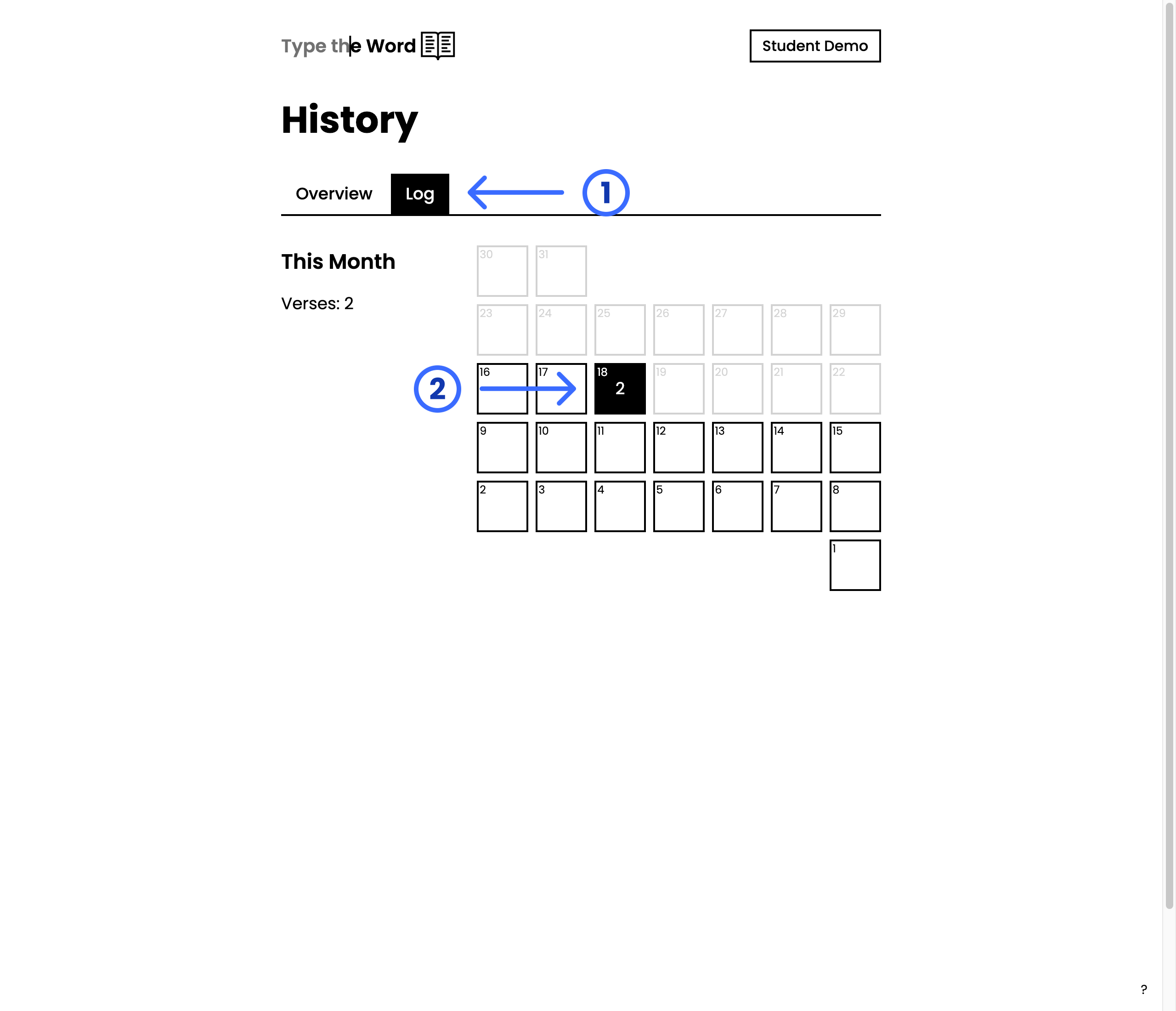
Select **"Log"** to see a month-by-month calendar of the days you typed. Each
month shows how many verses you typed, and each day on the calendar shows
activity for that date.
**"Overview"** stays empty until you have typed some verses. After that,
books appear as you work through them.
## Log
Select **"Log"** to see a month-by-month calendar of the days you typed. Each
month shows how many verses you typed, and each day on the calendar shows
activity for that date.
 ## WPM + Accuracy
The **"WPM + Accuracy"** tab is hidden until you turn it on:
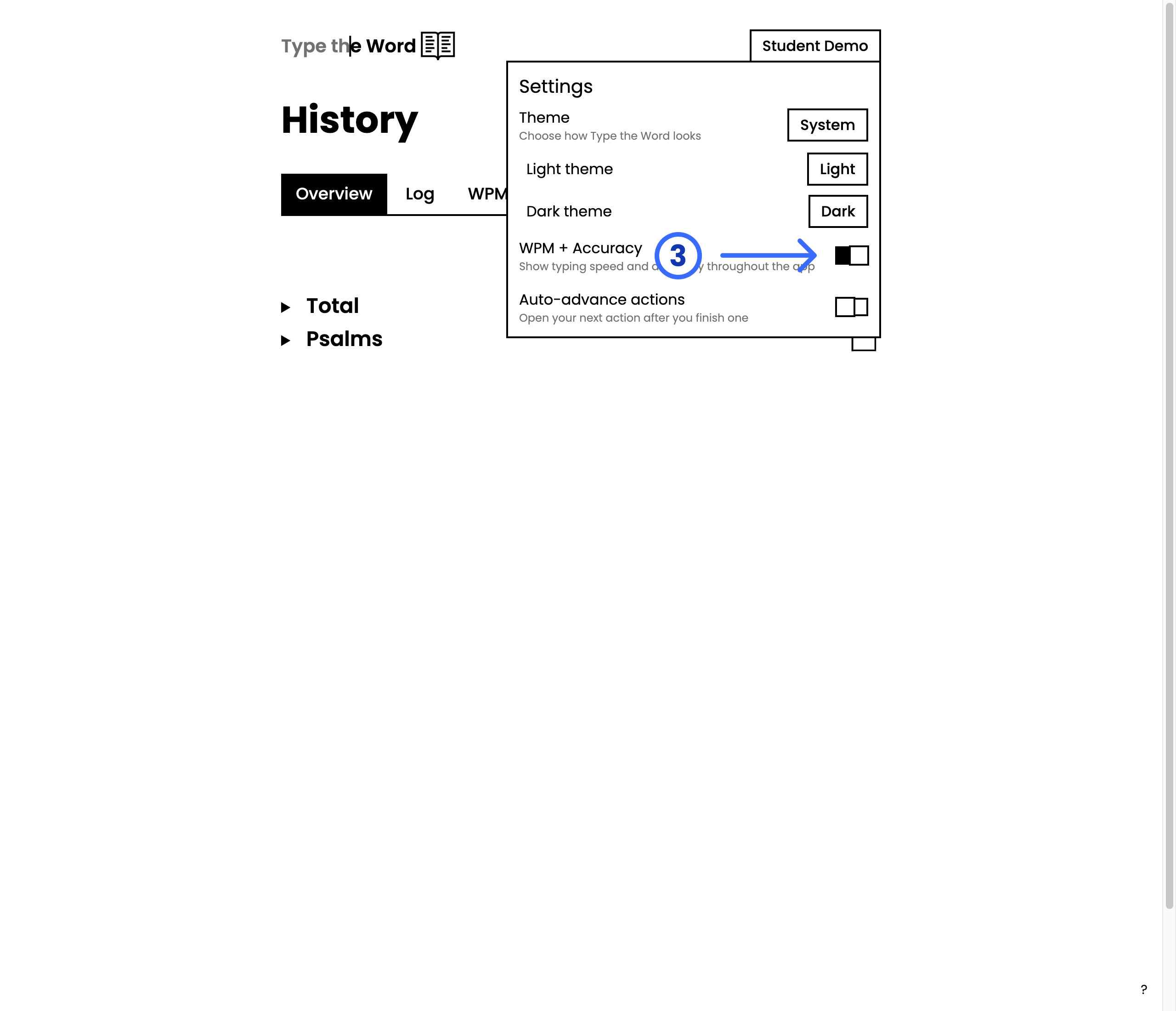
1. Select your name in the upper-right corner.
2. Select **"Settings"**.
3. Turn on **"WPM + Accuracy"**.
## WPM + Accuracy
The **"WPM + Accuracy"** tab is hidden until you turn it on:
1. Select your name in the upper-right corner.
2. Select **"Settings"**.
3. Turn on **"WPM + Accuracy"**.
 The tab then appears on **"History"** and shows your typing speed and accuracy
over time.
The tab then appears on **"History"** and shows your typing speed and accuracy
over time.
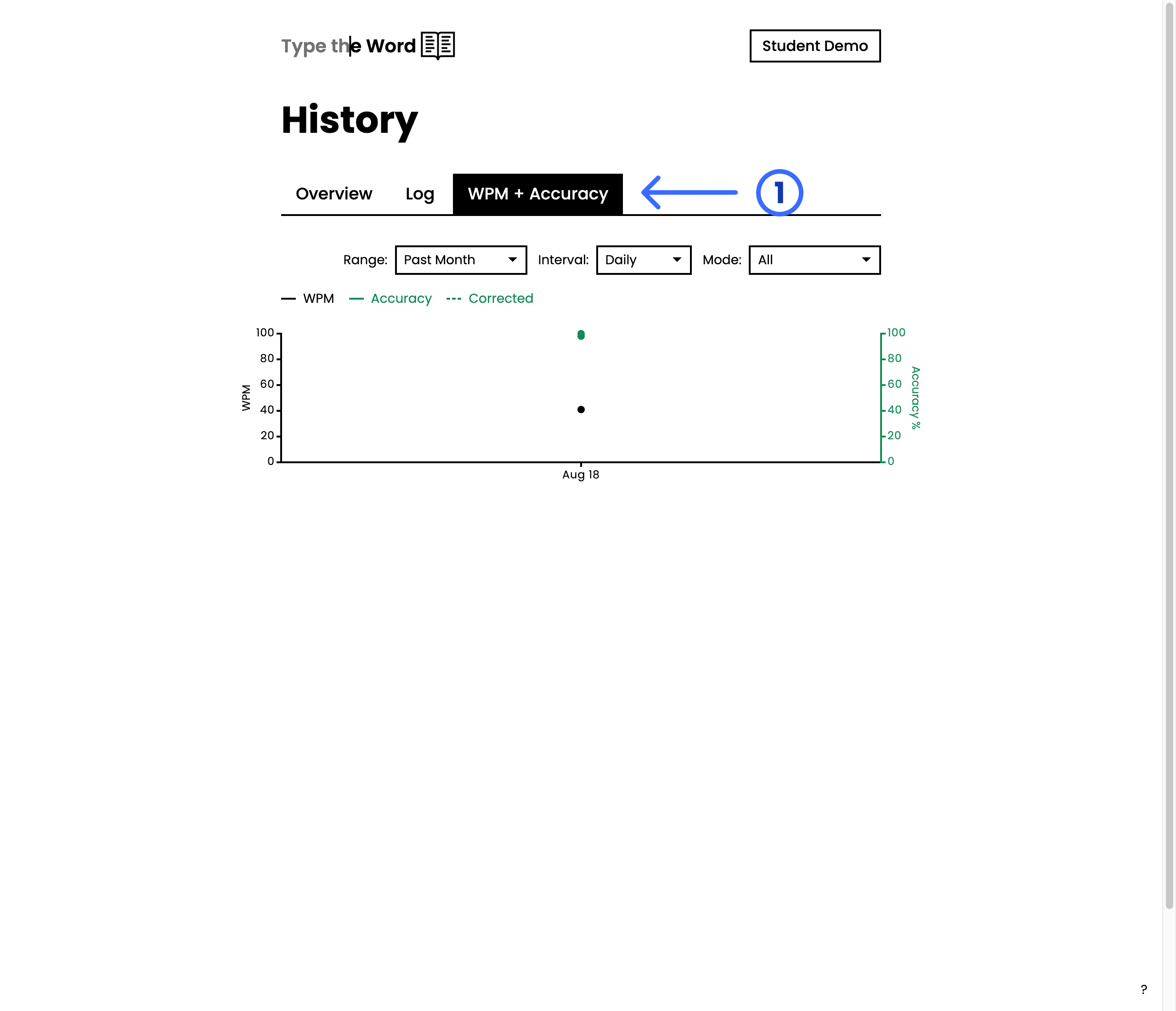 This chart starts with one day. As you type more, more points appear so you
can see how you are improving over time.
This chart starts with one day. As you type more, more points appear so you
can see how you are improving over time.