> ## Documentation Index
> Fetch the complete documentation index at: https://docs.typetheword.com/llms.txt
> Use this file to discover all available pages before exploring further.
# Navigate the Bible
> Open any book and chapter with the PassageSelector.
## Use the PassageSelector
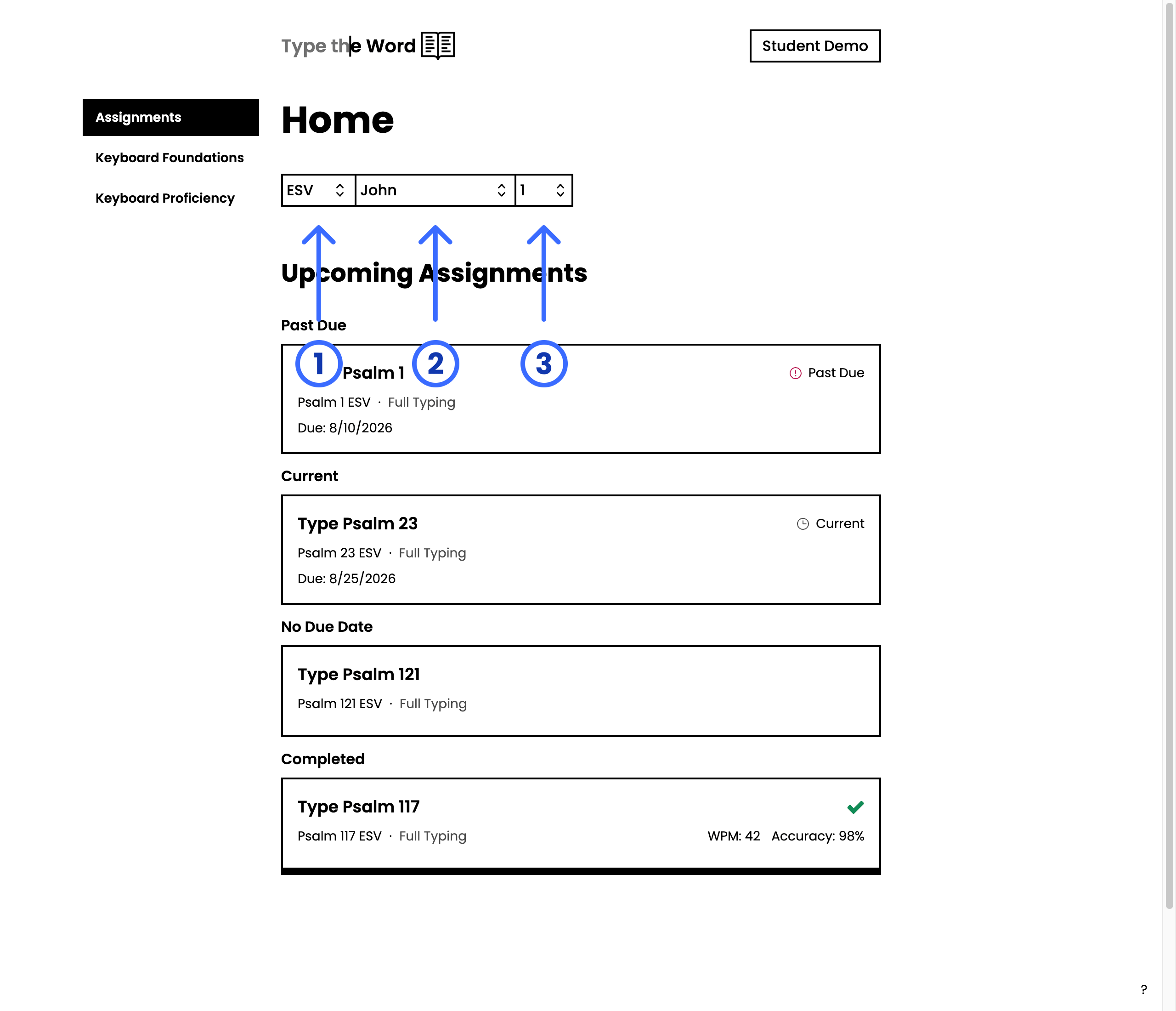
The PassageSelector appears at the top of **"Home"** and at the top of every
passage page. It is the translation, book, and chapter controls.
1. Choose a translation.
2. Choose a book.
3. Choose a chapter.
 When you pick a chapter, Type the Word opens it so you can start typing. If
the list is long, click a box and start typing the book you want, like John.
The list jumps to what you typed. You can do the same for a chapter number or
a translation.
## Open a chapter from History
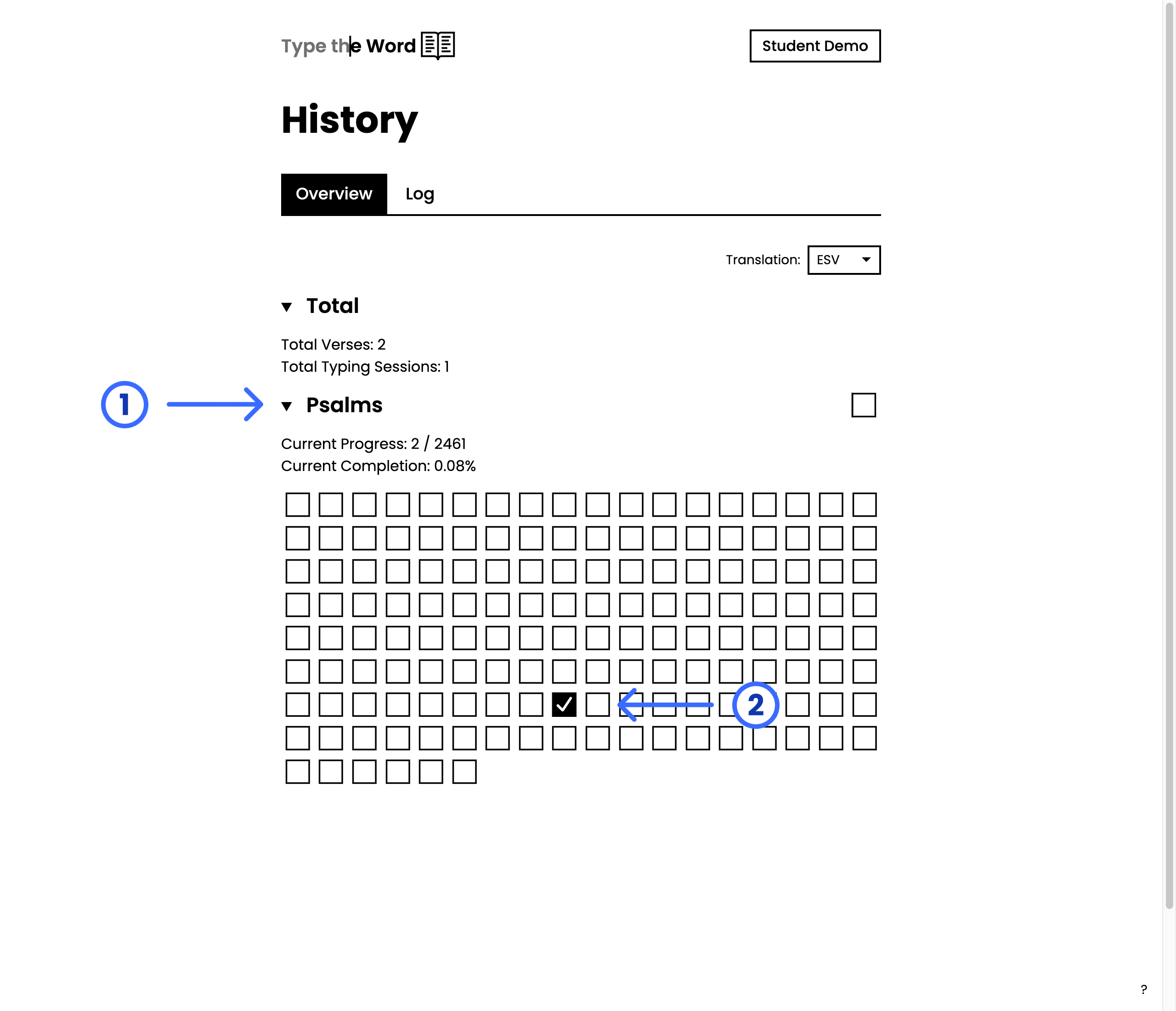
On the **"Overview"** tab in **"History"**, expand a book to see its chapter
grid. Select a chapter box to open that chapter and keep typing. Go to [See
your progress](/students/see-your-progress) for details on how the
**"History"** page works.
When you pick a chapter, Type the Word opens it so you can start typing. If
the list is long, click a box and start typing the book you want, like John.
The list jumps to what you typed. You can do the same for a chapter number or
a translation.
## Open a chapter from History
On the **"Overview"** tab in **"History"**, expand a book to see its chapter
grid. Select a chapter box to open that chapter and keep typing. Go to [See
your progress](/students/see-your-progress) for details on how the
**"History"** page works.