> ## Documentation Index
> Fetch the complete documentation index at: https://docs.typetheword.com/llms.txt
> Use this file to discover all available pages before exploring further.
# Find your assignments
> Find the work your teacher assigned and start typing.
## Open Home
After you sign in, Type the Word takes you to **"Home"**. If you are somewhere
else in the app, you can get back to **"Home"** by:
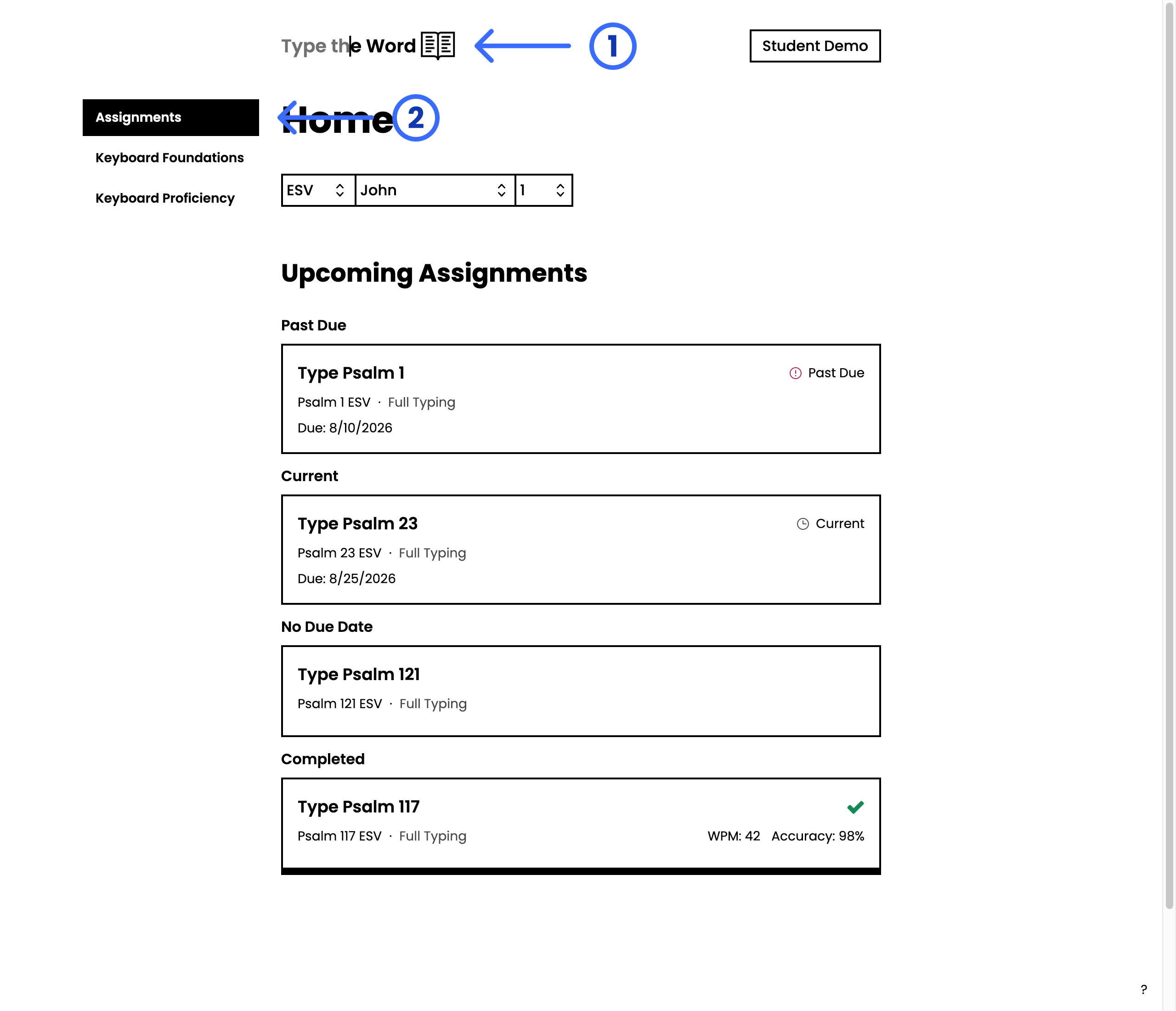
1. Click the **"Type the Word"** logo in the header, or
2. Click **"Assignments"** in the homepage sidebar.
 ## Find Upcoming Assignments
From **"Home"**, you can see all of your upcoming assignments. Cards are grouped
so the work that needs attention first is at the top:
* **"Past Due"** — assignments whose due date has already passed
* **"Current"** — assignments with an upcoming due date
* **"No Due Date"** — assignments you can complete whenever you are ready
* **"Completed"** — assignments you have already finished
A group only appears when it has at least one assignment.
## Open an assignment
The work that needs attention first is at the top. Click a card to open that
assignment and complete it.
If you see **"You don't have any upcoming assignments"**, your teacher has
not created one yet. In [When you have no
assignments](/students/when-you-have-no-assignments), we'll talk more about
what you can do when you don't have any more assignments to complete.
## Find Upcoming Assignments
From **"Home"**, you can see all of your upcoming assignments. Cards are grouped
so the work that needs attention first is at the top:
* **"Past Due"** — assignments whose due date has already passed
* **"Current"** — assignments with an upcoming due date
* **"No Due Date"** — assignments you can complete whenever you are ready
* **"Completed"** — assignments you have already finished
A group only appears when it has at least one assignment.
## Open an assignment
The work that needs attention first is at the top. Click a card to open that
assignment and complete it.
If you see **"You don't have any upcoming assignments"**, your teacher has
not created one yet. In [When you have no
assignments](/students/when-you-have-no-assignments), we'll talk more about
what you can do when you don't have any more assignments to complete.