> ## Documentation Index
> Fetch the complete documentation index at: https://docs.typetheword.com/llms.txt
> Use this file to discover all available pages before exploring further.
# How to switch account types
> Convert an individual Type the Word account to a student or teacher account, or disconnect school sign-in and return to an individual account.
## Before you switch
Use account conversion when you want to keep one Type the Word account and its
typing activity while changing how you sign in.
Converting to **"Student"** or **"Teacher"** replaces individual sign-in
with Google Classroom or Microsoft Teams school sign-in. Converting to
**"Individual"** disconnects school classrooms and school sign-in.
This self-service process works with Google Classroom and Microsoft Teams. If
your school uses Clever, or your individual and school identities use different
email addresses, [contact Type the Word support](mailto:hello@typetheword.com)
before changing the account.
## Start from the login page
1. If you are signed in, select your name in the upper-right corner and select
**"Log out"**.
2. Open the [Type the Word login page](https://www.typetheword.com/auth/login).
3. If Type the Word remembers your last account type, select **"Start over"**.
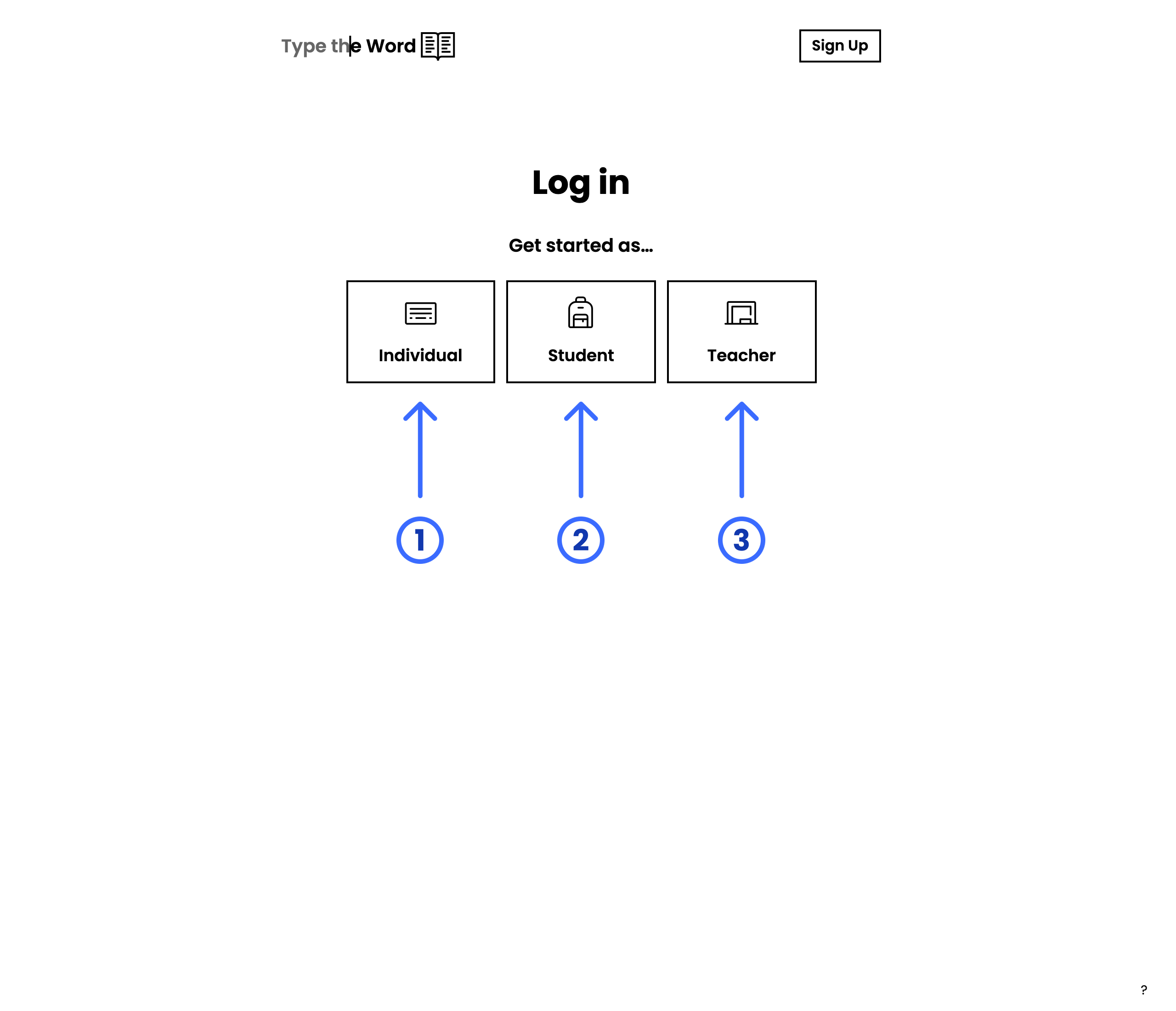
4. Under **"Get started as…"**, choose the account type you want.
 ## Convert an individual account to a school account
1. Choose **"Student"** or **"Teacher"**.
2. Select **"Continue with Google"** for Google Classroom or **"Continue with
Microsoft"** for Microsoft Teams.
3. Sign in with the school identity that belongs to your existing Type the Word
account.
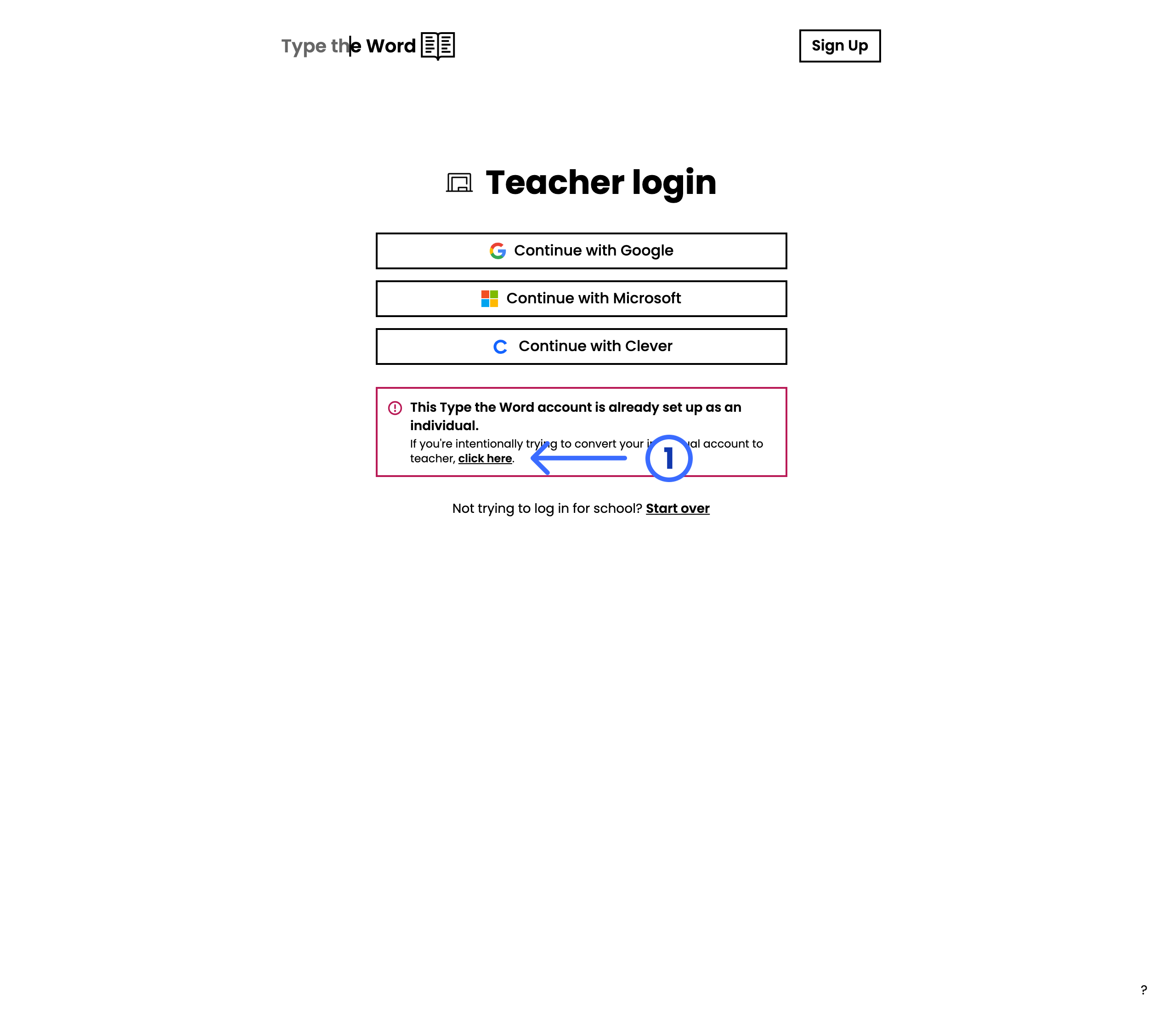
4. When Type the Word says the account is already set up as an individual,
select **"click here"** in the conversion message.
## Convert an individual account to a school account
1. Choose **"Student"** or **"Teacher"**.
2. Select **"Continue with Google"** for Google Classroom or **"Continue with
Microsoft"** for Microsoft Teams.
3. Sign in with the school identity that belongs to your existing Type the Word
account.
4. When Type the Word says the account is already set up as an individual,
select **"click here"** in the conversion message.
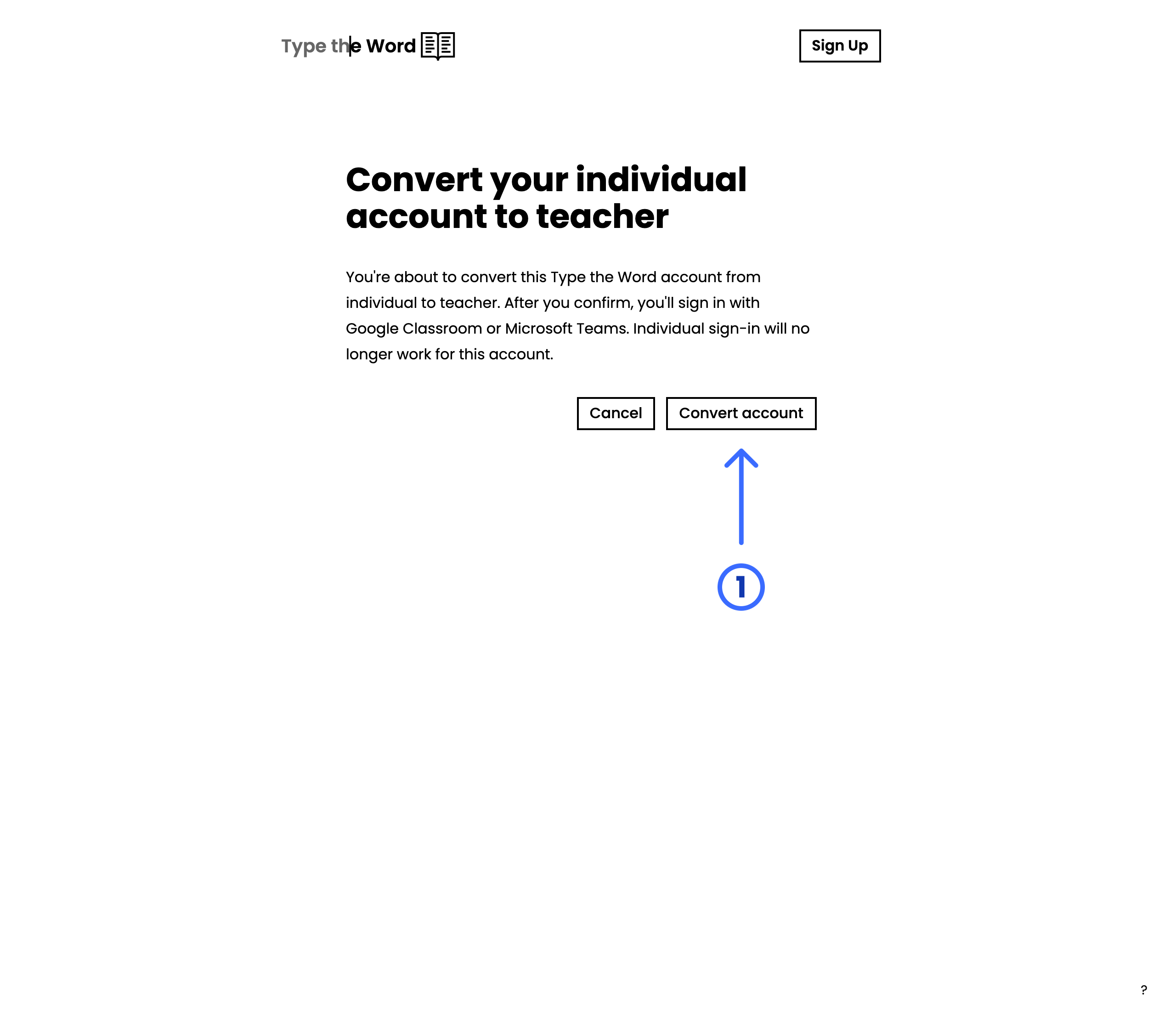
 5. Review the warning, then select **"Convert account"**.
 6. Sign in with the school identity again to finish connecting the account.
After conversion, use **"Student"** or **"Teacher"** and the connected school
provider whenever you log in. Individual sign-in no longer works for that Type
the Word account.
These screenshots show a conversion to **"Teacher"**. A conversion to
**"Student"** follows the same steps and shows student-specific wording.
## Convert a school account to an individual account
1. Choose **"Individual"**.
2. Select **"Continue with Google"** if you use Google Classroom, or
**"Continue with Microsoft"** if you use Microsoft Teams.
3. Sign in with the same identity you used for your school account.
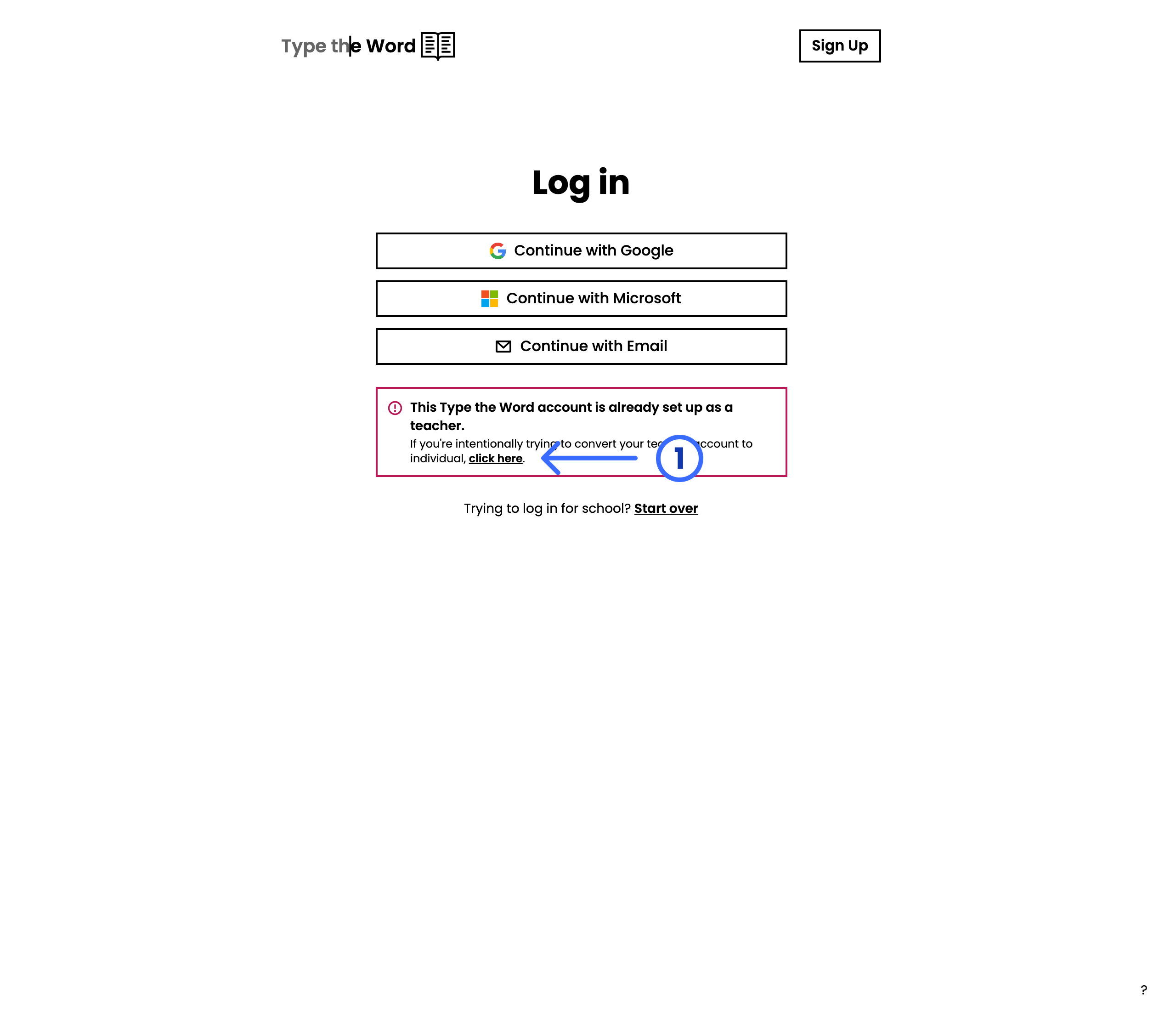
4. When Type the Word says the account is already set up as a student or
teacher, select **"click here"** in the conversion message.
6. Sign in with the school identity again to finish connecting the account.
After conversion, use **"Student"** or **"Teacher"** and the connected school
provider whenever you log in. Individual sign-in no longer works for that Type
the Word account.
These screenshots show a conversion to **"Teacher"**. A conversion to
**"Student"** follows the same steps and shows student-specific wording.
## Convert a school account to an individual account
1. Choose **"Individual"**.
2. Select **"Continue with Google"** if you use Google Classroom, or
**"Continue with Microsoft"** if you use Microsoft Teams.
3. Sign in with the same identity you used for your school account.
4. When Type the Word says the account is already set up as a student or
teacher, select **"click here"** in the conversion message.
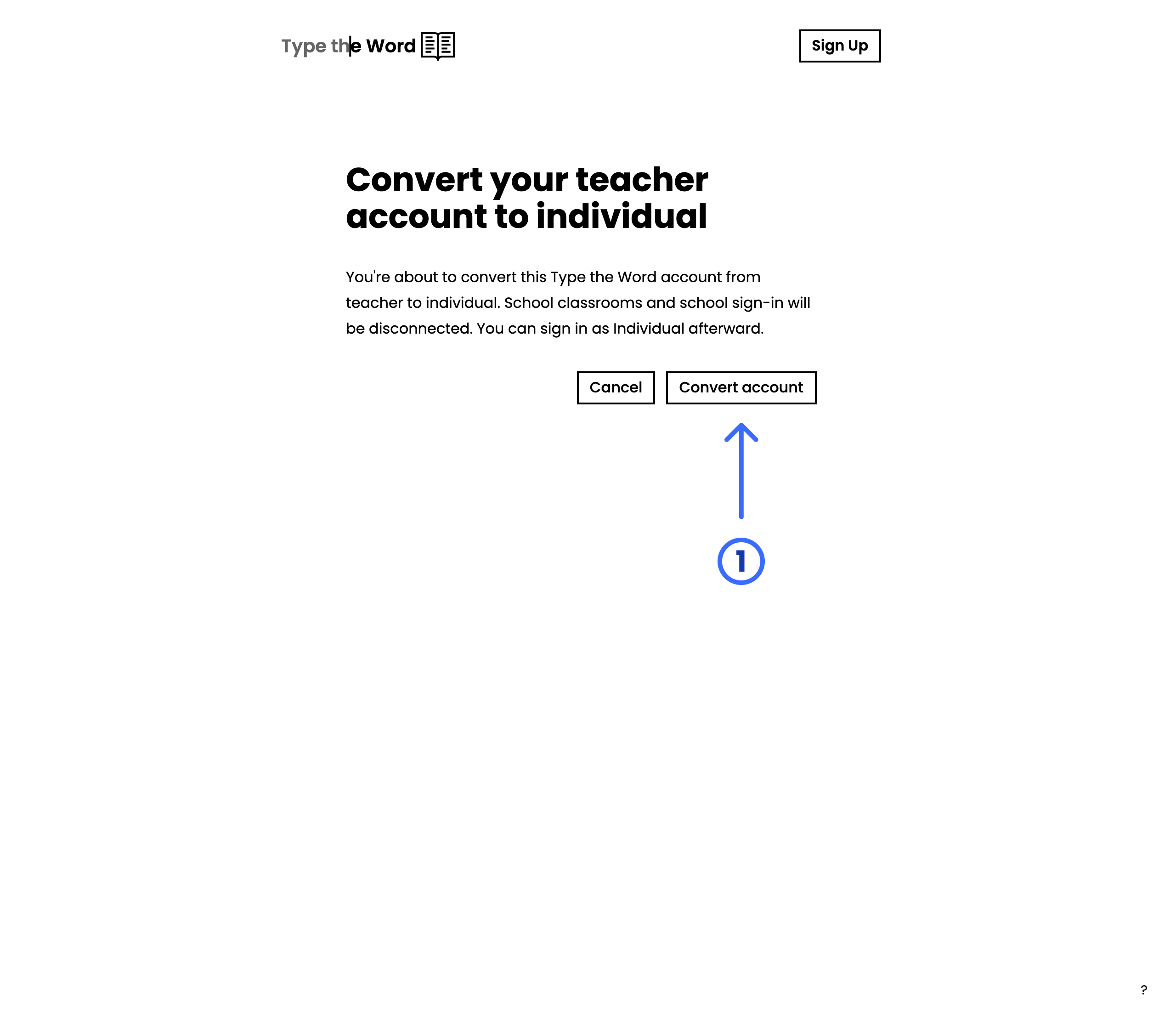
 5. Review the warning, then select **"Convert account"**.
 6. Sign in again to open the individual account.
Your typing activity stays with the account, but school classrooms and school
sign-in are disconnected. After conversion, choose **"Individual"** when you
log in.
These screenshots show a **"Teacher"** account. A **"Student"** account
follows the same steps and shows student-specific wording.
## Troubleshooting
* **The conversion link expired:** Return to the login page and repeat the
sign-in attempt. Conversion links expire after 15 minutes.
* **The account is linked somewhere else:** Do not create another account.
[Contact Type the Word support](mailto:hello@typetheword.com) for help joining
the identities.
* **The wrong account type appears:** Select **"Start over"** on the login page,
then choose **"Individual"**, **"Student"**, or **"Teacher"** again.
6. Sign in again to open the individual account.
Your typing activity stays with the account, but school classrooms and school
sign-in are disconnected. After conversion, choose **"Individual"** when you
log in.
These screenshots show a **"Teacher"** account. A **"Student"** account
follows the same steps and shows student-specific wording.
## Troubleshooting
* **The conversion link expired:** Return to the login page and repeat the
sign-in attempt. Conversion links expire after 15 minutes.
* **The account is linked somewhere else:** Do not create another account.
[Contact Type the Word support](mailto:hello@typetheword.com) for help joining
the identities.
* **The wrong account type appears:** Select **"Start over"** on the login page,
then choose **"Individual"**, **"Student"**, or **"Teacher"** again.