> ## Documentation Index
> Fetch the complete documentation index at: https://docs.typetheword.com/llms.txt
> Use this file to discover all available pages before exploring further.
# Run a speed assessment
> Once a month, it is a great idea to create and publish a speed assessment so you can get a snapshot of where your students are.
## Create a speed assessment
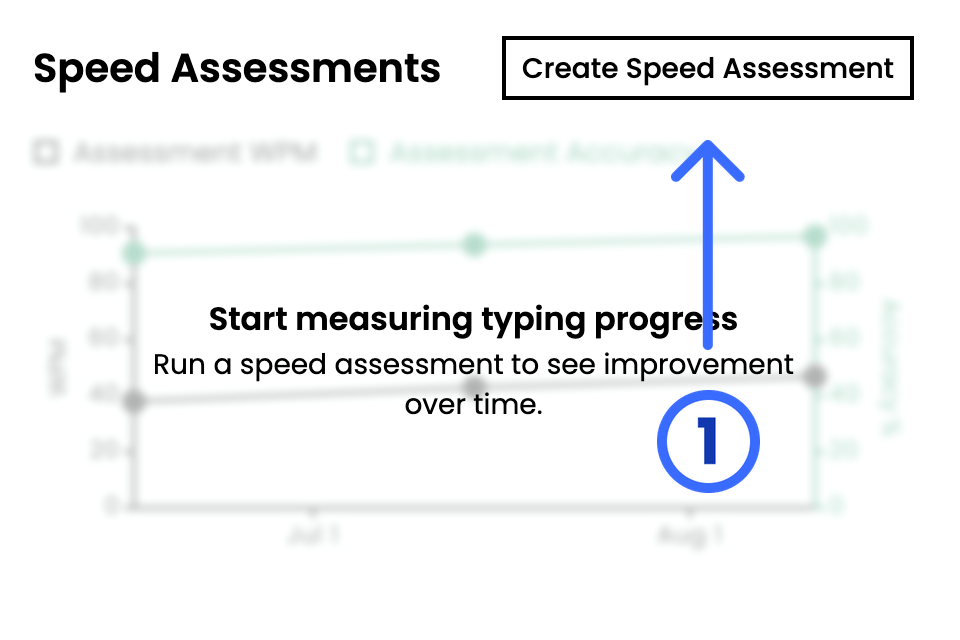
From **"Dashboard"**, select **"Create Speed Assessment"**.
 You can customize the name, **"Translation"**, and **"Due date"**, then
select **"Create Assessment"**. Students type **"Psalm 23:1–3"**,
**"John 3:16"**, and the Lord's Prayer (**"Matthew 6:9–13"**). For Fall
2026, every school uses these same passages so you can get a grade-level
percentile for your class. In Spring 2027, we will update them with new
passages to give your students a new challenge while keeping that same
consistency across classrooms.
You can customize the name, **"Translation"**, and **"Due date"**, then
select **"Create Assessment"**. Students type **"Psalm 23:1–3"**,
**"John 3:16"**, and the Lord's Prayer (**"Matthew 6:9–13"**). For Fall
2026, every school uses these same passages so you can get a grade-level
percentile for your class. In Spring 2027, we will update them with new
passages to give your students a new challenge while keeping that same
consistency across classrooms.
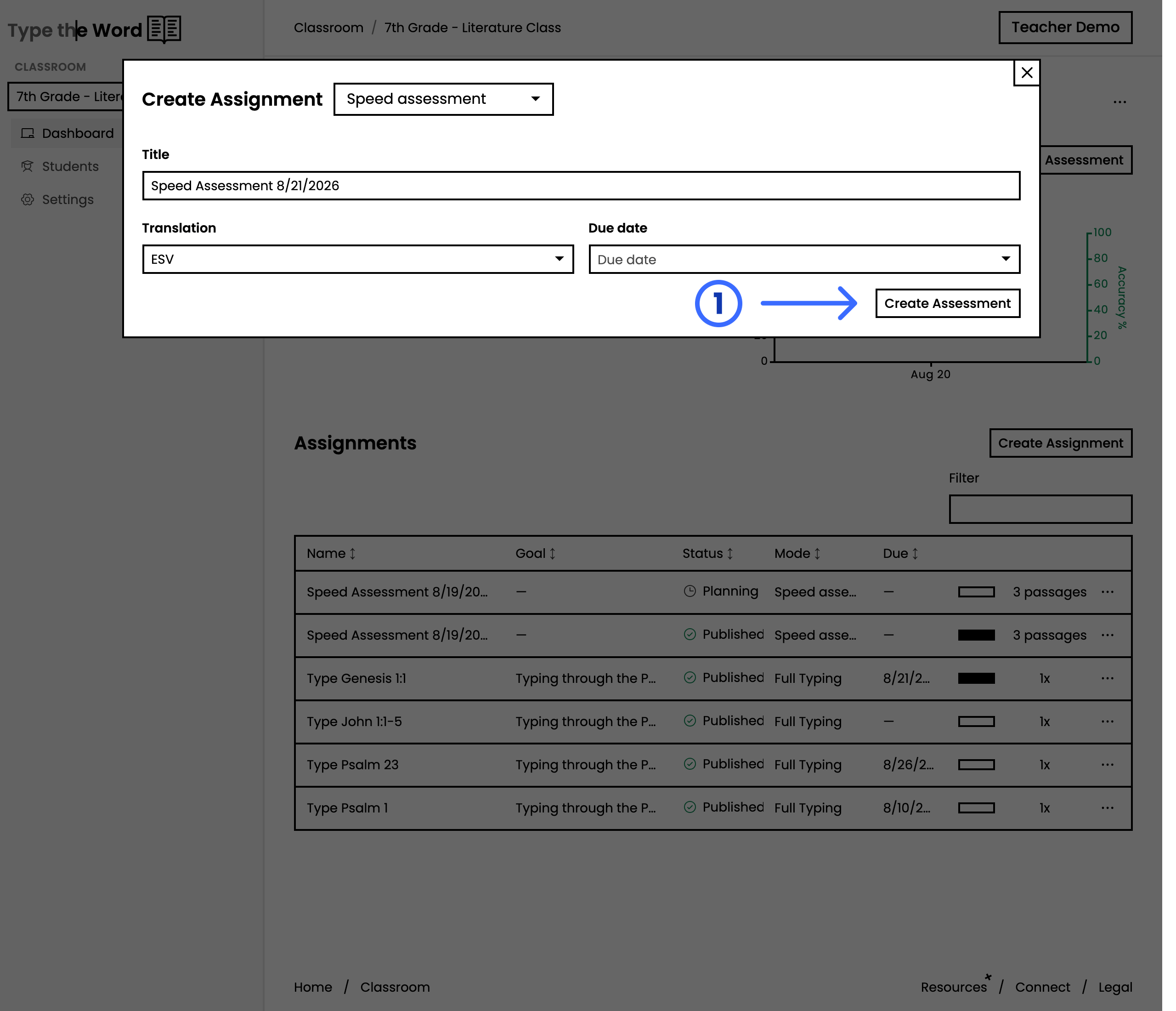 The initial value of your **"Translation"** field is the classroom default.
If you ever want to customize this, head to **"Settings"**. [Manage
translations](/classroom/manage-translations) shows how.
## Publish to share this with your class
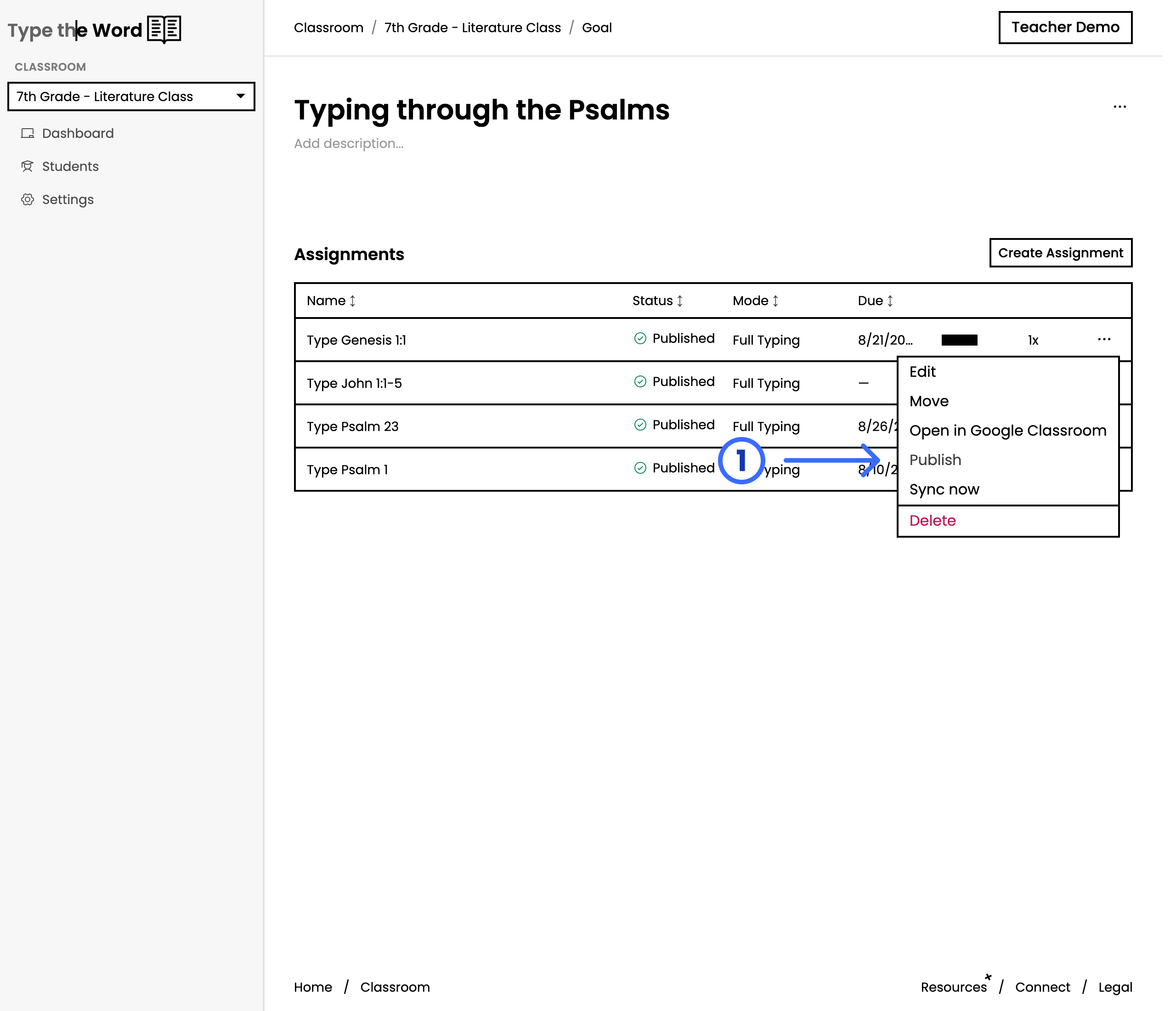
In the assignments list, open the actions menu and select **"Publish"** so
your students can access this speed assessment.
The initial value of your **"Translation"** field is the classroom default.
If you ever want to customize this, head to **"Settings"**. [Manage
translations](/classroom/manage-translations) shows how.
## Publish to share this with your class
In the assignments list, open the actions menu and select **"Publish"** so
your students can access this speed assessment.
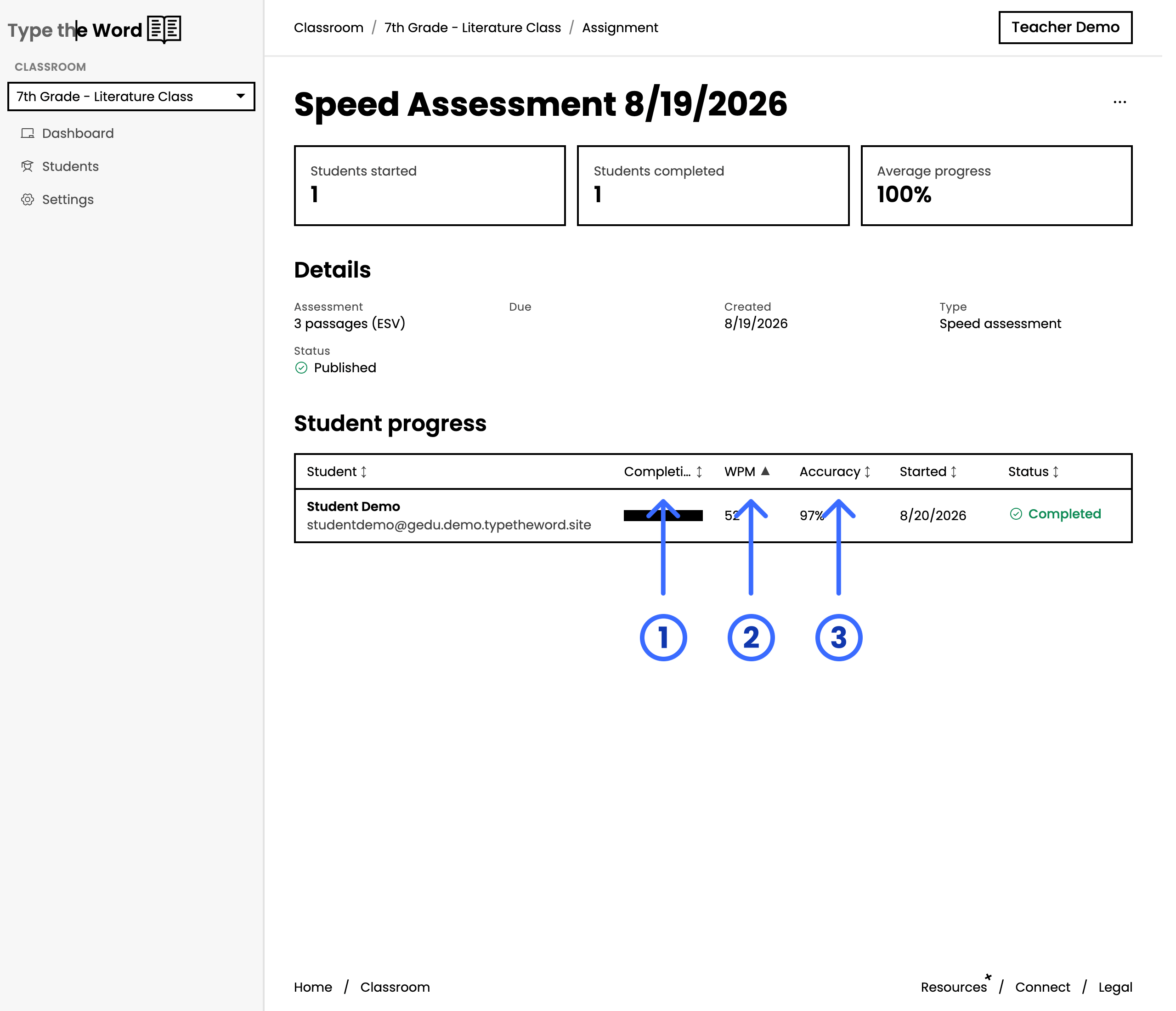
 Then have students open Type the Word and complete it during class.
After they have completed their speed assessment, **"Student progress"** will
show each student's speed and accuracy. Their status will change to
**"Completed"** once they have finished the assessment.
Then have students open Type the Word and complete it during class.
After they have completed their speed assessment, **"Student progress"** will
show each student's speed and accuracy. Their status will change to
**"Completed"** once they have finished the assessment.
 If you think they need more work on the fundamentals of typing, you can
[assign a typing program](/classroom/assign-a-typing-program). Or if you
think they just need more volume, you can [assign a Bible
curriculum](/classroom/assign-a-bible-curriculum).
If you think they need more work on the fundamentals of typing, you can
[assign a typing program](/classroom/assign-a-typing-program). Or if you
think they just need more volume, you can [assign a Bible
curriculum](/classroom/assign-a-bible-curriculum).