> ## Documentation Index
> Fetch the complete documentation index at: https://docs.typetheword.com/llms.txt
> Use this file to discover all available pages before exploring further.
# Run a Memory Assessment
> Choose a passage, publish a memory assessment, and review how much your students recall and where they need more practice.
## Create a memory assessment
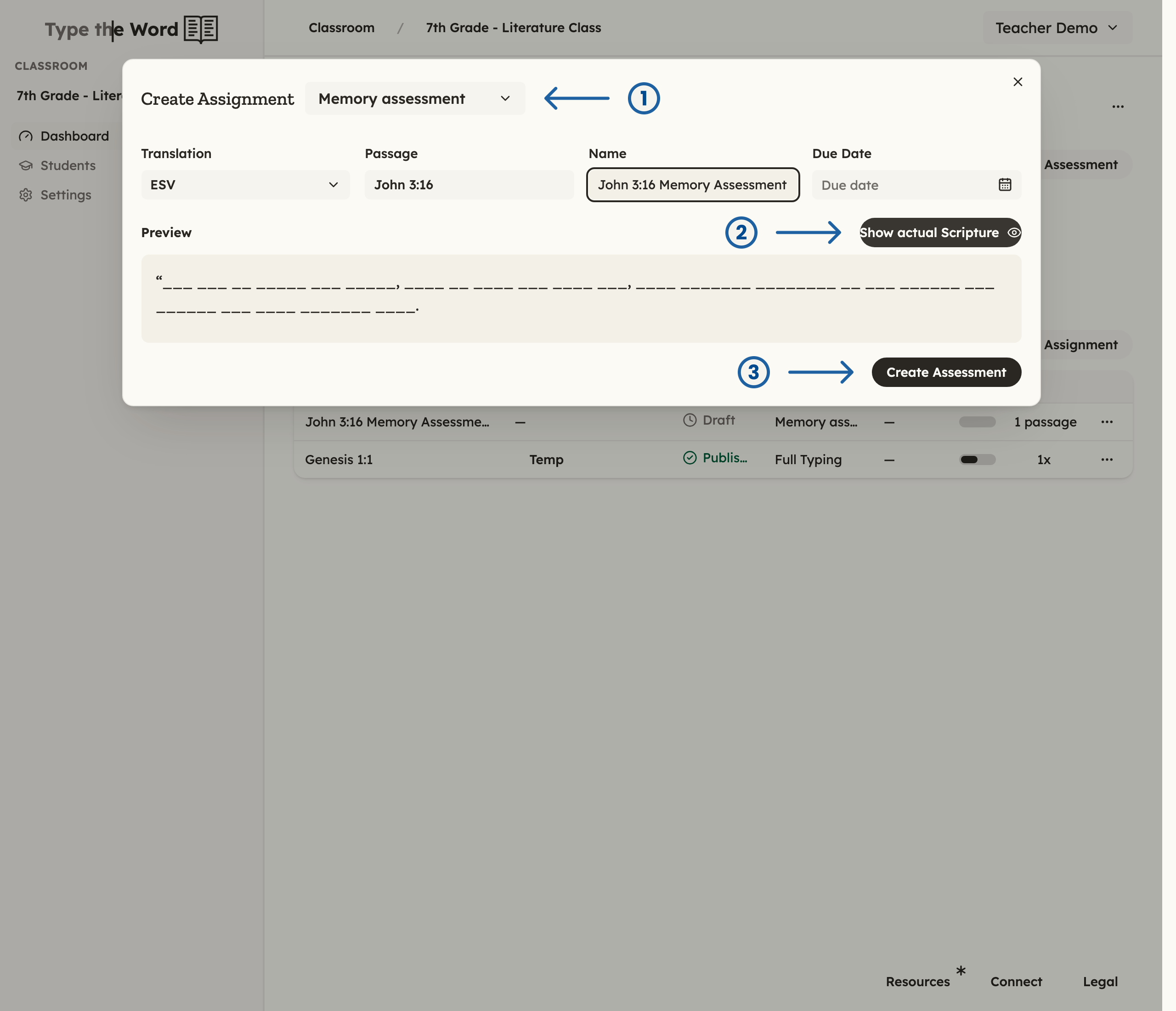
From **"Dashboard"**, find **"Assignments"** and click **"Create
Assignment"**. Open the menu beside **"Create Assignment"** and choose
**"Memory assessment"**.
Customize **"Translation"**, **"Passage"**, **"Name"**, and **"Due Date"**.
Choose a passage your students have been practicing. The translation starts
with your classroom default; [Manage
translations](/classroom/manage-translations) explains how to change that
default.
 ## Check the passage preview
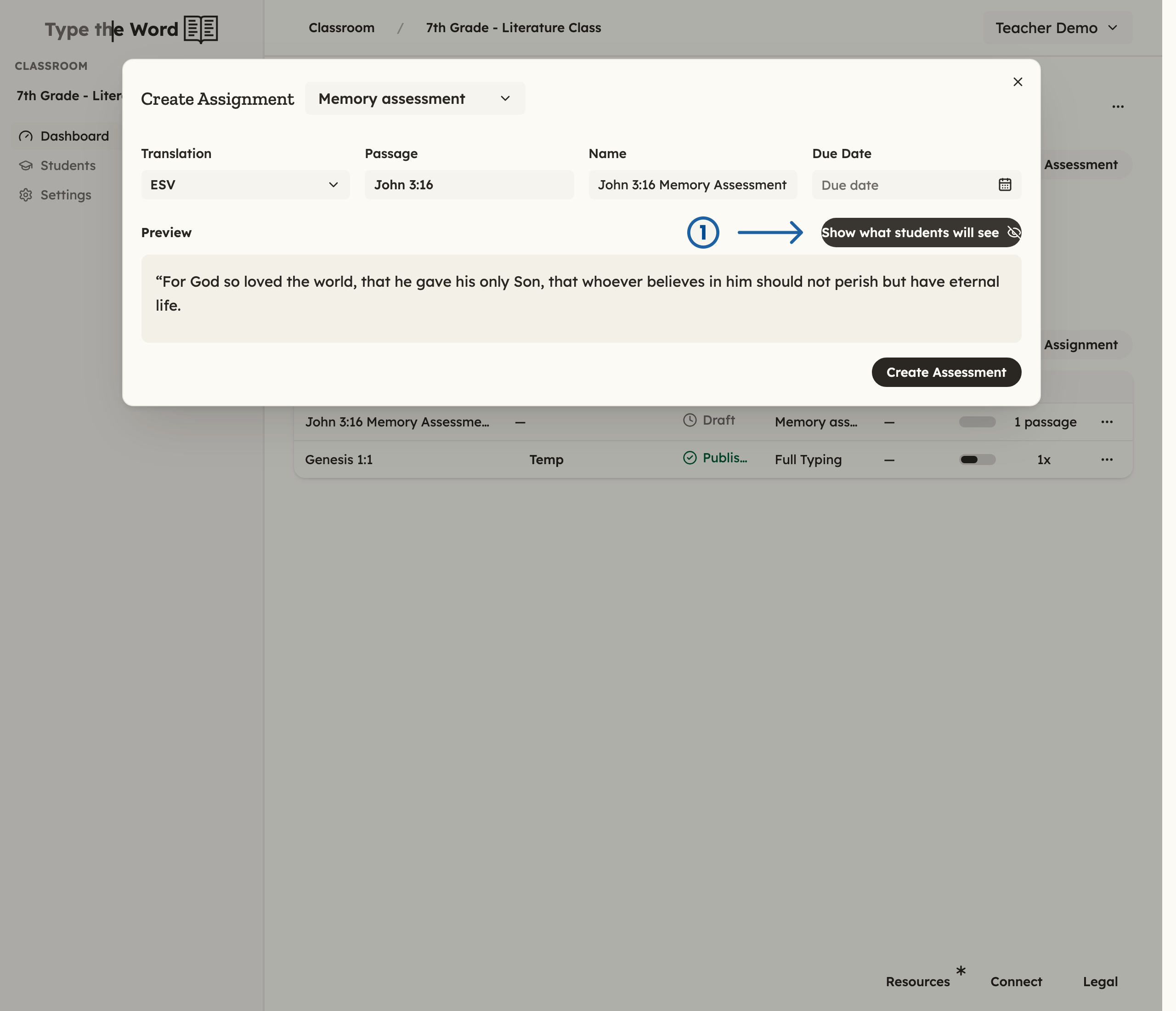
**"Preview"** starts with the words hidden, as students will see them. Click
**"Show actual Scripture"** to check the passage, then **"Show what students
will see"** to return to the hidden-word view.
## Check the passage preview
**"Preview"** starts with the words hidden, as students will see them. Click
**"Show actual Scripture"** to check the passage, then **"Show what students
will see"** to return to the hidden-word view.
 Select **"Create Assessment"** when you are ready. The assessment starts in
**"Planning"**.
## Publish for your class
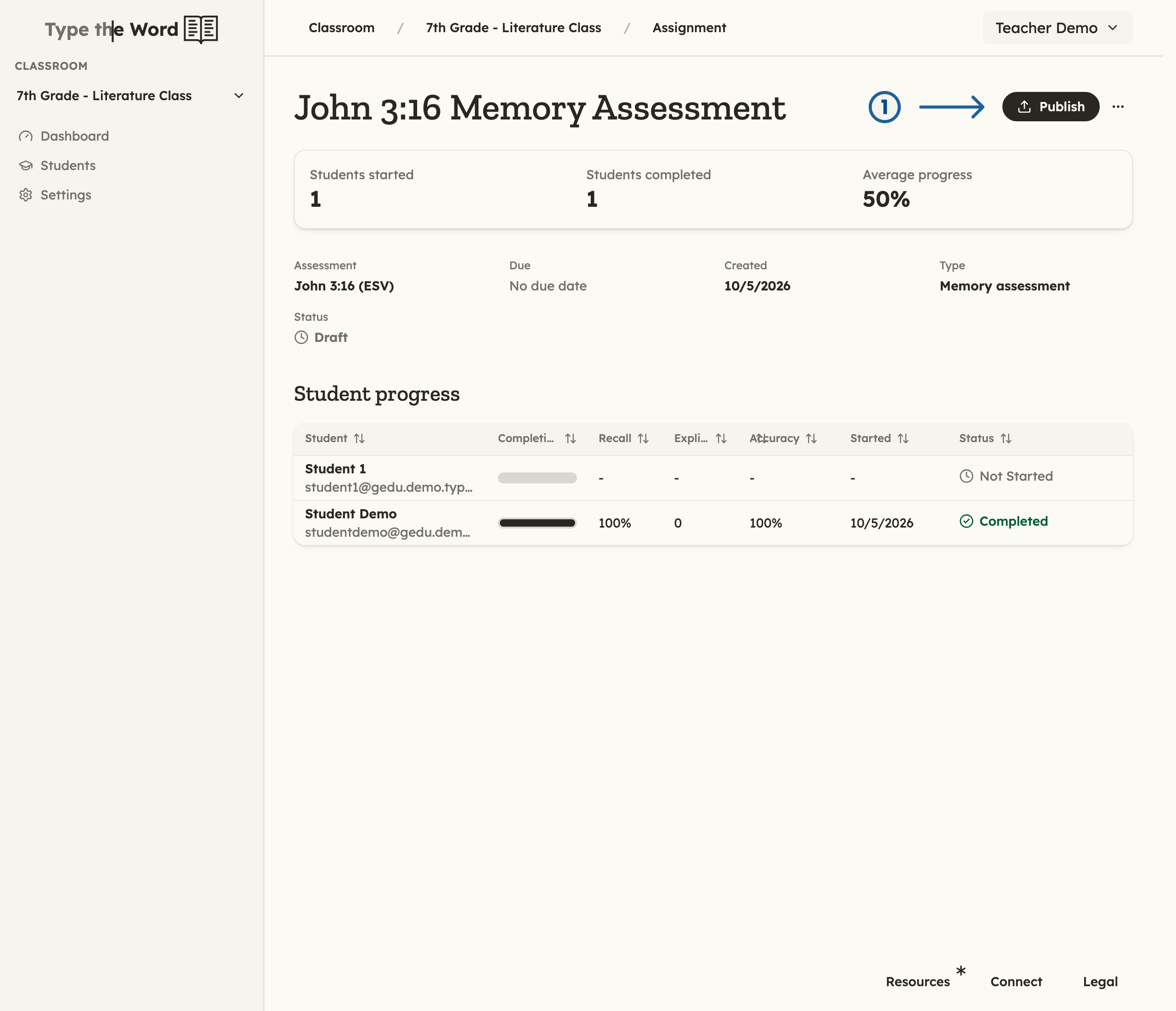
On the assessment page, select **"Publish"** so students can access it. Have
students open Type the Word and complete the assessment.
Select **"Create Assessment"** when you are ready. The assessment starts in
**"Planning"**.
## Publish for your class
On the assessment page, select **"Publish"** so students can access it. Have
students open Type the Word and complete the assessment.
 Students type the passage with its words hidden. They can use hints when they
need help, and the results distinguish words recalled independently from words
completed with help.
## Review your students' results
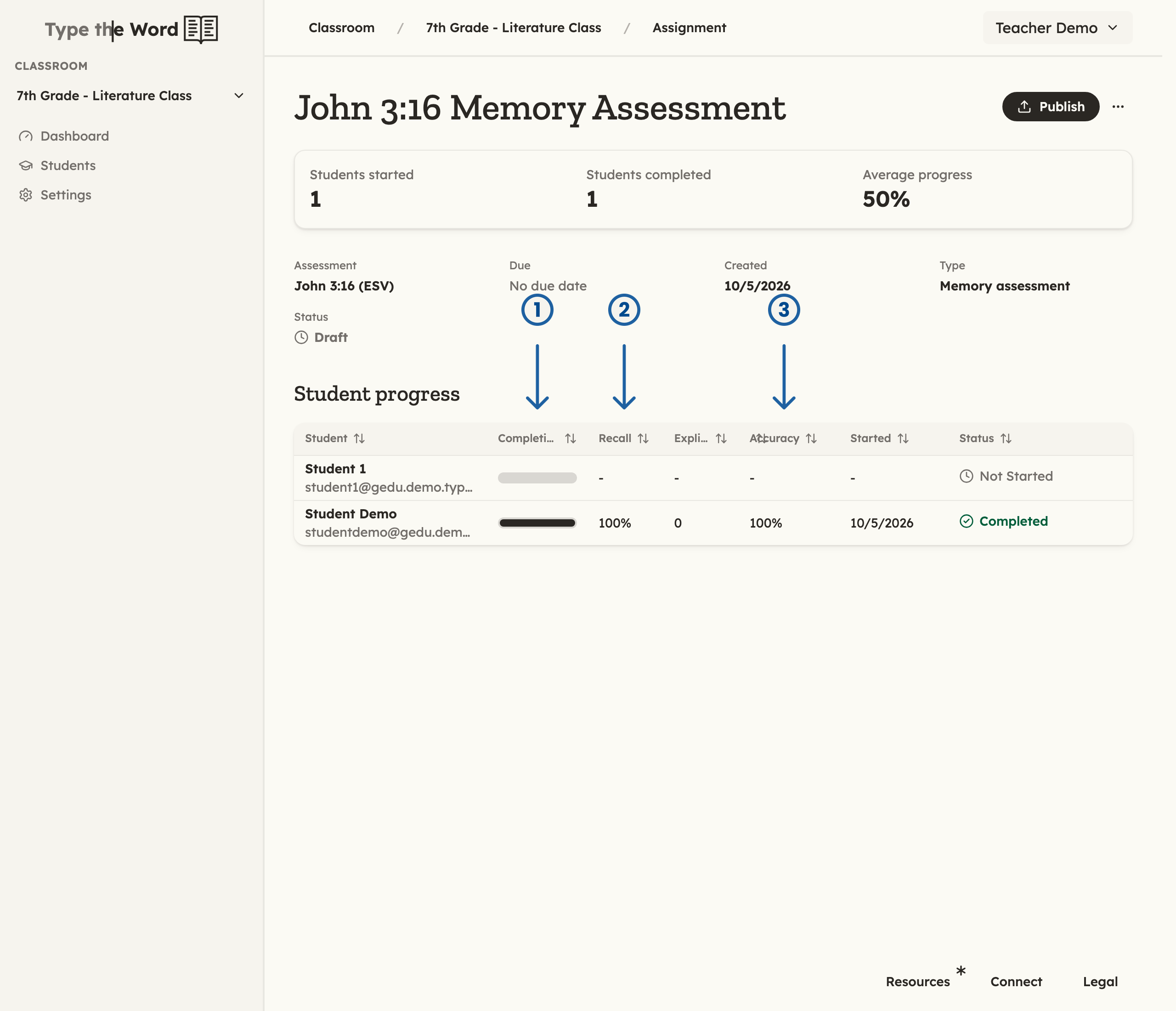
Open the assessment to see **"Student progress"**. **"Completion"** shows how
much of the assessment each student has finished. **"Recall"** is the
percentage of words completed without a hint or three or more first-letter
guesses. **"Accuracy"** measures typing accuracy.
Students type the passage with its words hidden. They can use hints when they
need help, and the results distinguish words recalled independently from words
completed with help.
## Review your students' results
Open the assessment to see **"Student progress"**. **"Completion"** shows how
much of the assessment each student has finished. **"Recall"** is the
percentage of words completed without a hint or three or more first-letter
guesses. **"Accuracy"** measures typing accuracy.
 **"Explicit hints"** counts words where a student requested help.
**"Guesses used"** counts words whose first letter was missed three or more
times. Capitalization-only misses do not count as guesses. Hints and guesses
lower recall; guesses alone do not lower accuracy. A student's status changes
to **"Completed"** after finishing the assessment.
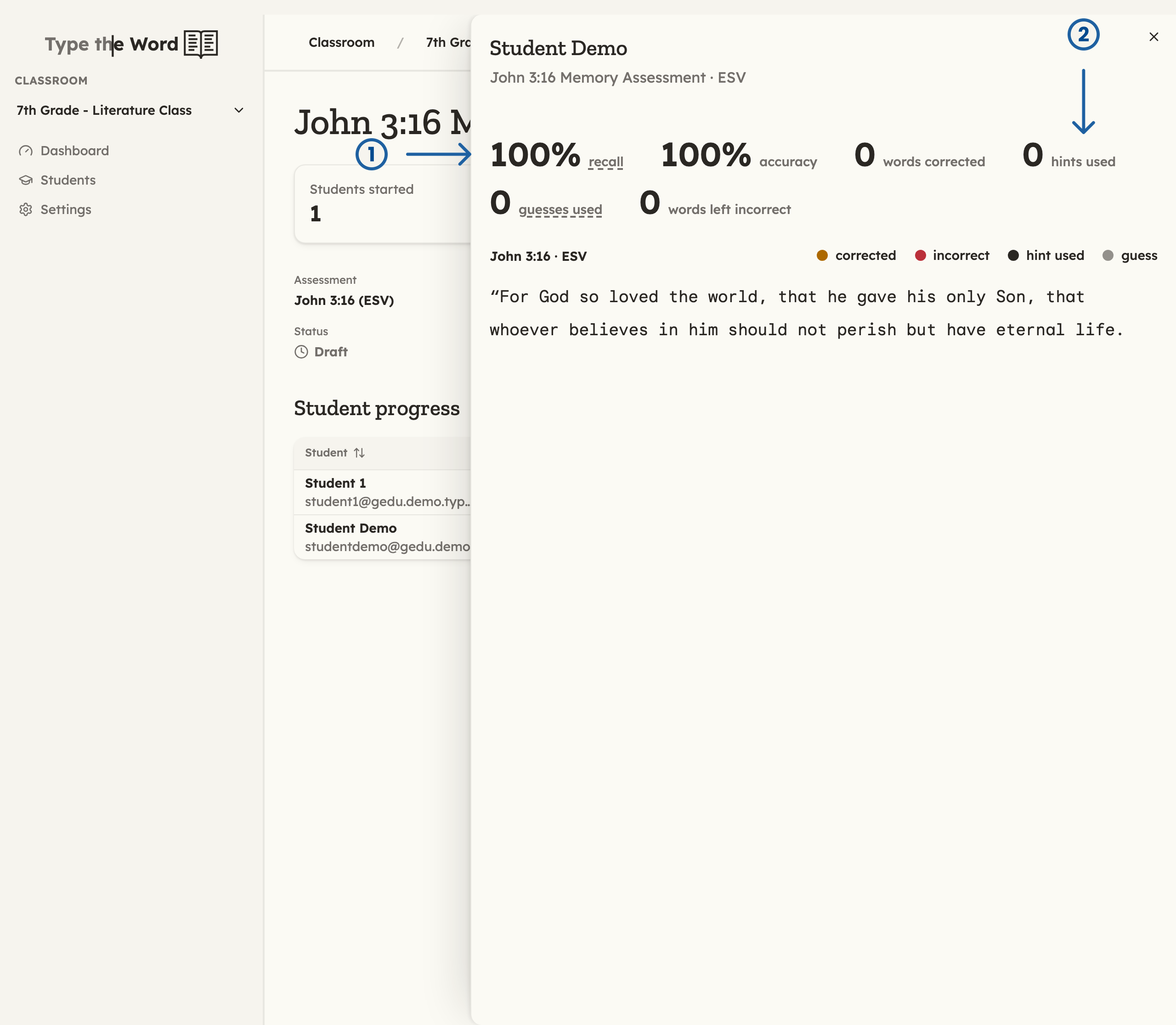
Select a student's row to open their detailed results. After they finish, you
can see their recall and accuracy, hints and guesses, corrected words, and
words left incorrect. The passage highlights show which words need more
practice.
**"Explicit hints"** counts words where a student requested help.
**"Guesses used"** counts words whose first letter was missed three or more
times. Capitalization-only misses do not count as guesses. Hints and guesses
lower recall; guesses alone do not lower accuracy. A student's status changes
to **"Completed"** after finishing the assessment.
Select a student's row to open their detailed results. After they finish, you
can see their recall and accuracy, hints and guesses, corrected words, and
words left incorrect. The passage highlights show which words need more
practice.
 For more practice before another assessment, use **"Memorize verses"** when
[creating assignments](/classroom/create-an-assignment).
This documentation is built and hosted on [Mintlify](https://mintlify.com), a developer documentation platform.
For more practice before another assessment, use **"Memorize verses"** when
[creating assignments](/classroom/create-an-assignment).
This documentation is built and hosted on [Mintlify](https://mintlify.com), a developer documentation platform.