> ## Documentation Index
> Fetch the complete documentation index at: https://docs.typetheword.com/llms.txt
> Use this file to discover all available pages before exploring further.
# Meet the class Dashboard
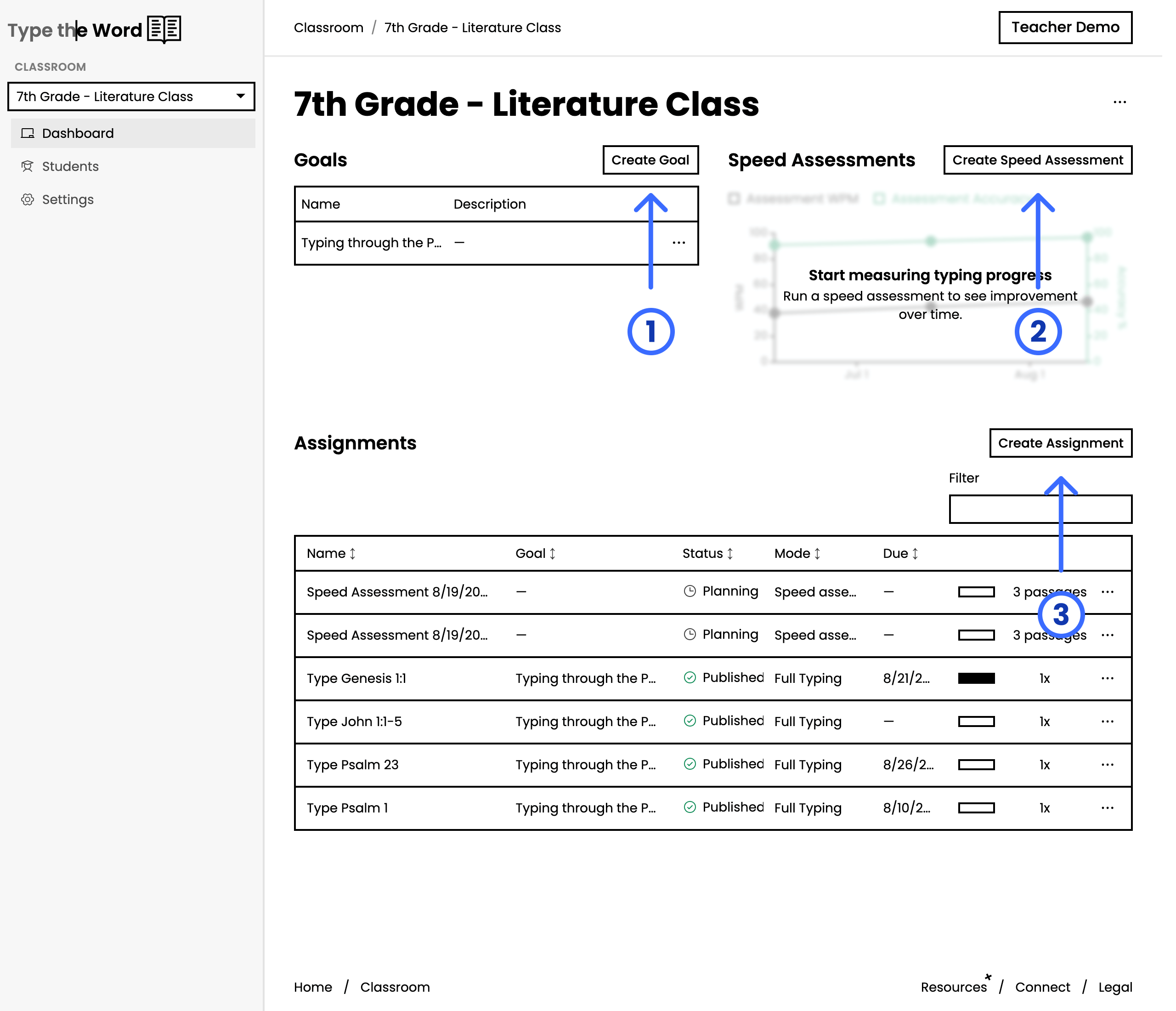
> The Dashboard is a great place to get an overview of your class. It shows the goals you are working toward, the assignments you have created, and your class's speed improvements over time.
 ## Switching Between Classrooms
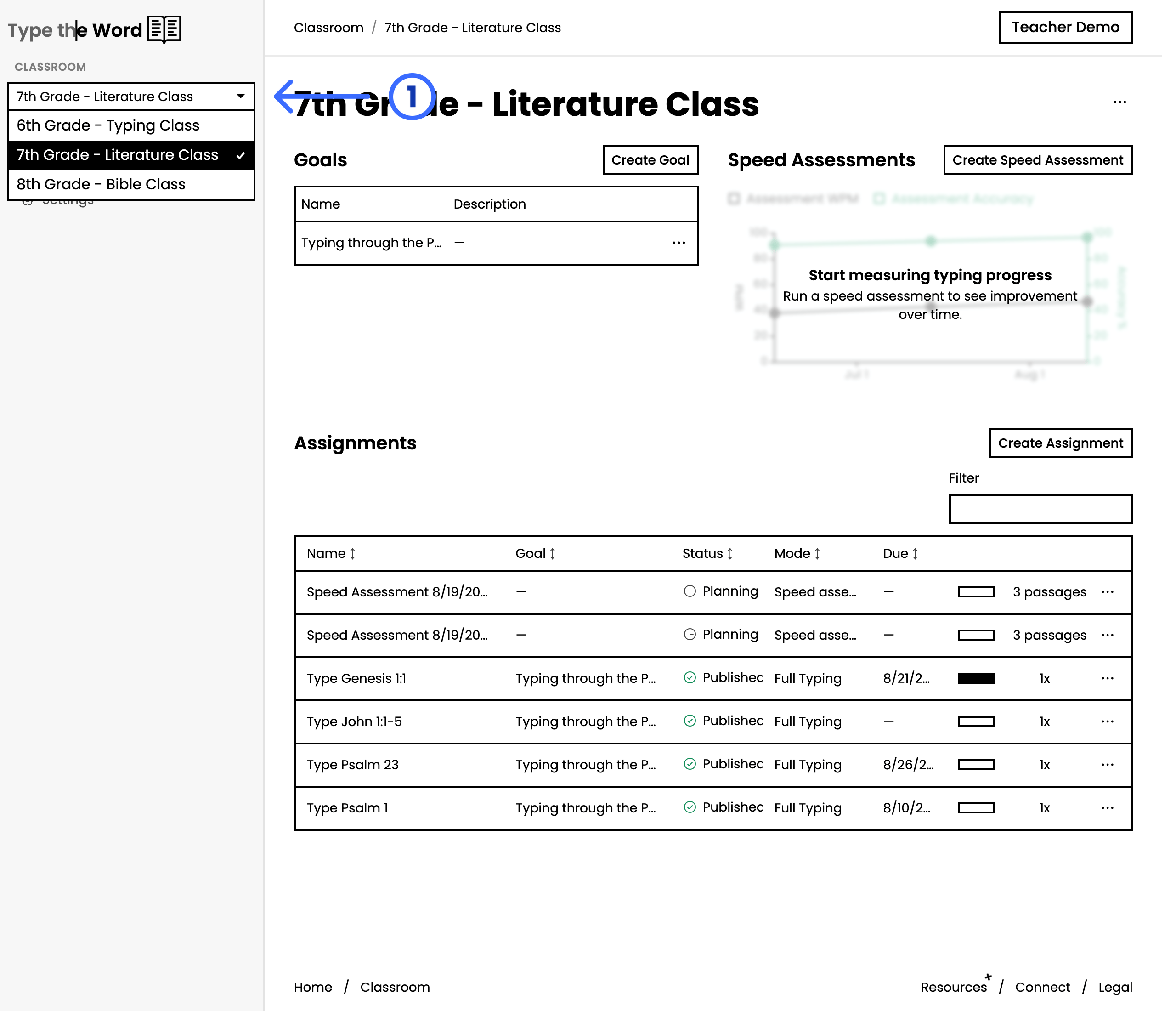
If you teach more than one class, you can swap between them here.
## Switching Between Classrooms
If you teach more than one class, you can swap between them here.
 ## Goals
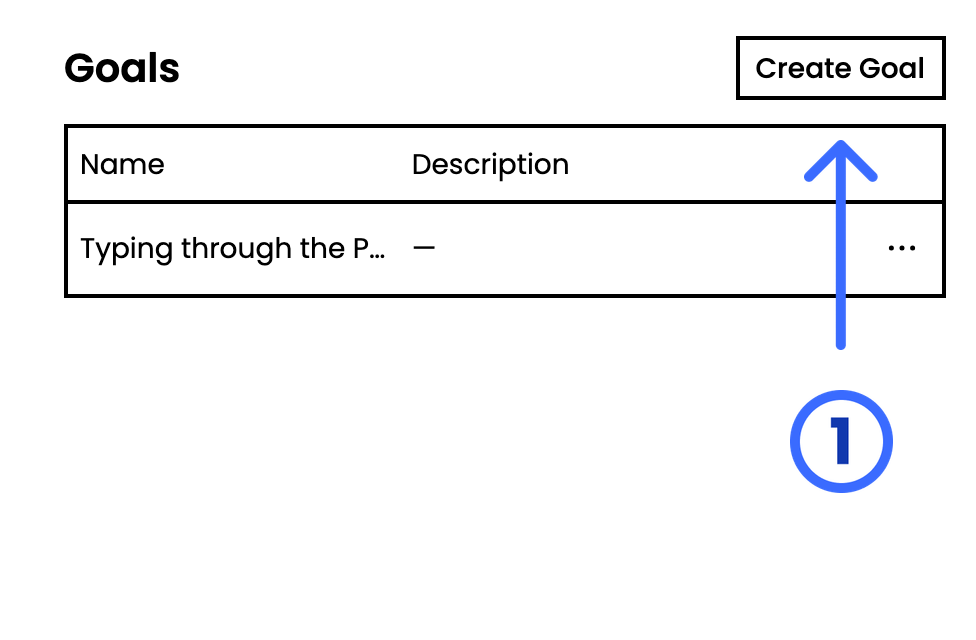
**"Goals"** are a great way to stay organized. Over a few weeks or your entire
semester, you can use them to group assignments under one common theme.
## Goals
**"Goals"** are a great way to stay organized. Over a few weeks or your entire
semester, you can use them to group assignments under one common theme.
 **"Goals"** are also the umbrella for how you use a curriculum. We will talk
more about this when we cover [assigning a typing
program](/classroom/assign-a-typing-program) or [using a Bible
curriculum](/classroom/assign-a-bible-curriculum).
## Assignments
At the bottom of **"Dashboard"** are all of your current **"Assignments"**. An
assignment is a batch of work your students can work through. Each one maps to
an assignment in your LMS, and a speed assessment is just a specific type of
assignment.
**"Goals"** are also the umbrella for how you use a curriculum. We will talk
more about this when we cover [assigning a typing
program](/classroom/assign-a-typing-program) or [using a Bible
curriculum](/classroom/assign-a-bible-curriculum).
## Assignments
At the bottom of **"Dashboard"** are all of your current **"Assignments"**. An
assignment is a batch of work your students can work through. Each one maps to
an assignment in your LMS, and a speed assessment is just a specific type of
assignment.
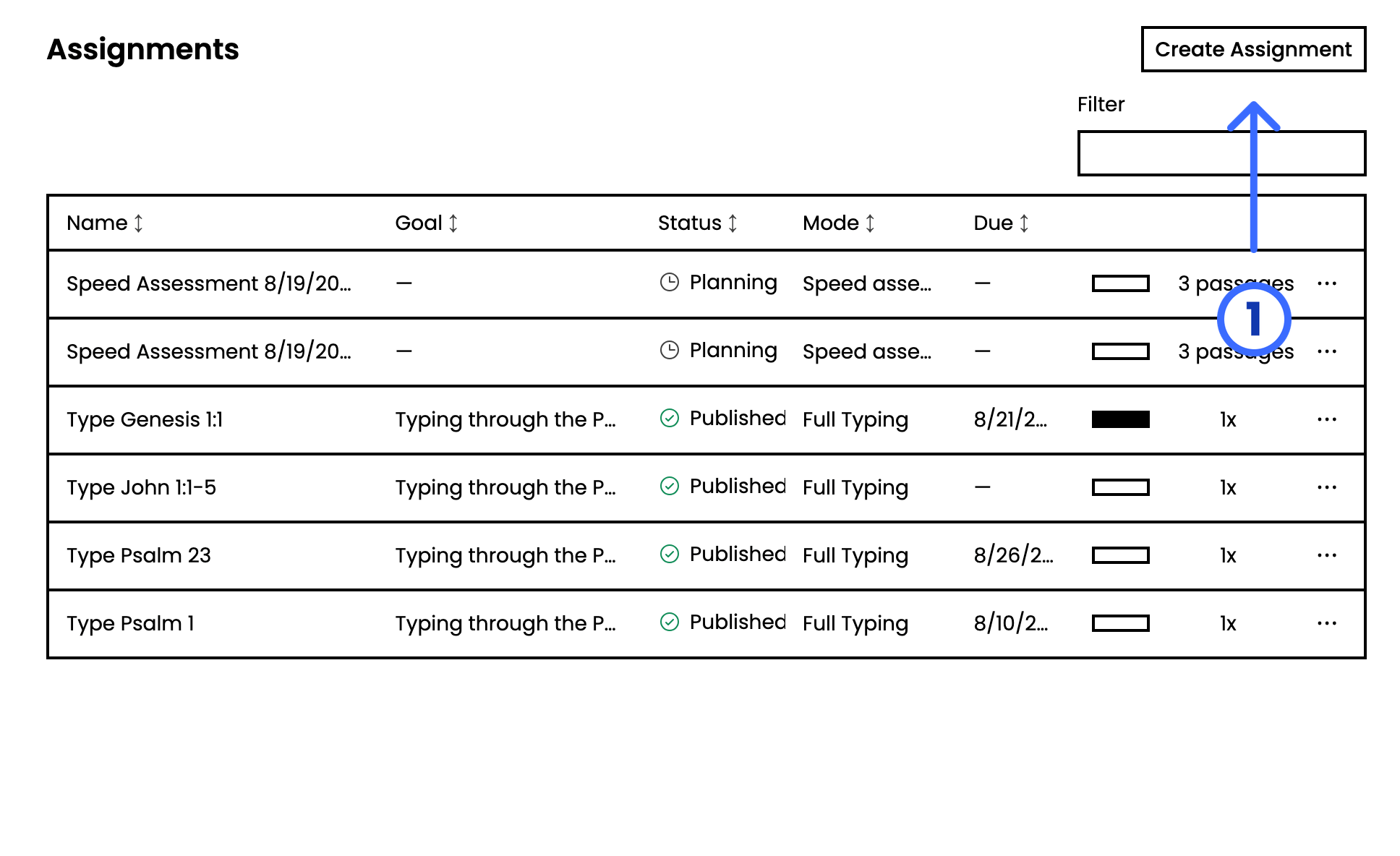 Until you **"Publish"** an assignment, it will not be visible to your
students.
## Speed Assessments
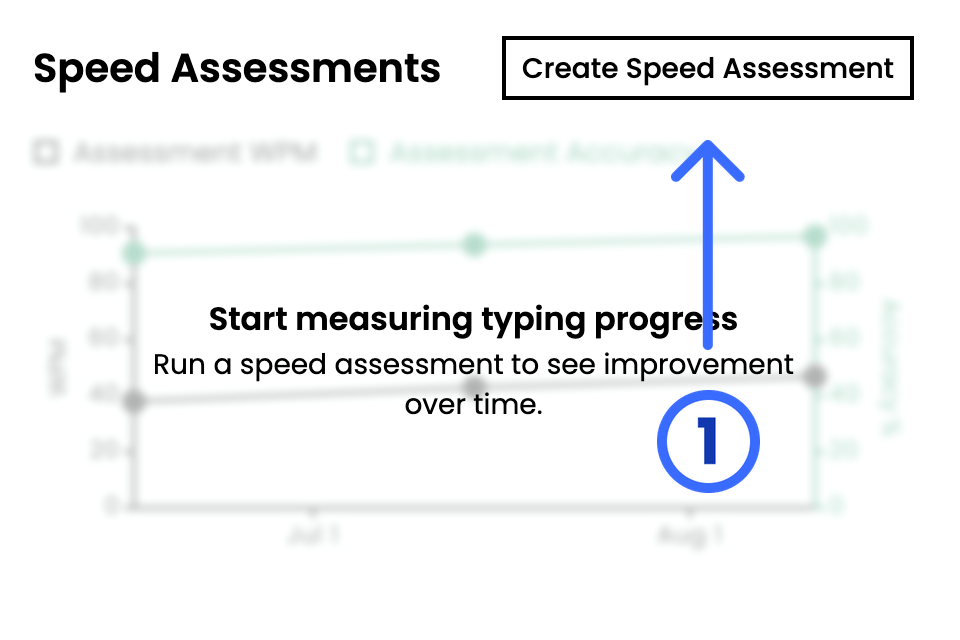
**"Speed Assessments"** are how you can get a snapshot of your class's typing
skills. [Running a speed
assessment](/classroom/run-a-speed-assessment) once a month is a great way to
see your students' progress over time. Once you have multiple speed
assessments, the aggregate speed and accuracy of your class will be plotted in
this section.
Until you **"Publish"** an assignment, it will not be visible to your
students.
## Speed Assessments
**"Speed Assessments"** are how you can get a snapshot of your class's typing
skills. [Running a speed
assessment](/classroom/run-a-speed-assessment) once a month is a great way to
see your students' progress over time. Once you have multiple speed
assessments, the aggregate speed and accuracy of your class will be plotted in
this section.