> ## Documentation Index
> Fetch the complete documentation index at: https://docs.typetheword.com/llms.txt
> Use this file to discover all available pages before exploring further.
# Manage translations
> Set a classroom default Bible translation, choose translation on an assignment, or set available translations on organization.
## Set the classroom default
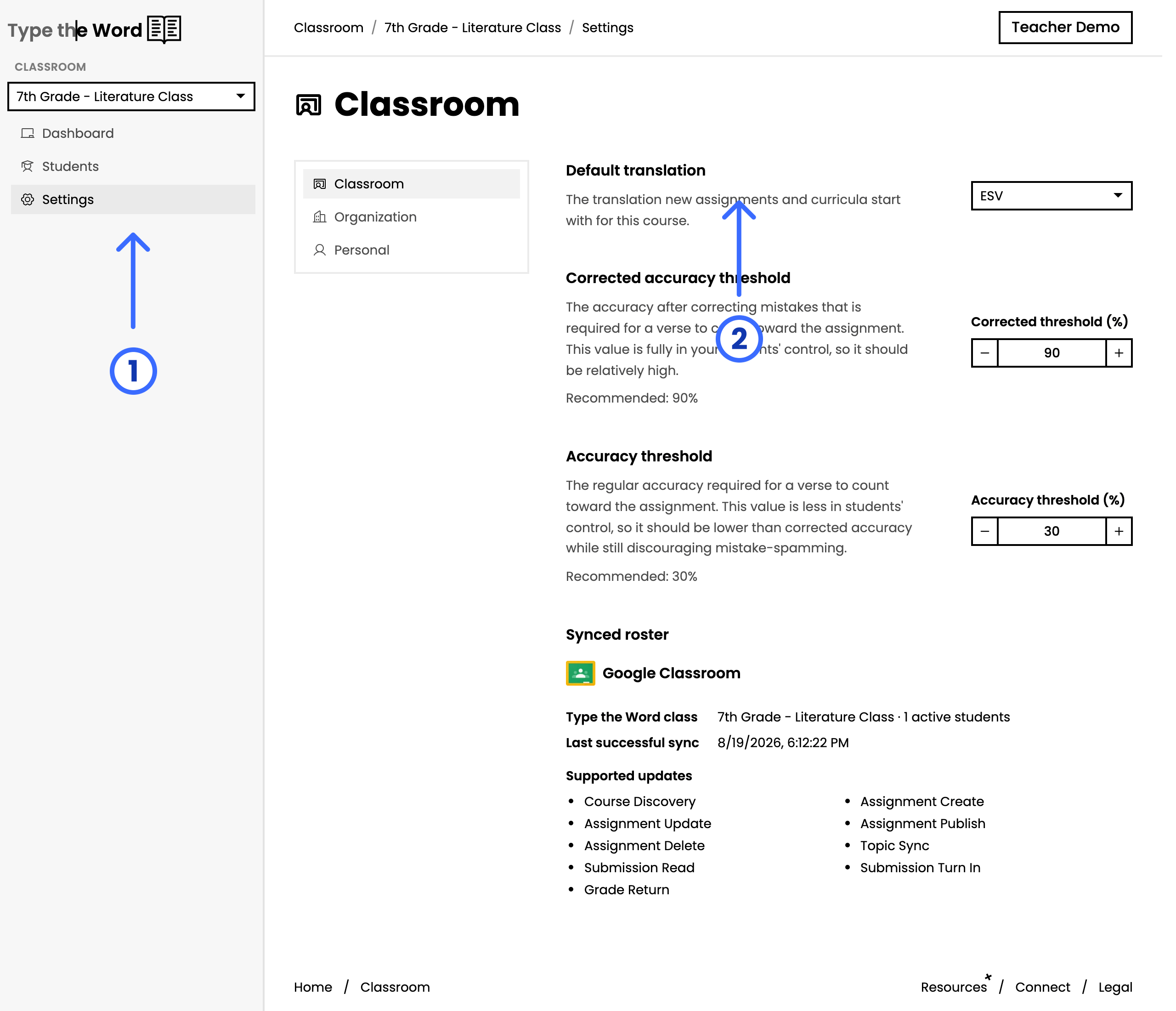
The **"Default translation"** is the translation that assignments and
assessments will default to within this classroom.
To update **"Default translation"**, you can head to **"Settings"**, and then
under **"Classroom"**, there is a **"Default translation"** option.
 ## Set available translations
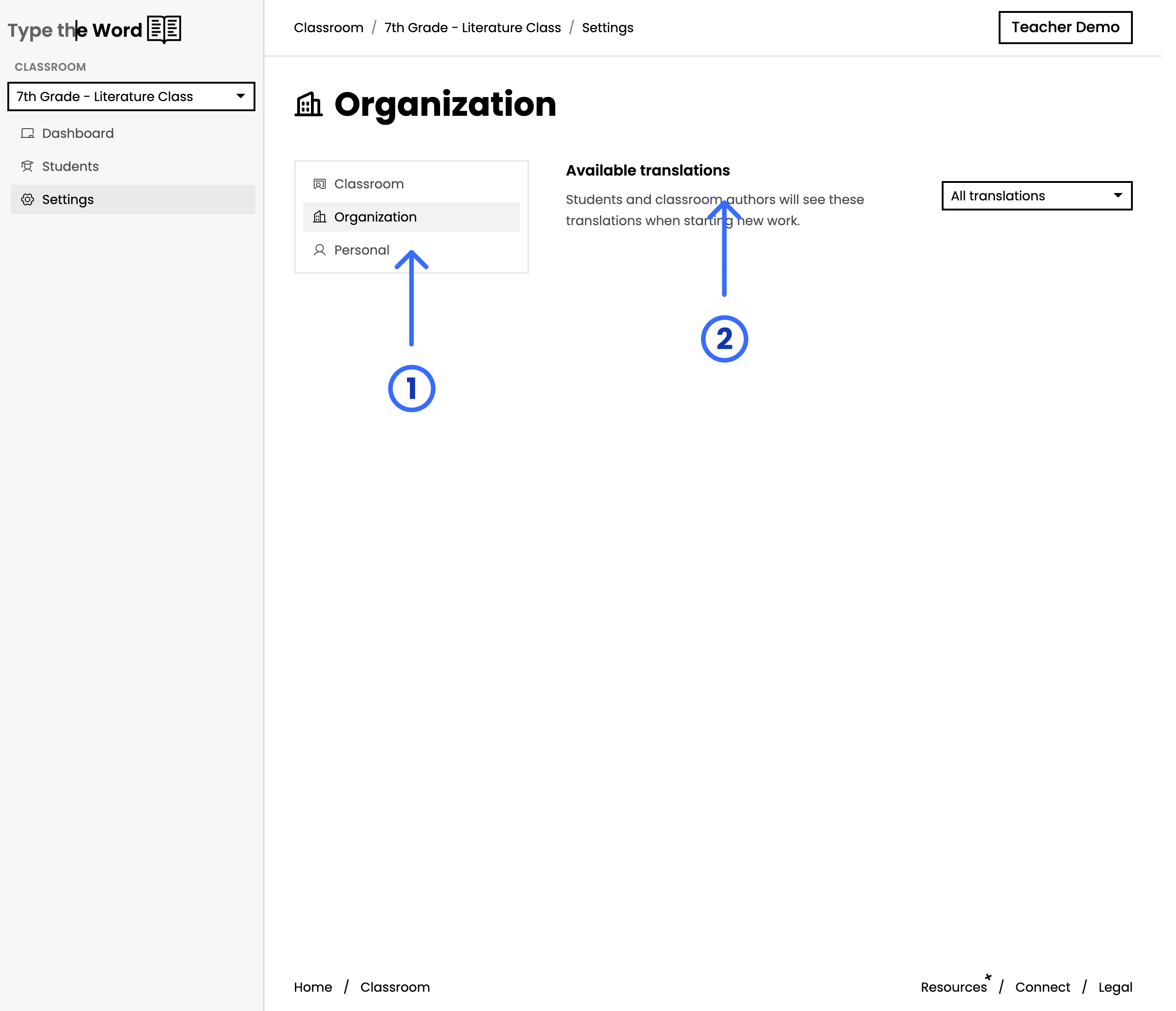
By default, students can access all translations in Type the Word, but
specifying **"Available translations"** allows you to prevent your students
from accessing translations you don't approve of.
## Set available translations
By default, students can access all translations in Type the Word, but
specifying **"Available translations"** allows you to prevent your students
from accessing translations you don't approve of.
 If you are using Clever or Canvas, this control may only be accessed by a
district administrator or school staff.
## Choose a translation on an assignment
Creating an assignment or speed assessment pre-fills **"Translation"** from the
classroom default. Change **"Translation"** on that form when one passage
should use a different Bible translation. Only translations in **"Available translations"**
appear in the list.
If you are using Clever or Canvas, this control may only be accessed by a
district administrator or school staff.
## Choose a translation on an assignment
Creating an assignment or speed assessment pre-fills **"Translation"** from the
classroom default. Change **"Translation"** on that form when one passage
should use a different Bible translation. Only translations in **"Available translations"**
appear in the list.
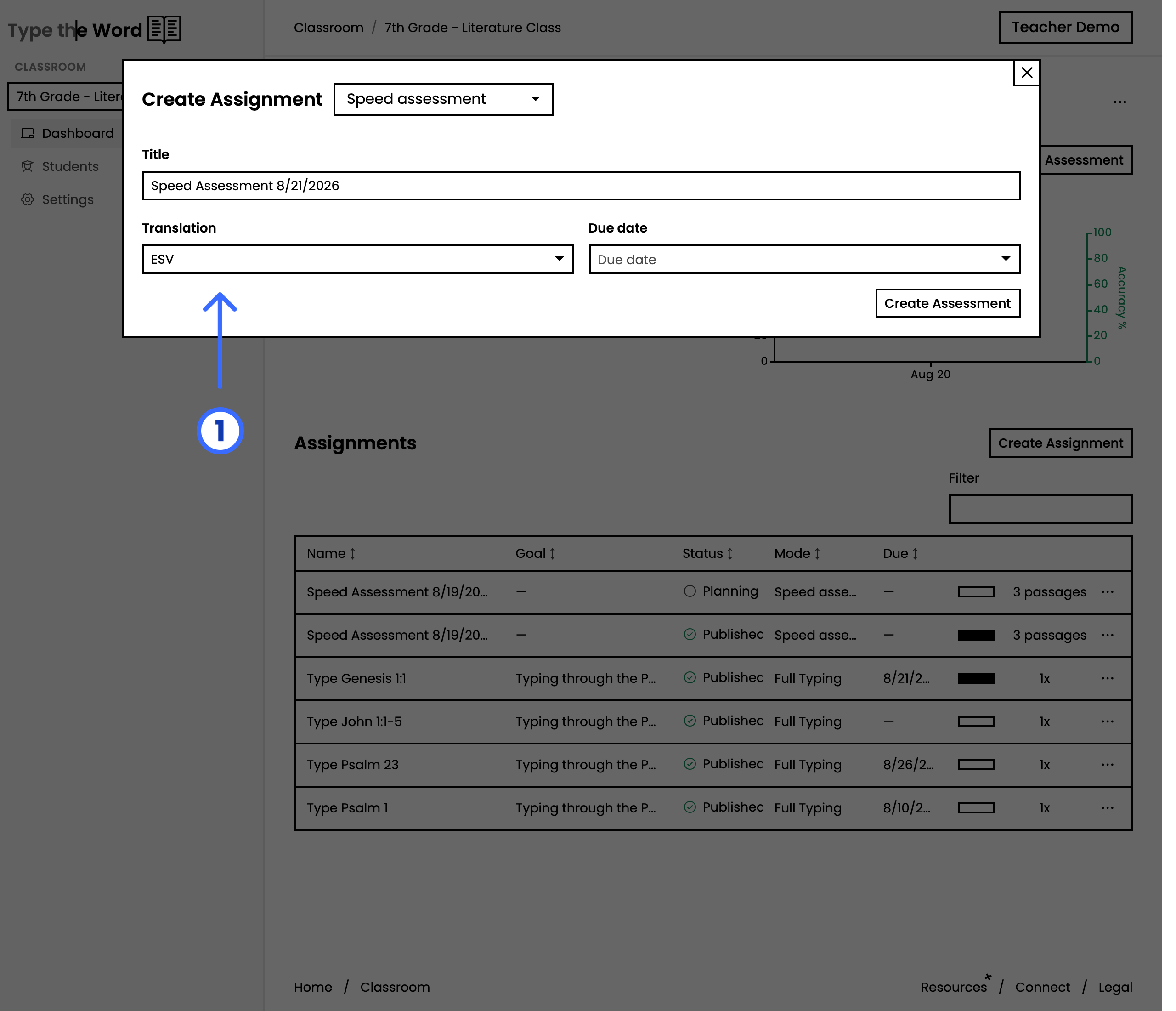 You will find the same **"Translation"** field anywhere you can create an
assignment.
You will find the same **"Translation"** field anywhere you can create an
assignment.