> ## Documentation Index
> Fetch the complete documentation index at: https://docs.typetheword.com/llms.txt
> Use this file to discover all available pages before exploring further.
# Confirm students are connected
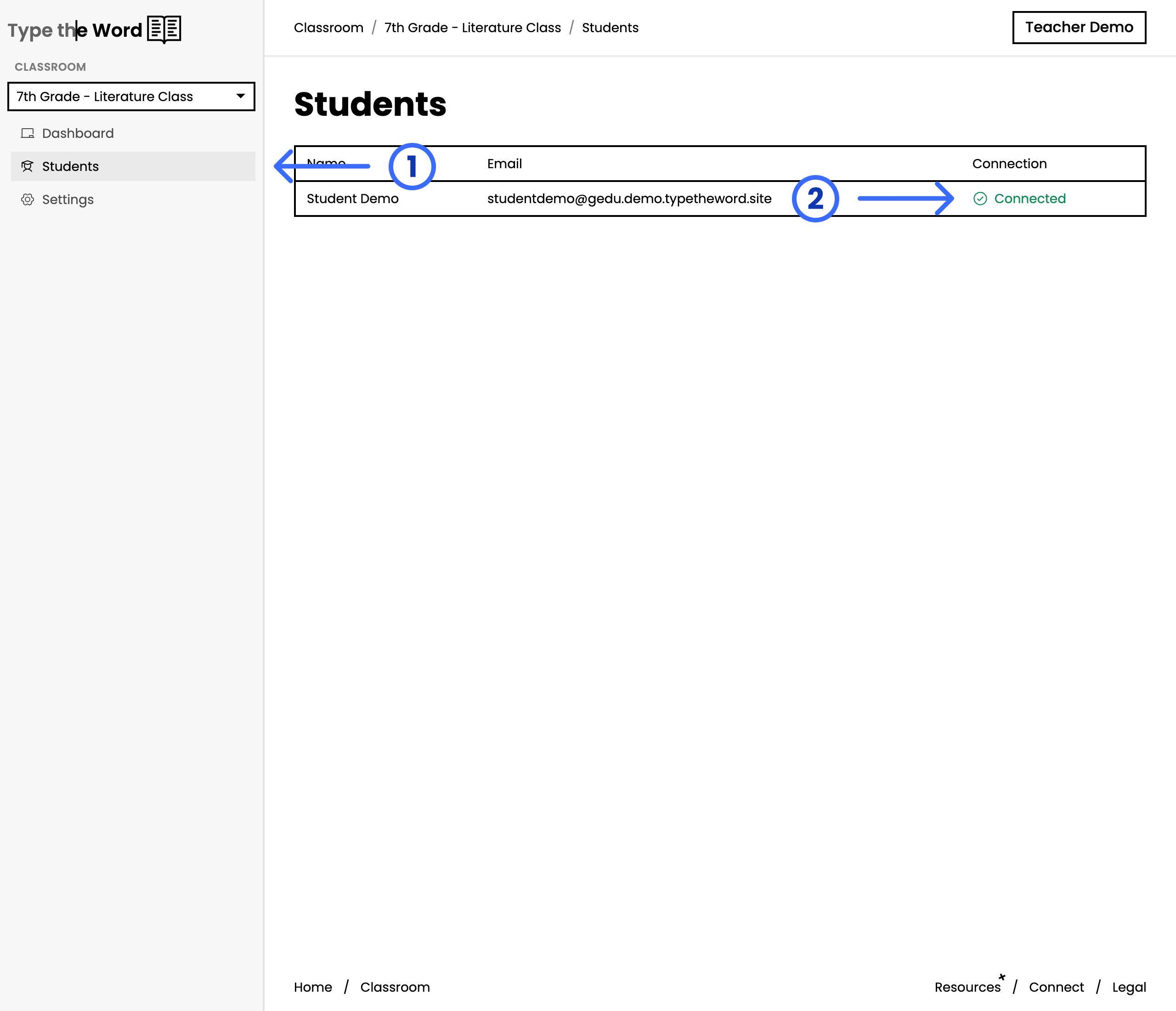
> Open Students and use the Connection column to see which students have already signed up and connected to Type the Word.
 ## Read the Connection column
* **"Connected"** — the student signed in with Google Classroom, Microsoft
Teams, or Canvas and can complete work.
* **"Signed up"** — the same meaning on a Clever roster.
* **"Not signed up"** — the student is on the roster but has not signed in yet.
Click the row to read why progress is unavailable.
* **"Disconnected"** — the student had a Type the Word account and lost the
school connection. Ask them to sign in again with the rostered school
account.
Students who are **"Not signed up"** cannot finish assignments. Send them the
matching setup guide before you run class work:
* [Set up a Google Classroom student](/google-classroom/student-setup)
* [Set up a Clever student](/clever/student-setup)
* [Set up a Microsoft Teams student](/microsoft-teams/student-setup)
* [Set up a Canvas student](/canvas/student-setup)
Once your roster is ready, a good place to start is [running a speed
assessment](/classroom/run-a-speed-assessment) so you have a benchmark of
where students are in their typing ability.
## Read the Connection column
* **"Connected"** — the student signed in with Google Classroom, Microsoft
Teams, or Canvas and can complete work.
* **"Signed up"** — the same meaning on a Clever roster.
* **"Not signed up"** — the student is on the roster but has not signed in yet.
Click the row to read why progress is unavailable.
* **"Disconnected"** — the student had a Type the Word account and lost the
school connection. Ask them to sign in again with the rostered school
account.
Students who are **"Not signed up"** cannot finish assignments. Send them the
matching setup guide before you run class work:
* [Set up a Google Classroom student](/google-classroom/student-setup)
* [Set up a Clever student](/clever/student-setup)
* [Set up a Microsoft Teams student](/microsoft-teams/student-setup)
* [Set up a Canvas student](/canvas/student-setup)
Once your roster is ready, a good place to start is [running a speed
assessment](/classroom/run-a-speed-assessment) so you have a benchmark of
where students are in their typing ability.