> ## Documentation Index
> Fetch the complete documentation index at: https://docs.typetheword.com/llms.txt
> Use this file to discover all available pages before exploring further.
# Assign a typing program
> There are three typing programs built into Type the Word to help your students learn how to use a keyboard.
## Keyboard Foundations
**"Keyboard Foundations"** introduces the letters and the main keys while
students discover attributes of God in Scripture. Start here when students are
still learning where keys are. To see what each lesson teaches, check out the
Scripture used in each [Keyboard Foundations
lesson](/curriculum/keyboard-foundations).
## Keyboard Proficiency
**"Keyboard Proficiency"** covers numbers and symbols while students trace the
promises of God through Scripture. Use it after **"Keyboard Foundations"**,
once letters and the main keys are in place. To see what each lesson teaches,
check out the Scripture used in each [Keyboard Proficiency
lesson](/curriculum/keyboard-proficiency).
## The Story of Scripture
**"The Story of Scripture"** walks through the Bible's story from creation to
new creation. Use it after **"Keyboard Proficiency"**, when students are ready
to type longer Scripture passages. To see what each lesson teaches, check out
the Scripture used in each [Story of Scripture
lesson](/curriculum/the-story-of-scripture).
## Assign a typing curriculum
On **"Dashboard"**, select **"Create Goal"**. Set **"Source"** to **"Type the
Word"** to filter the list of curricula to specifically show the typing
programs.
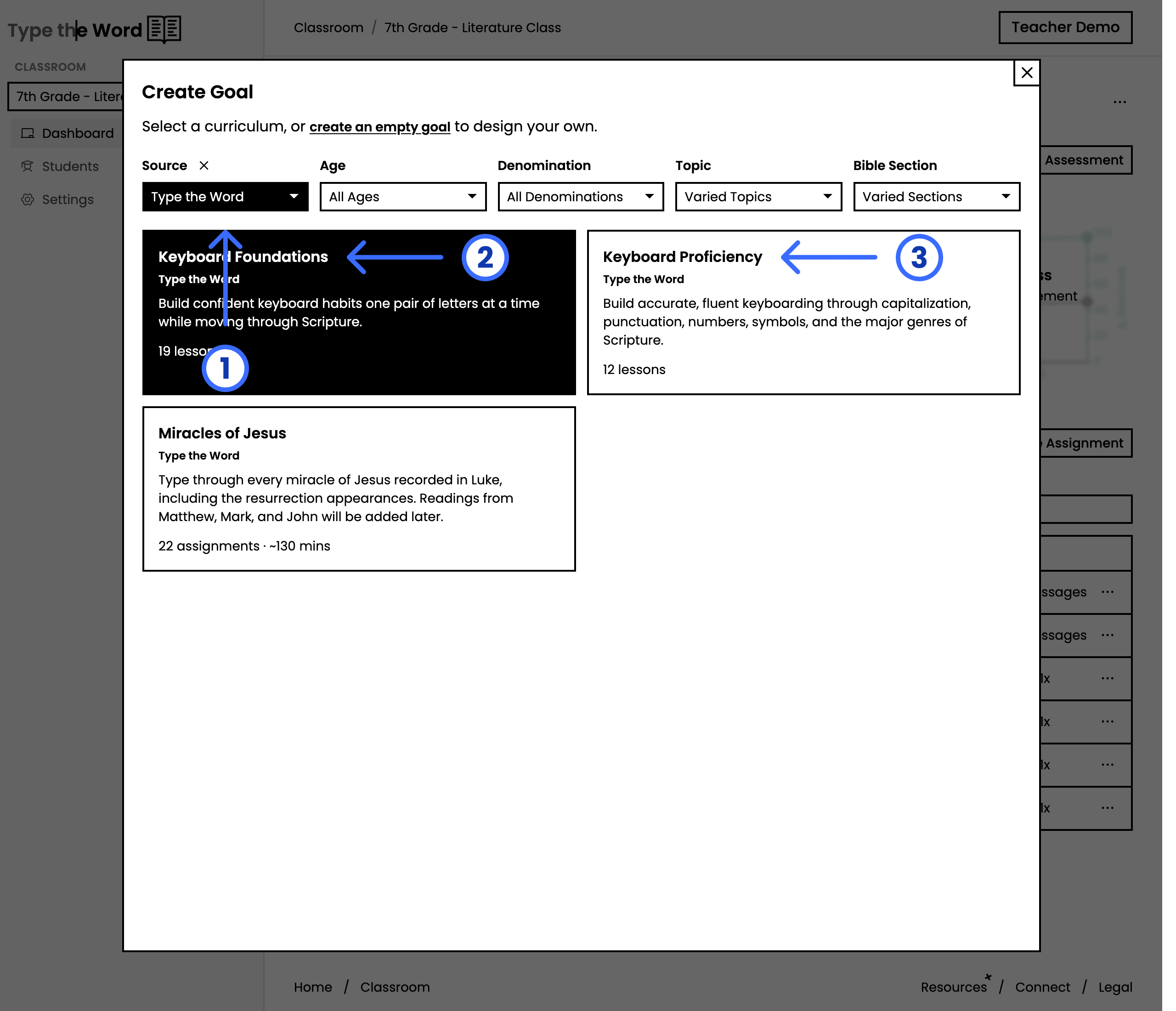 Choose **"Keyboard Foundations"**, **"Keyboard Proficiency"**, or **"The Story
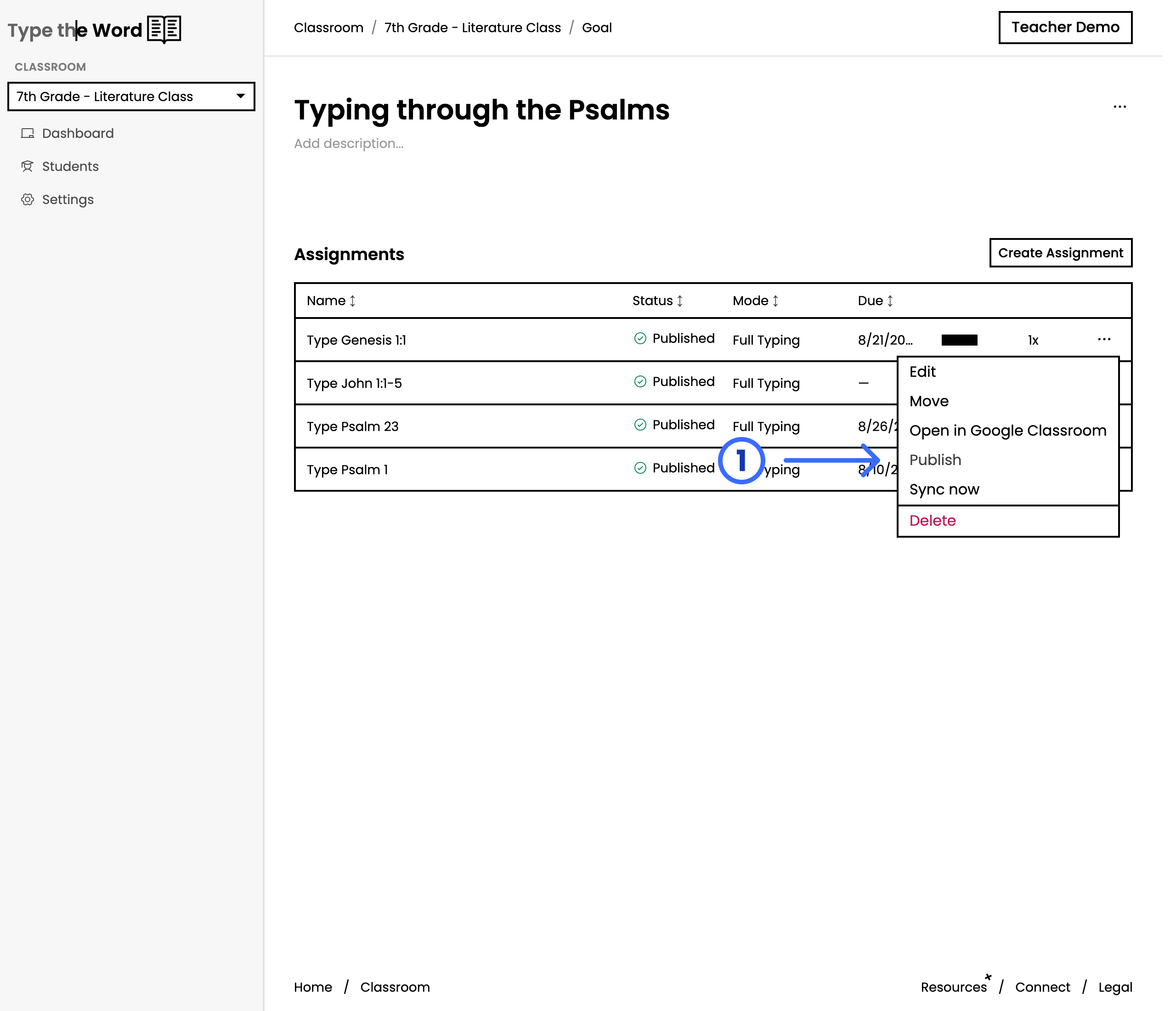
of Scripture"**, then select **"Create Goal"**. Open the menu for the first
assignment and click **"Publish"** so your students can have access to the
first lesson.
Choose **"Keyboard Foundations"**, **"Keyboard Proficiency"**, or **"The Story
of Scripture"**, then select **"Create Goal"**. Open the menu for the first
assignment and click **"Publish"** so your students can have access to the
first lesson.
 ## These learning programs are always available to your students
These three typing curricula are always available to your students. You can
learn more about this in [**"When you have no
assignments"**](/students/when-you-have-no-assignments).
Now that they are familiar with their keyboard, it is time to type some
Scripture. Let's [assign a Bible
curriculum](/classroom/assign-a-bible-curriculum).
## These learning programs are always available to your students
These three typing curricula are always available to your students. You can
learn more about this in [**"When you have no
assignments"**](/students/when-you-have-no-assignments).
Now that they are familiar with their keyboard, it is time to type some
Scripture. Let's [assign a Bible
curriculum](/classroom/assign-a-bible-curriculum).