> ## Documentation Index
> Fetch the complete documentation index at: https://docs.typetheword.com/llms.txt
> Use this file to discover all available pages before exploring further.
# Assign a Bible curriculum
> Once your students have learned the basics of using a keyboard, you can assign a Bible curriculum so they can continue practicing their typing skills while typing through the actual Bible.
## Create a curriculum goal
If they still need keyboard basics, start with a [typing
program](/classroom/assign-a-typing-program). But assuming they are familiar with
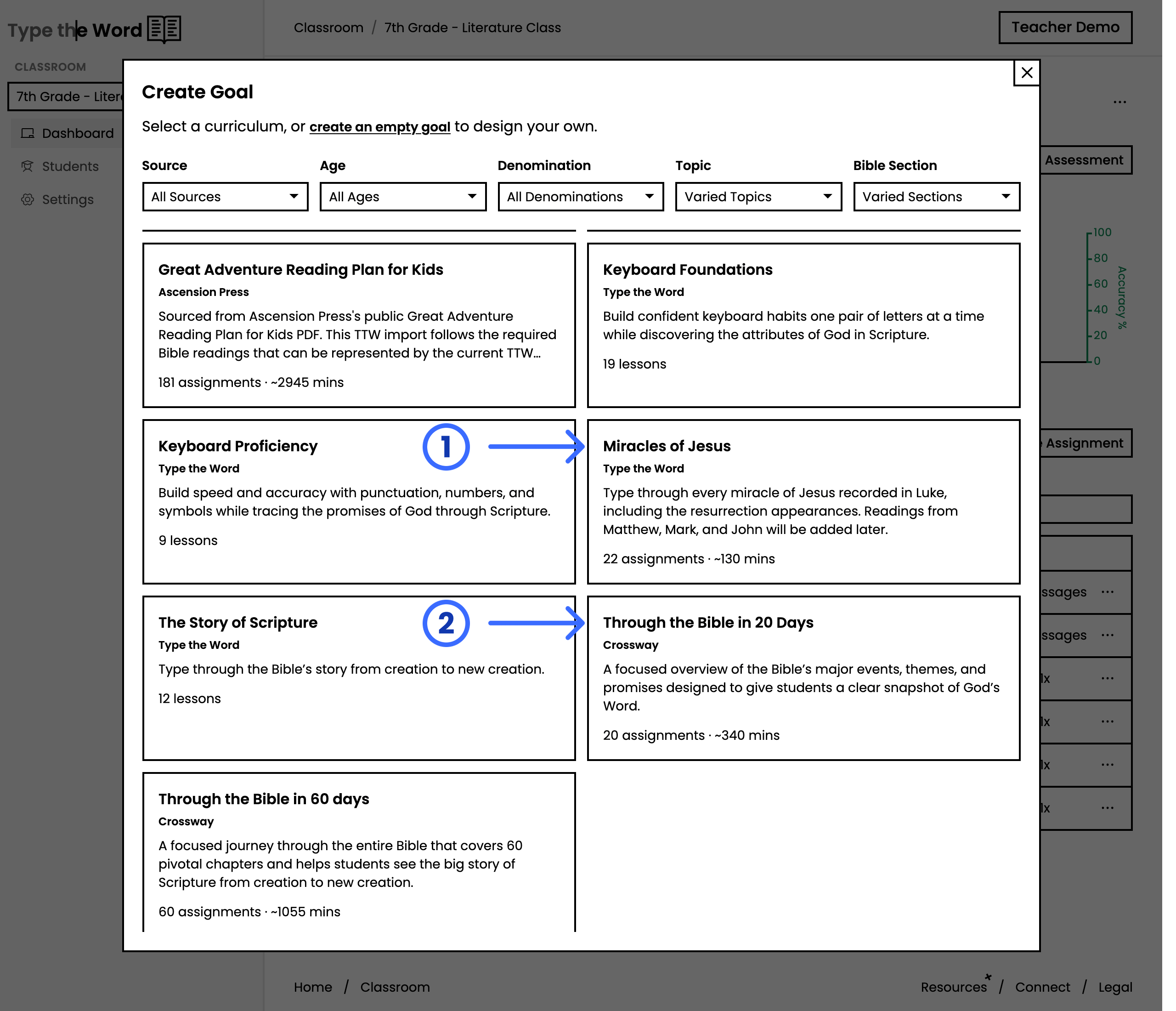
the keyboard, head to **"Dashboard"**, click **"Create Goal"**, and find one
of the Bible curricula there. There are some great options, including
**"Miracles of Jesus - Luke"** or **"Through the Bible in 20 Days"**.
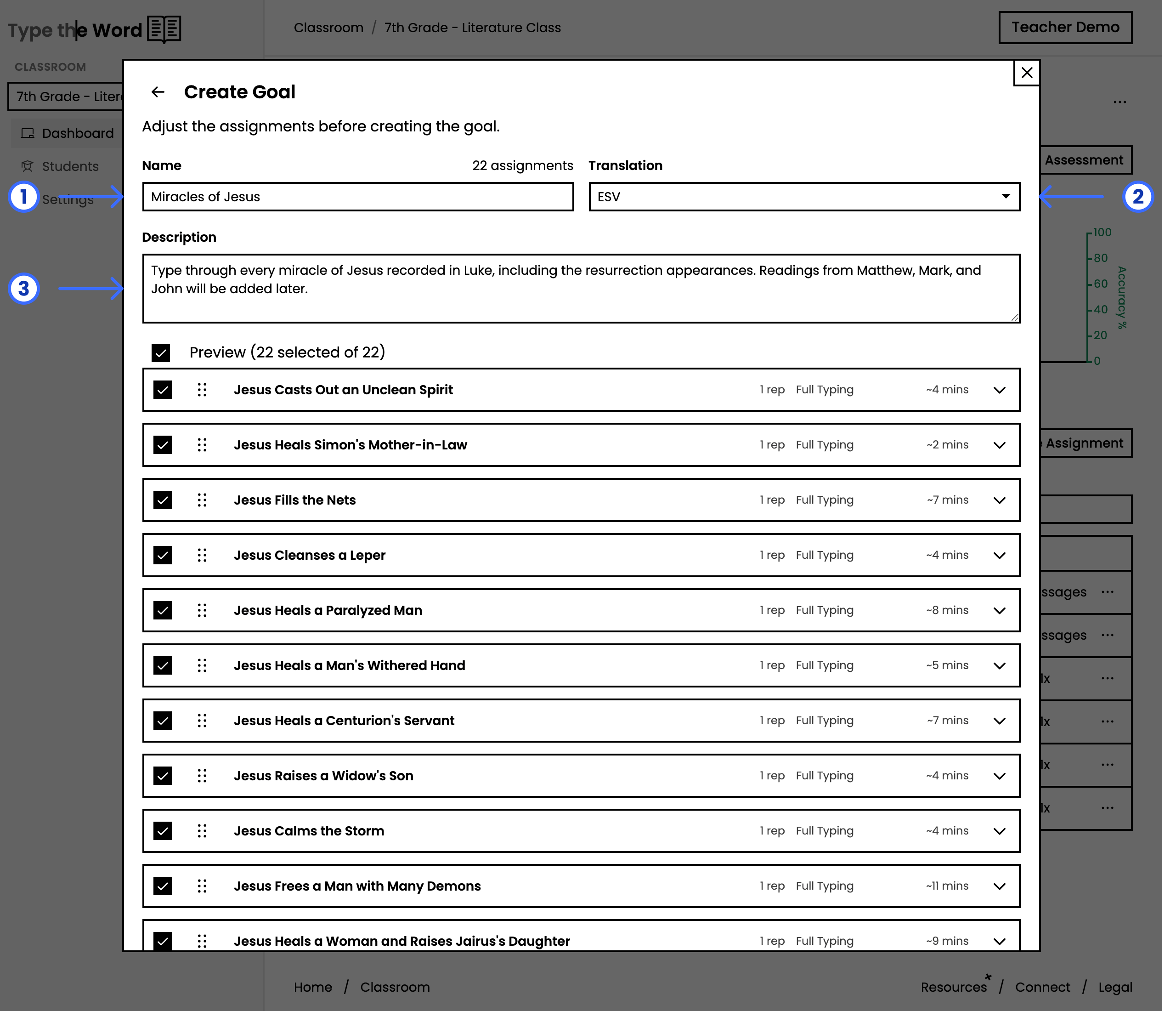
 Once you've selected a curriculum, you can customize the name,
translation, and description, and then click **"Create Goal"** to use
this curriculum in your class.
Once you've selected a curriculum, you can customize the name,
translation, and description, and then click **"Create Goal"** to use
this curriculum in your class.
 ## Publish the next assignment
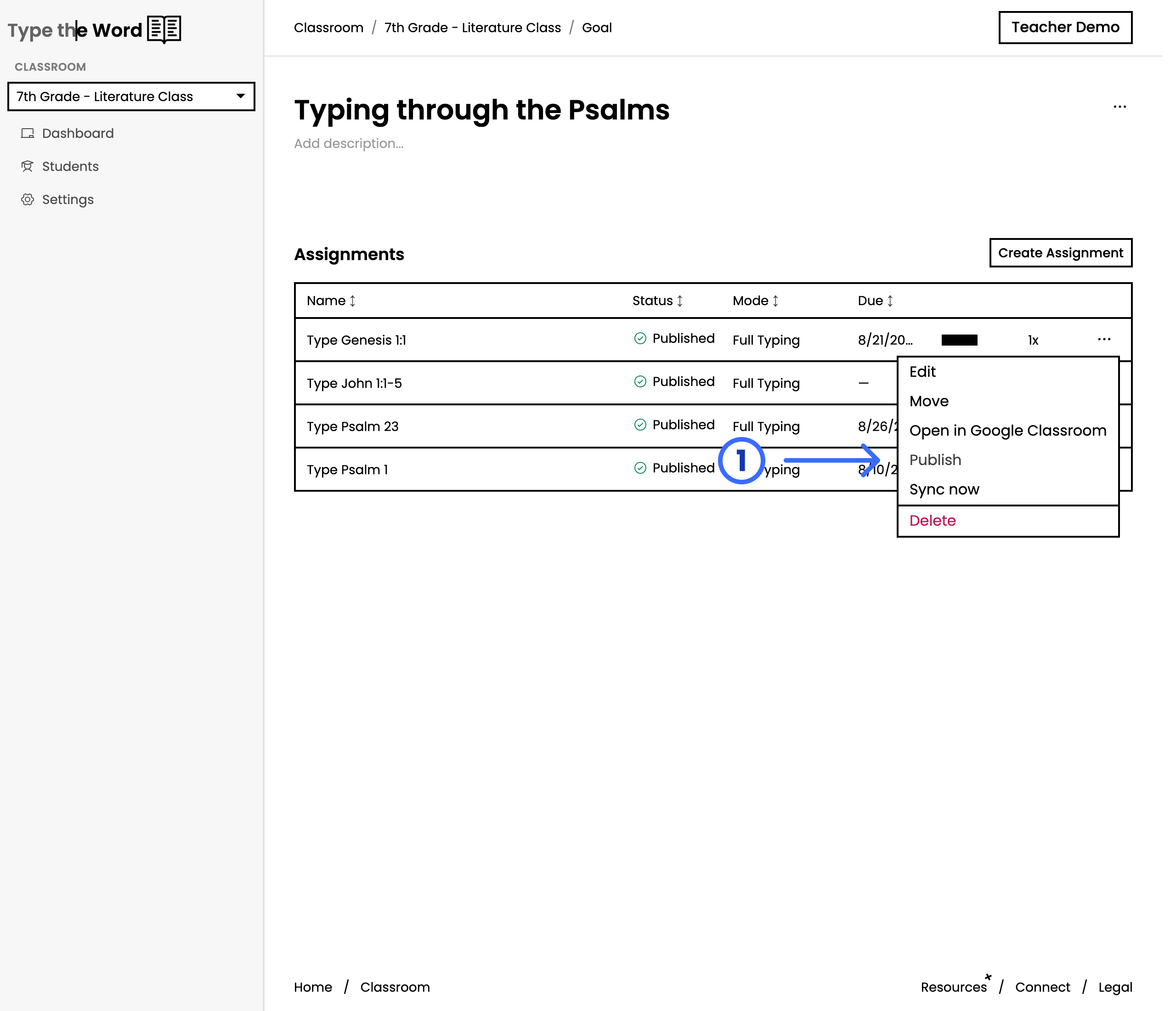
Now that you have a goal, you can open the menu for the first assignment and
click **"Publish"** so that it shows up for your students and in your LMS.
## Publish the next assignment
Now that you have a goal, you can open the menu for the first assignment and
click **"Publish"** so that it shows up for your students and in your LMS.
 With your students typing the Bible, you can now follow along with
their progress on the [**"Students"**](/classroom/monitor-student-progress) page.
With your students typing the Bible, you can now follow along with
their progress on the [**"Students"**](/classroom/monitor-student-progress) page.