> ## Documentation Index
> Fetch the complete documentation index at: https://docs.typetheword.com/llms.txt
> Use this file to discover all available pages before exploring further.
# Set up a Canvas teacher
> Launch Type the Word from Canvas and verify your teaching roster.
## Prerequisites
* Your administrator has completed [Connect your SIS](/canvas/connect-sis) and
[Connect to Canvas](/canvas/connect-canvas).
* Your Canvas account is a teacher in at least one connected course.
## Launch Type the Word
Sign in to Canvas with your teacher account. Open your course and select Type
the Word in the course navigation, or open a Type the Word assignment.
Complete the Clever authorization prompt if it appears, then wait for Type
the Word to open a class.
On a shared device, always launch from your own Canvas session. Type the
Word ends the previous local session before beginning a new Canvas login.
## Verify your classes
After you sign in, the **"Classroom"** dropdown in the sidebar lists the
classes you teach that are shared with Type the Word. Select the class you
want to manage.
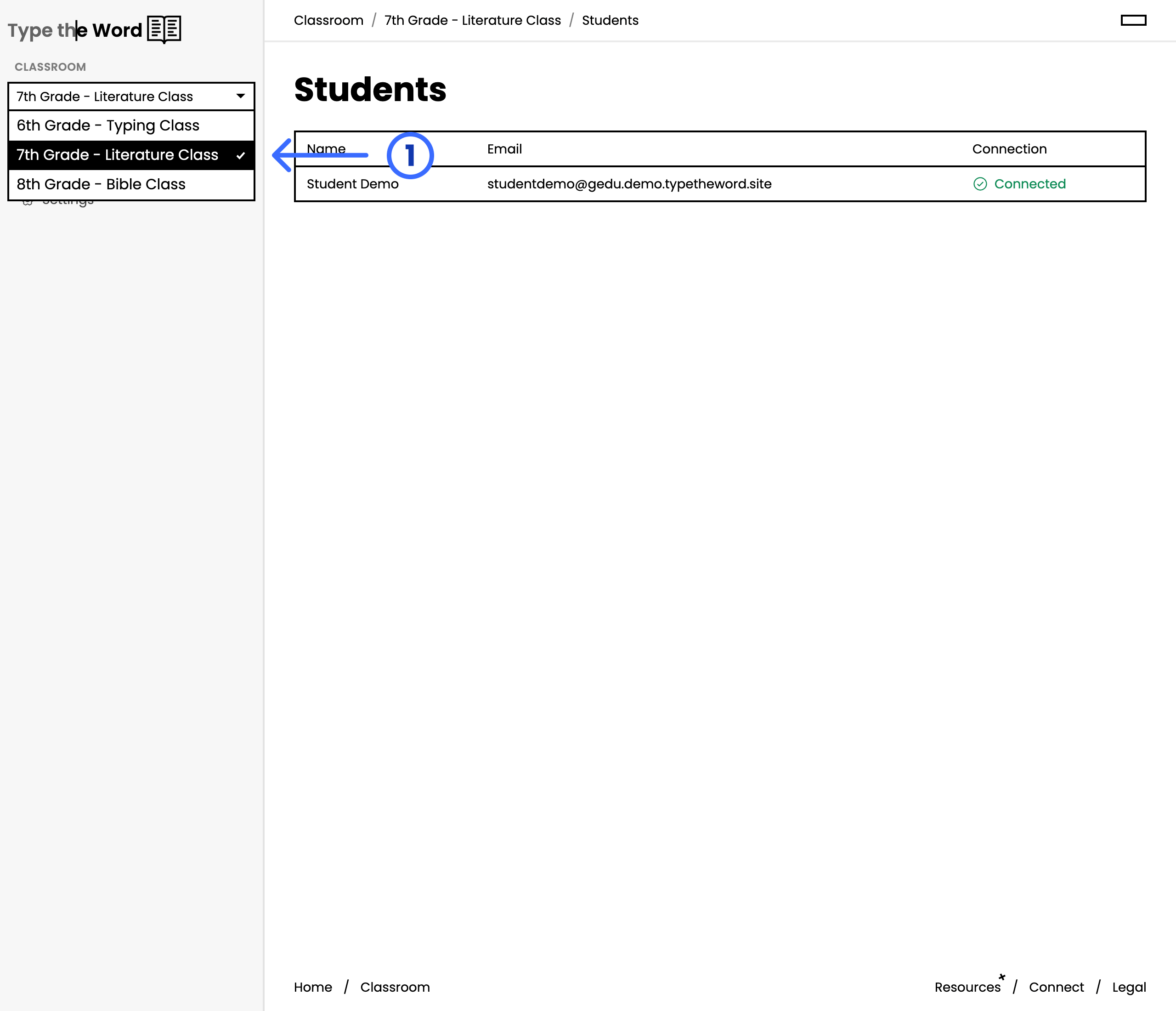 From there, select **"Students"** and compare the roster with the same
course in Canvas.
## Setup complete
Teacher onboarding is complete when you can open a class and see its expected student roster. Continue by sharing the [student setup guide](/canvas/student-setup).
## Troubleshooting
* **No classes appear:** Ask your administrator to confirm your sections are in the AnySchool roster and matched to Canvas.
* **Roster is out of date:** Confirm Canvas and your SIS contain the correction. Type the Word syncs your roster nightly.
From there, select **"Students"** and compare the roster with the same
course in Canvas.
## Setup complete
Teacher onboarding is complete when you can open a class and see its expected student roster. Continue by sharing the [student setup guide](/canvas/student-setup).
## Troubleshooting
* **No classes appear:** Ask your administrator to confirm your sections are in the AnySchool roster and matched to Canvas.
* **Roster is out of date:** Confirm Canvas and your SIS contain the correction. Type the Word syncs your roster nightly.